

Settings overview
Lexpoint settings are one list at /app/settings, plus a
link to support. Two pairs of names are easy to mix up, so start here: Associations is family,
partners, and employer connections, and Access is ImmiReport sharing, case grants, and
delegates. Subscription is your Lexpoint plan, and Payments is what you owe on cases.
The top of the page repeats who you are — your name, your email, a Free or Pro pill, and the month you joined.
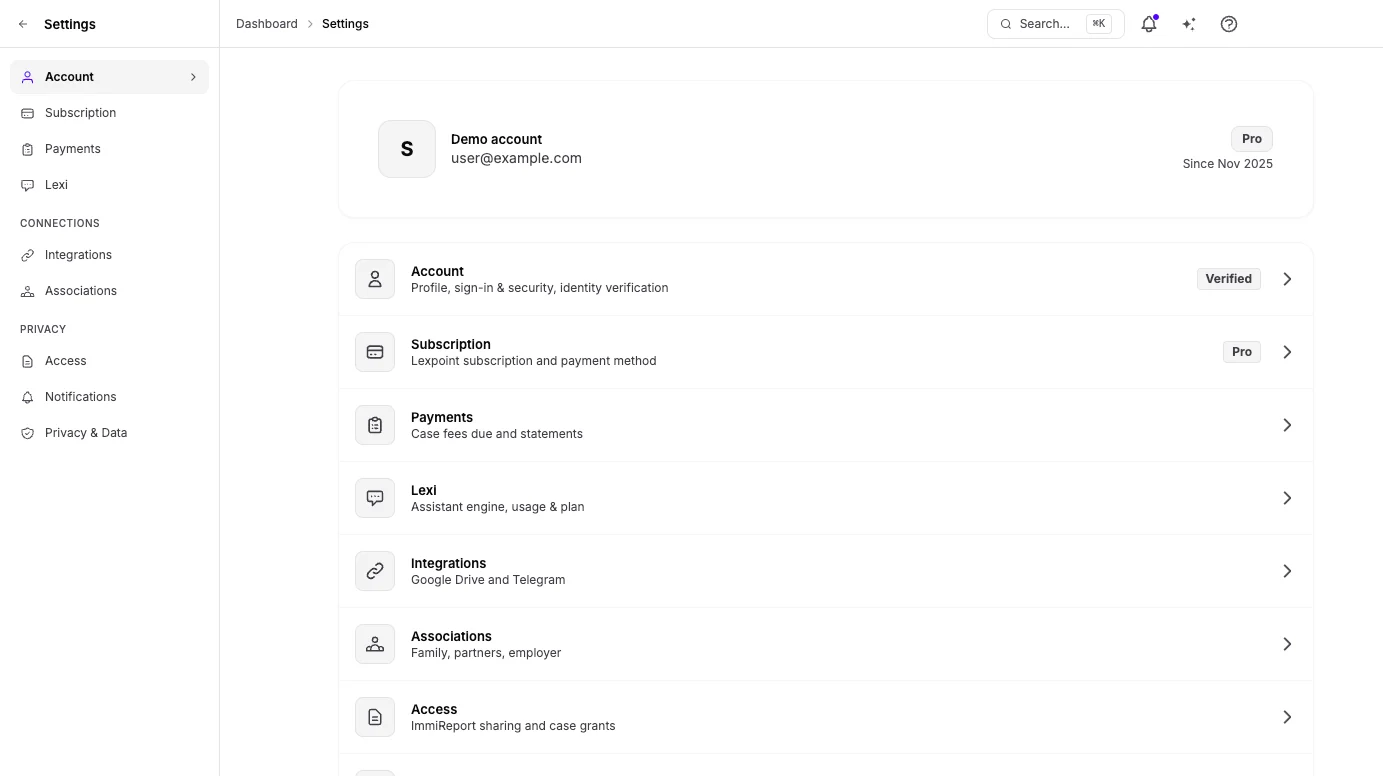
The settings areas
Section titled “The settings areas”| Area | The list says | What is in it |
|---|---|---|
| Account | Profile, sign-in & security, identity verification | Tabs Profile, Sign-in, and Identity: your name and phone, sign-in methods, two-step verification, and identity verification |
| Subscription | Lexpoint subscription and payment method | Your Lexpoint plan — upgrading, managing, or cancelling Pro |
| Payments | Case fees due and statements | What you owe on cases, and published case statements |
| Lexi | Assistant engine, usage & plan | Settings for the Lexi assistant |
| Integrations | Google Drive and Telegram | Connecting and disconnecting Google Drive and Telegram |
| Associations | Family, partners, employer | Your household link, partner-code consent, default servicing organization (routing, not counsel), and employer workforce links |
| Access | ImmiReport sharing and case grants | Shareable ImmiReport link and PIN, partner access to a case, and delegates |
| Notifications | Email, Telegram preferences | Which emails you receive, and connecting Telegram |
| Privacy & data | Your résumé, a copy of your data, remove your profile | Your résumé and a copy of your data, and removing your profile |
Below the list, a separate card links to Help & Support — View tickets, get assistance.
Inside settings, a menu lists the same areas, grouped under Connections (Integrations, Associations) and Privacy (Access, Notifications, Privacy & Data).
The badges on the list
Section titled “The badges on the list”Two rows carry a status badge:
- Account shows Verified or Unverified. This is your identity verification status.
- Subscription shows Free or Pro.
Prompts that appear conditionally
Section titled “Prompts that appear conditionally”Two cards appear above the list only when they apply:
- Upgrade to Pro — Full access to all immigration programs — shown while you are on the free plan. It opens Subscription.
- Add your phone number — Stay connected and receive important updates — shown while no phone number is saved on your account. It opens Account details.
Related
Section titled “Related”- Your account details — name, email, and verifying your phone
- Access and sharing — who can see your file, and how to revoke it
- Integrations — Google Drive and Telegram
- Billing and plan — your Lexpoint subscription
- Case fees and statements — what you owe on cases
Frequently asked questions
Where do I manage how I sign in, or turn on two-step verification?
Settings → Account, on the Sign-in tab. Associations is who you opted in to connect with. Access is what those people and links can see.
Why does the Account row show "Unverified"?
That badge reflects your identity verification status, not whether your email works. It reads Verified once identity verification is complete.
Where is what I owe on a case?
Settings → Payments. Subscription is only your Lexpoint plan.