

Book a consultation
Consultations are booked from Consultations in your account. A consultation is the first step of the path — it establishes the facts. A written proposal, a retainer, and a case only follow if you decide to go further, and nothing is billed toward representation until you have seen a proposal.
Start a booking
Section titled “Start a booking”- Go to Consultations.
- Select Book Session in the top right.
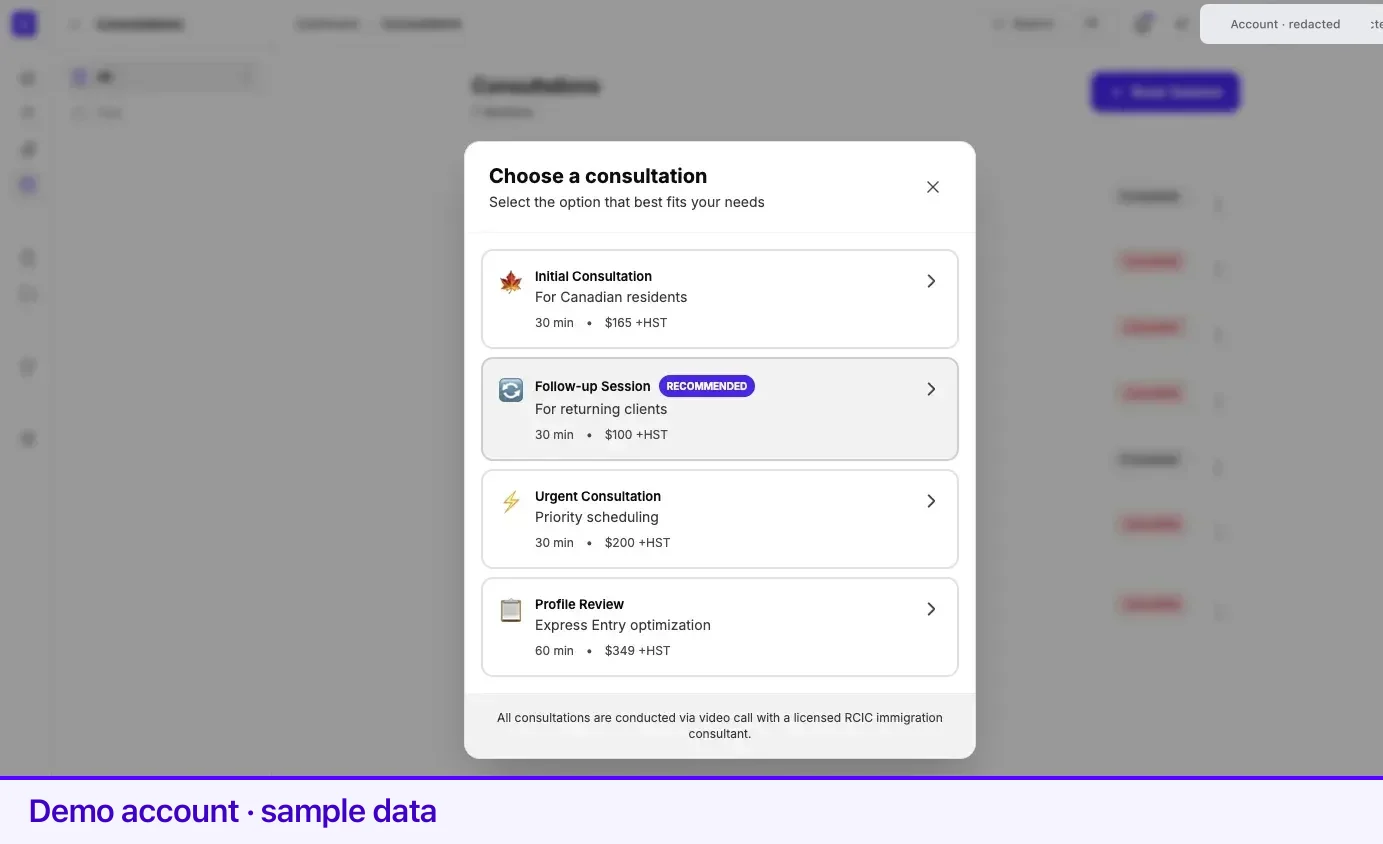
- The Choose a consultation window opens with every type you can book.
- Select the one you want. A scheduling pop-up opens with your name and email already filled in from your profile.
- Pick a date and time, confirm, and pay in that window.
The consultation types
Section titled “The consultation types”Four types appear in the window. Each row shows its length and its fee — read them there, because both vary by type and change over time.
| Type | What it is for |
|---|---|
| Initial Consultation | A comprehensive assessment of your options, eligibility, and a pathway strategy. |
| Follow-up Session | A returning-client session for case updates and follow-up questions. |
| Urgent Consultation | Priority scheduling for time-sensitive matters, including weekends and outside regular hours. |
| Profile Review | An in-depth review of an existing Express Entry profile. |
Two things about the list are personalized:
- Initial Consultation reads For Canadian residents or For international clients depending on the residence country on your profile. The two lead to different scheduling calendars, and for Canadian residents the fee is shown with +HST.
- Follow-up Session is locked until you qualify for it. See the FAQ below for exactly what unlocks it.
One option carries a Recommended chip. If you have never had a consultation, that is the Initial Consultation; once you are eligible for follow-up, it moves to Follow-up Session.
Your sessions
Section titled “Your sessions”Consultations opens on All: every session you have booked — upcoming, completed, cancelled, and no-show — newest first, 20 at a time, with Load more at the bottom. The header counts them, for example 7 sessions · 2 upcoming, and your next open session is marked on the timeline even when it is not the first row.
Each row shows the date and time, the length, the session title, a status chip, and one line: who is hosting it, then a countdown such as Starts in 2d 4h for an upcoming session, or the amount paid for a past one. Times are in your local time zone.
Select a row to open that session’s own page, with your notes, the Prepare for meeting list, and the consultant’s notes afterwards — see Your consultation page.
The More actions menu on each row holds the same three items:
| Item | What it does |
|---|---|
| Join | Opens the video call in a new tab. |
| Reschedule | Opens the scheduling tool to move the session. |
| Cancel | Opens the scheduling tool to cancel it. |
All three are always listed, and greyed out when they do not apply: once a session has ended, been cancelled, or is more than an hour past its start, and — for Join — until a meeting link exists.
Past sessions
Section titled “Past sessions”Past, under All in the sidebar, opens Past sessions: only completed, cancelled, and no-show sessions, newest first, in pages of 20.
Six status chips are used across both lists:
| Chip | Meaning |
|---|---|
| Scheduled | Booked. |
| Rescheduled | Moved to a new time. |
| Live | Started within the last hour and not cancelled. |
| Completed | The session took place. |
| Cancelled | Cancelled before it took place. |
| No show | The session time passed without attendance. |
Related
Section titled “Related”- Your consultation page — the page each session opens to
- Prepare for your consultation — what to have ready so the time is useful
- Understanding your proposal — what arrives if you go further
- Your profile — your residence country here decides which Initial Consultation you are offered
- ImmiReport — where you stand before you talk to anyone
Frequently asked questions
Why is the Follow-up Session locked?
Follow-up is unlocked by history. It becomes available once you have a completed consultation in the last 90 days, or you are the principal applicant on a case that is active, completed, or closed, or you are a member of such a case. Until then the option shows a Locked chip and cannot be booked.
Are consultations in person?
No. Every consultation type in the booking window is a video call. Join it from the session's row menu in your Consultations list, or from the session's own page.
How soon does a booking appear in Lexpoint?
Within seconds. The list subscribes to live updates and also refreshes itself every 15 seconds, so a session booked in the pop-up appears without reloading the page.