

Add a delegate
A delegate is a person you trust — a spouse, a parent, a friend — who can follow one of your cases and speak with your firm about it. You sign a consent for that case. They use their own login. Your other cases stay private.
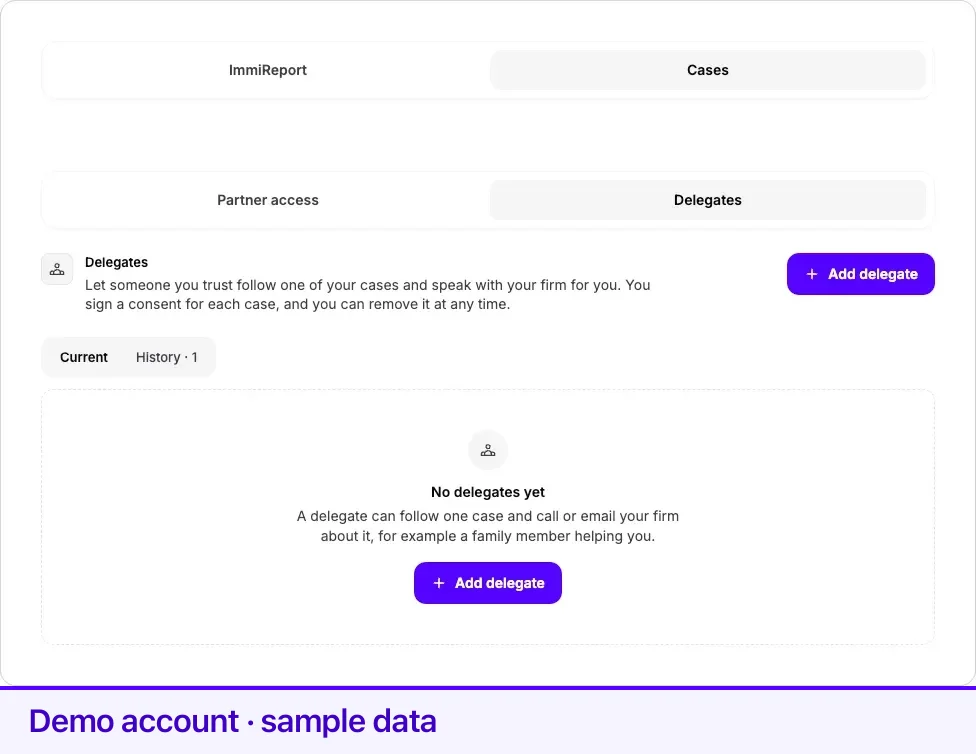
Delegates live at Settings → Access → Cases → Delegates.
Before you start
Section titled “Before you start”Two-step verification has to be on. Every consent is confirmed with a code from your authenticator app. If the page says Turn on two-factor authentication first, choose Set up 2FA and finish two-step verification before you continue.
The case list is cases you own. A case someone else shared with you is not offered here.
The name you type has to be plain English letters (A–Z), the way it should appear on the consent. The email has to be the address they will sign in with. They cannot accept from a different account.
Add the person
Section titled “Add the person”Choose Add delegate. There are three steps: Details, Verify it’s you, and Review and sign.
1. Details
Section titled “1. Details”- Choose the case. The delegate sees this case only.
- Enter their full name and email.
- Leave Access level on View. Contribute and Manage are marked Coming later and cannot be selected.
- Read the list under With View, they can, then choose Continue.
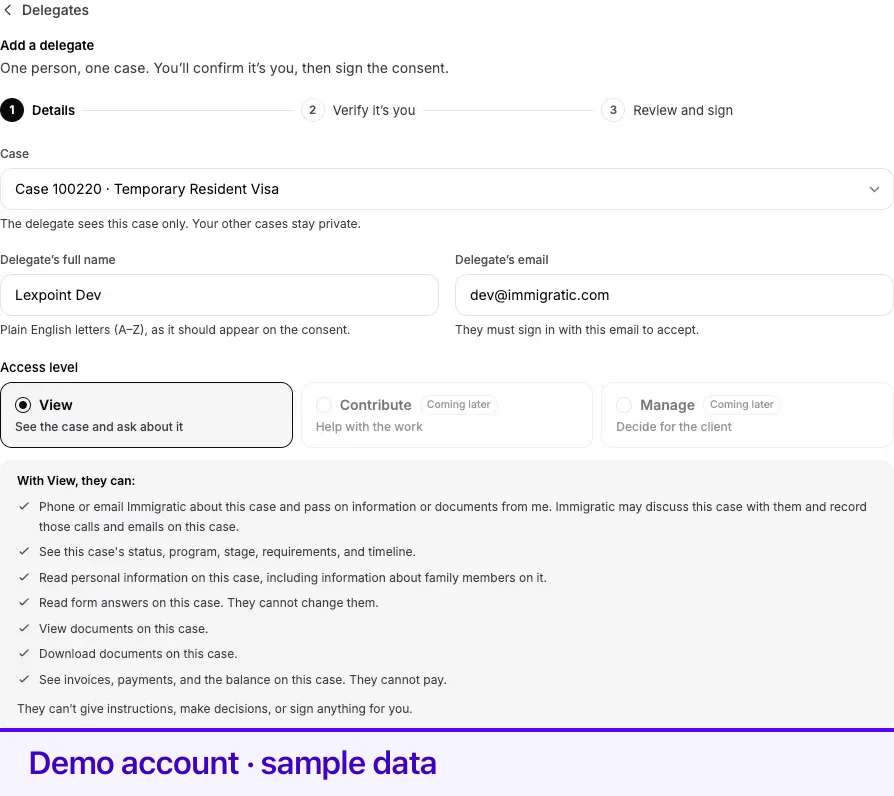
With View, they can:
- Phone or email your firm about this case and pass on information or documents from you. The firm may discuss the case with them and record those calls and emails on the case.
- See the case’s status, program, stage, requirements, and timeline.
- Read personal information on the case, including information about family members on it.
- Read form answers. They cannot change them.
- View and download documents.
- See invoices, payments, and the balance. They cannot pay.
They cannot give instructions, make decisions, or sign anything for you.
That list is what the consent authorizes. In Lexpoint today, your delegate sees one screen for the case: a summary card under Cases shared with you with its status, stage, checklist, latest update, and firm. Your firm may discuss the case with them.
2. Verify it’s you
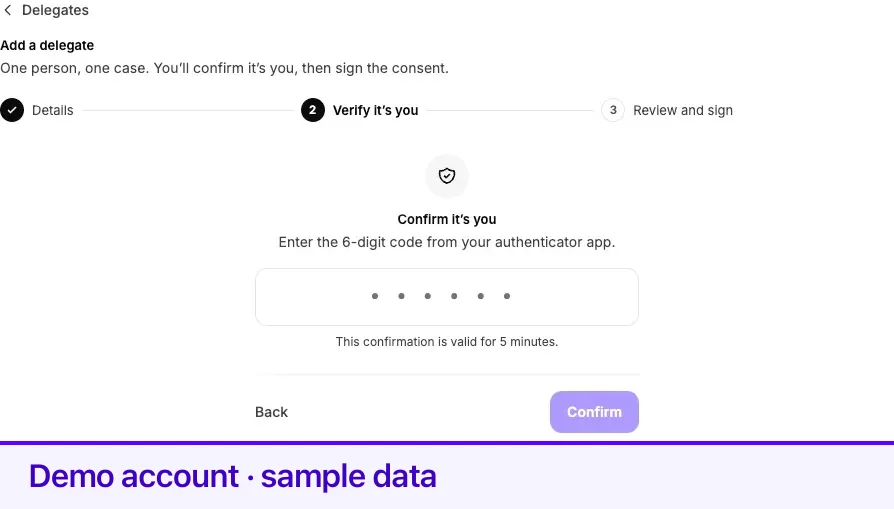
Section titled “2. Verify it’s you”Enter the 6-digit code from your authenticator app. The check is valid for 5 minutes. If the code is rejected because it expired, enter the current code.
3. Review and sign
Section titled “3. Review and sign”The page shows the consent that will be signed and stored. Check the name, the email, the case number, and View. The reference is assigned when you sign.
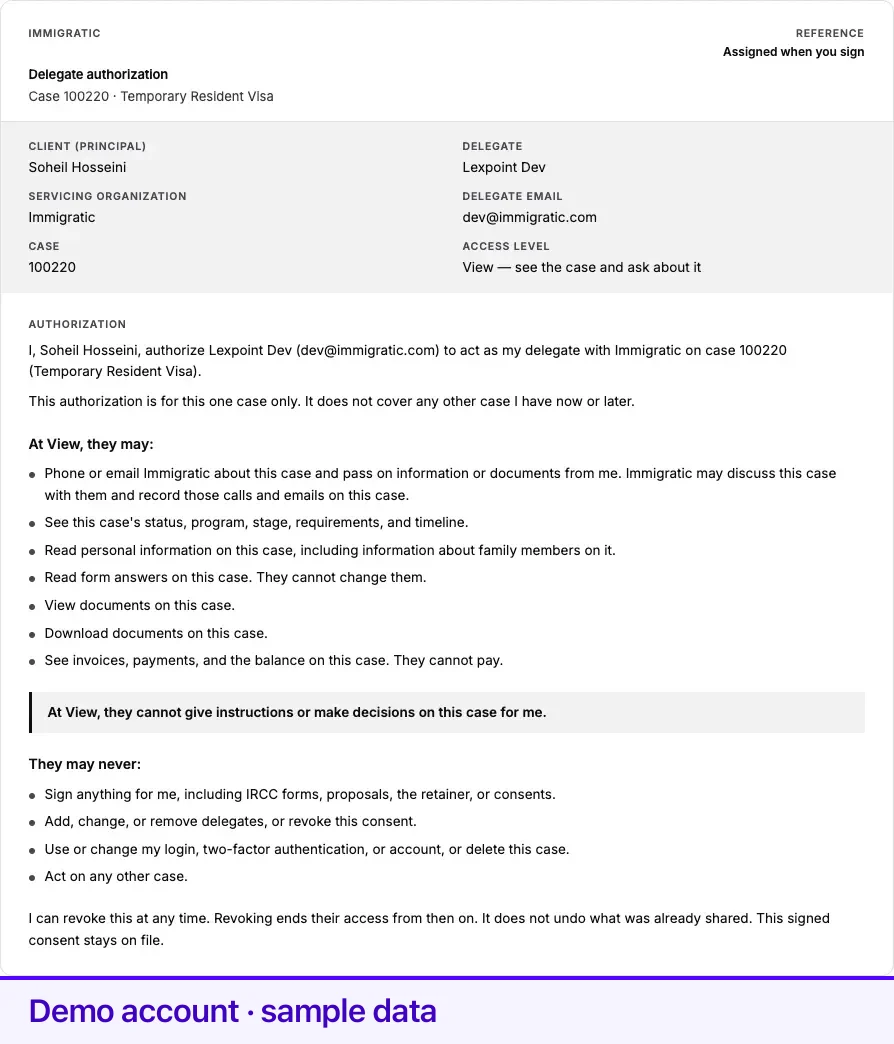
Draw your signature, tick I have read this consent, and choose Sign and send invite.
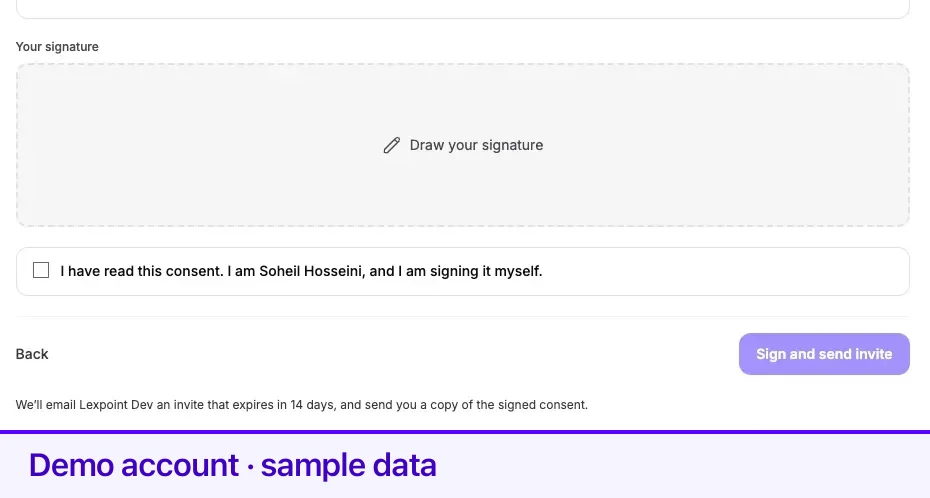
Lexpoint emails the delegate an invitation that expires in 14 days, from case@clients.lexpoint.io. That email does not name the case. You also receive a copy of the signed consent, and that copy does name the case.
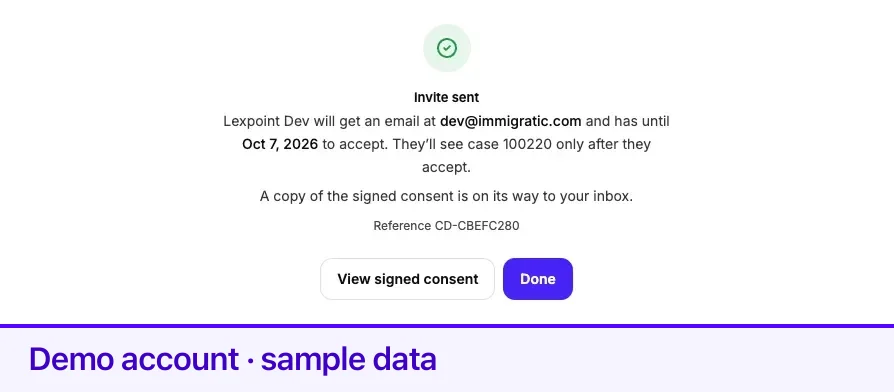
View signed consent opens the stored PDF. Done returns to the list.
While the invitation is pending
Section titled “While the invitation is pending”Current shows the person as Invite pending, with the expiry date, the case, View access, and the consent reference.
The invitation link cannot be resent. If the email does not arrive, choose Cancel invite. The link stops working immediately. Add them again if they should still be invited.
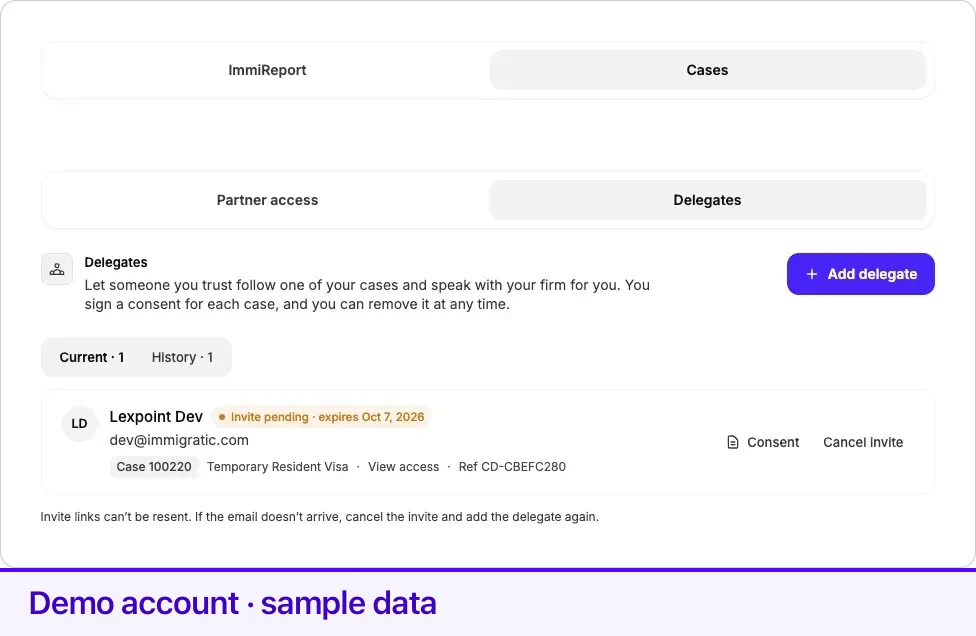
You get an email when they accept: they are now a delegate on that case, and the row changes to Active. If the 14 days pass with no acceptance, you get an email that the invitation expired and they were not added. You can send a new one.
What your delegate does
Section titled “What your delegate does”They open the invitation and sign in with the email address you typed. If they are signed in as someone else, the page says the invite was sent to a different address and asks them to switch. The case is shown only after they are on the right account. Nothing on the case opens until they choose Accept.
After they accept, Lexpoint asks them to verify a phone number so the firm can match their calls to this case. Without a verified number, calls from them are not tied to the case.
They then find the case under Cases shared with you, as a summary card marked View access · questions go to your firm. It is still your case. They follow it there and contact the firm about it, within the consent you signed.
Remove a delegate
Section titled “Remove a delegate”On a pending row, Cancel invite asks you to confirm. The link stops working right away.
On an active row, Remove ends their access to that case immediately. The signed consent stays on file. It does not undo anything that was already shared.
Your firm can also end a delegate’s access or cancel a pending invite. The row then moves to History.
History keeps cancelled invitations and delegates you have removed. Consent on either tab opens the signed PDF.
Frequently asked questions
Can a delegate sign forms or the retainer for me?
No. View access lets them see the case and contact your firm about it. They cannot sign anything, give instructions, make decisions, change form answers, or pay.
Does the invitation email name the case?
No. The email says you invited them to be a delegate with your firm. The case number and program appear after they sign in with the address you typed.
Can I resend an invitation?
No. If the email does not arrive, cancel the invite and add the delegate again. Cancelling makes the old link stop working.
What happens when the invitation expires?
An invitation lasts 14 days. If they have not accepted, Lexpoint emails you that it expired and they are not added. You can send a new invitation.
How do I know they accepted?
Lexpoint emails you that they are now a delegate on that case. The row on Delegates changes from Invite pending to Active.