

Notifications and the updates feed
The bell in the top bar and the Updates page show the same feed. It holds two kinds of item, and the difference explains almost every question about it.
| Notification | Announcement | |
|---|---|---|
| Who it is for | You alone | Everyone on the platform |
| What it is about | Something that happened on your file | Draws, policy, new features, promotions |
| Marked read | On the server, for your account | In the browser you opened it in |
| Stops being unread | When you open it or mark all as read | When you open it, or seven calendar days after it was published |
| Opens at | /app/updates/notifications/<slug> | /app/updates/<type>/<slug> |
The badge on the bell is the two counts added together.
The bell
Section titled “The bell”The bell sits in the top bar on every /app screen, between search and your avatar. A small dot
appears on it when anything is unread — the dot carries no number; the number is on the Unread
tab inside.
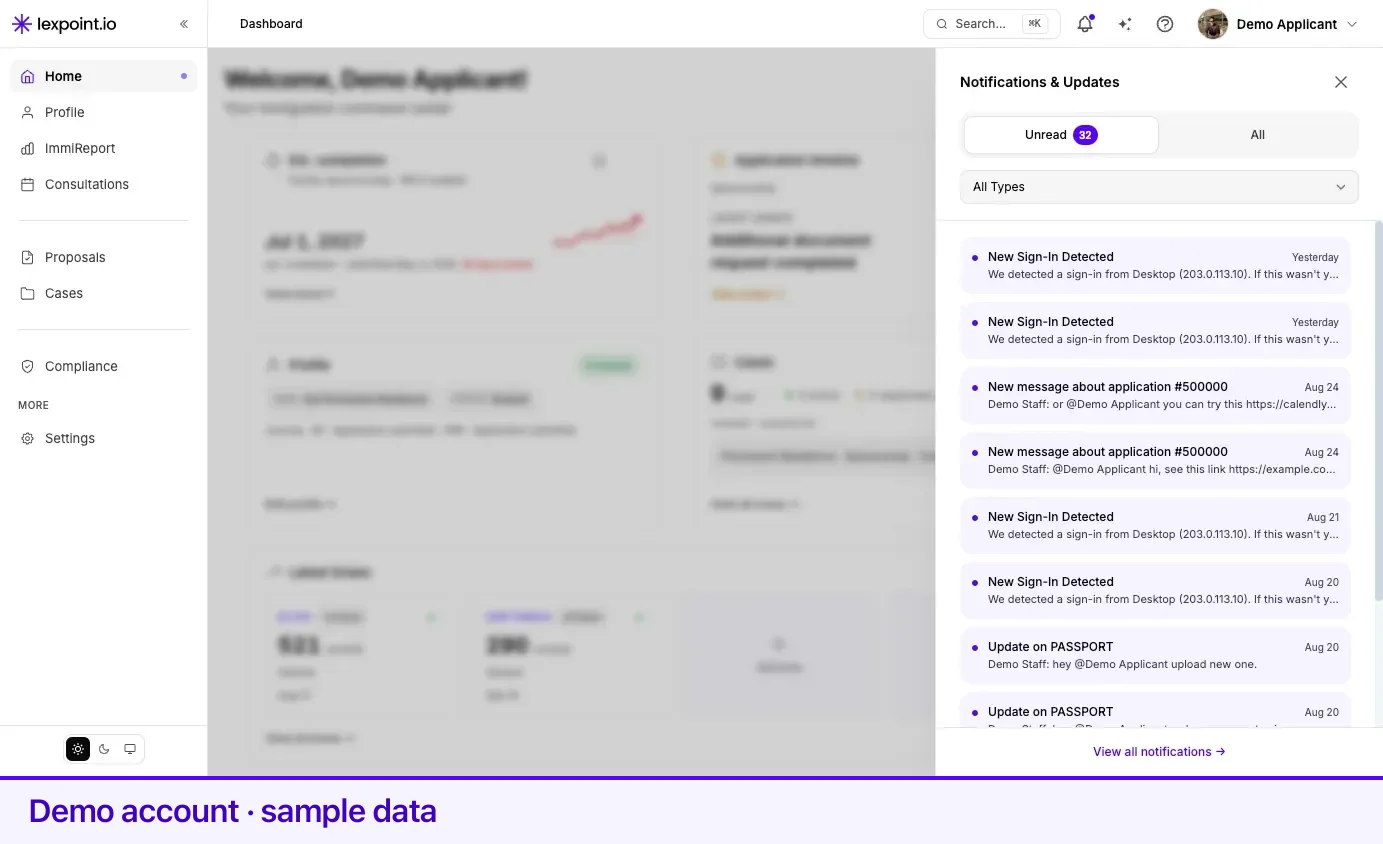
Opening the bell slides in a panel titled Notifications & Updates with:
- Unread and All tabs. Unread carries the total unread count.
- A type filter: All Types, Notifications, Announcements, Draw Updates, Policy Updates, Features.
- The ten most recent notifications and the ten most recent announcements, newest first.
- View all notifications → at the bottom, which opens the full feed.
An unread announcement is tagged new.
The feed is live. Lexpoint subscribes to your notifications and to platform announcements while the page is open, so a new item raises the count without a reload.
Clicking an item opens its own page. A notification is marked read the moment you click it.
The Updates page
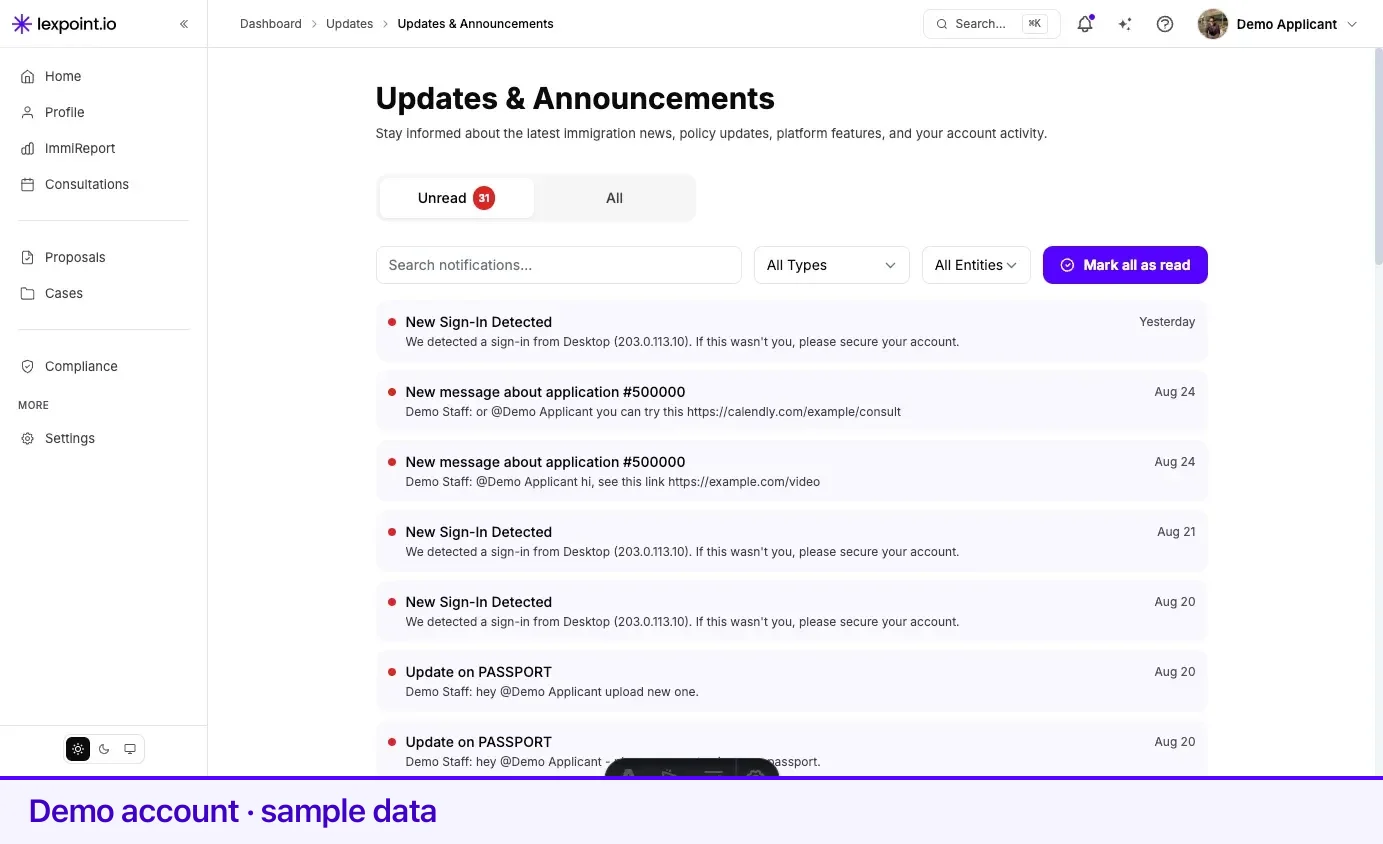
Section titled “The Updates page”Updates is the full feed — headed
Updates & Announcements — and it loads far more than the bell does: up to 100 notifications and
100 announcements. /app/notifications shows the same feed.
| Control | What it does |
|---|---|
| Unread / All tabs | Switches between everything and only what you have not opened. |
| Search notifications… | Filters on the title and body text of both notifications and announcements. |
| Type filter | All Types, Notifications, Announcements, Draw Updates, Policy Updates, Features, ImmiReport Ready, Case Comments, Document Rejected, Payment Failed. |
| Entity filter | All Entities, Cases, Applications, ImmiReports, Documents — narrows to notifications tied to that kind of record. |
| Mark all as read | Appears on the Unread tab only. Reads All read and is disabled when nothing is unread. |
What generates an entry
Section titled “What generates an entry”Notifications are created by the product, never by you. Every one carries a type, and the type is what the filters above match on.
| Type | Raised when |
|---|---|
immireport_ready | Your ImmiReport has finished calculating. |
case_comment | A comment is added on a case you are part of. |
application_comment | A comment is added on one of your applications. |
document_comment | A comment is added on one of your documents. |
document_approved | A document you uploaded passes review. |
document_rejected | A document you uploaded is rejected in review. |
case_assigned | A case is assigned. |
application_submitted | An application on your file is submitted. |
billing_payment_failed | A payment attempt fails. |
billing_subscription_cancelled | A subscription is cancelled. |
workflow_action_required | A workflow step needs something from you. |
system | A platform-level message addressed to your account. |
custom | Everything else Lexpoint raises directly — a new message in a thread, or a sign-in alert. |
Two sources are worth naming, because they surprise people:
- New Sign-In Detected — raised as a warning when Lexpoint sees a sign-in from a device it does not recognize, with the device and IP address in the body. If it was not you, act on it.
- Message notifications — a new message in a case or conversation thread raises an in-app entry immediately. In-app notifications are never batched, even when the matching email is.
Announcements come from Lexpoint’s own publishing, not from your file. Their type decides the URL they open at:
| Announcement type | Opens under |
|---|---|
| Draw update | /app/updates/draws/… |
| Policy update | /app/updates/policy/… |
| Feature launch | /app/updates/features/… |
| Promotion | /app/updates/promotions/… |
| General | /app/updates/general/… |
On the dashboard itself
Section titled “On the dashboard itself”The dashboard’s right sidebar can carry an Updates block showing your three most recent notifications with the unread count beside the heading. It is one of the blocks you can add or remove — see Choosing and ordering widgets.
Case updates when you open the dashboard
Section titled “Case updates when you open the dashboard”If you are the principal applicant on a case, milestones recorded on your case timeline while you were away are also queued for your next visit to the dashboard — for example Application submitted, Biometrics instruction letter received, Medical request received, or Application approved. Only milestones you can see on your own timeline are queued.
They open as a short series of slides over the page. Each shows Update 1 of N, the milestone, and one line naming the program and case number where known, with a View timeline button that opens that case’s timeline. Back and Next move between slides; Done closes the last one. A slide counts as seen once you move past it or open its timeline, and it does not come back. A passport request, a decision document becoming available, and the start of the COPR stage show with confetti.
Related
Section titled “Related”- Notification preferences — which of these also reach you by email, and which you can switch off
- Dashboard tour — where the bell and the Updates block sit on screen
- Widget reference — every dashboard widget and what feeds it
Frequently asked questions
Why does an announcement come back as unread on another device?
Announcements are marked as read in the browser you opened them in, not on your account. A notification, which is personal to you, is marked read on the server and stays read everywhere.
Why did an announcement stop counting as unread on its own?
An announcement only counts as unread for seven calendar days after it was published. After that it stays in the feed but no longer adds to the badge.
Does the bell show the same thing as my email?
No. The bell is the in-app feed and is always immediate. Email is a separate channel with its own preferences, and some email can be batched into a digest.