

Two-step verification
Two-step verification adds a second check when you sign in. After you sign in with Google or a magic link, Lexpoint asks for a six-digit code from an authenticator app on your device.
This matters more on Lexpoint than on a site with passwords. Lexpoint has no password — you sign in with your Google account or with a link sent to your email. That means whoever can read your email can sign in as you. Two-step verification breaks that chain: the code lives on your device, not in your inbox.
Lexpoint uses authenticator apps only — never text messages. A code generated on your device cannot be intercepted by someone who takes over your phone number.
Before you start
Section titled “Before you start”Install an authenticator app if you do not have one. Any of these work:
- Google Authenticator
- Microsoft Authenticator
- 1Password, Bitwarden, or another password manager with a built-in authenticator
- Authy
Turn it on
Section titled “Turn it on”- Go to Settings → Account.
- Open the Sign-in tab.
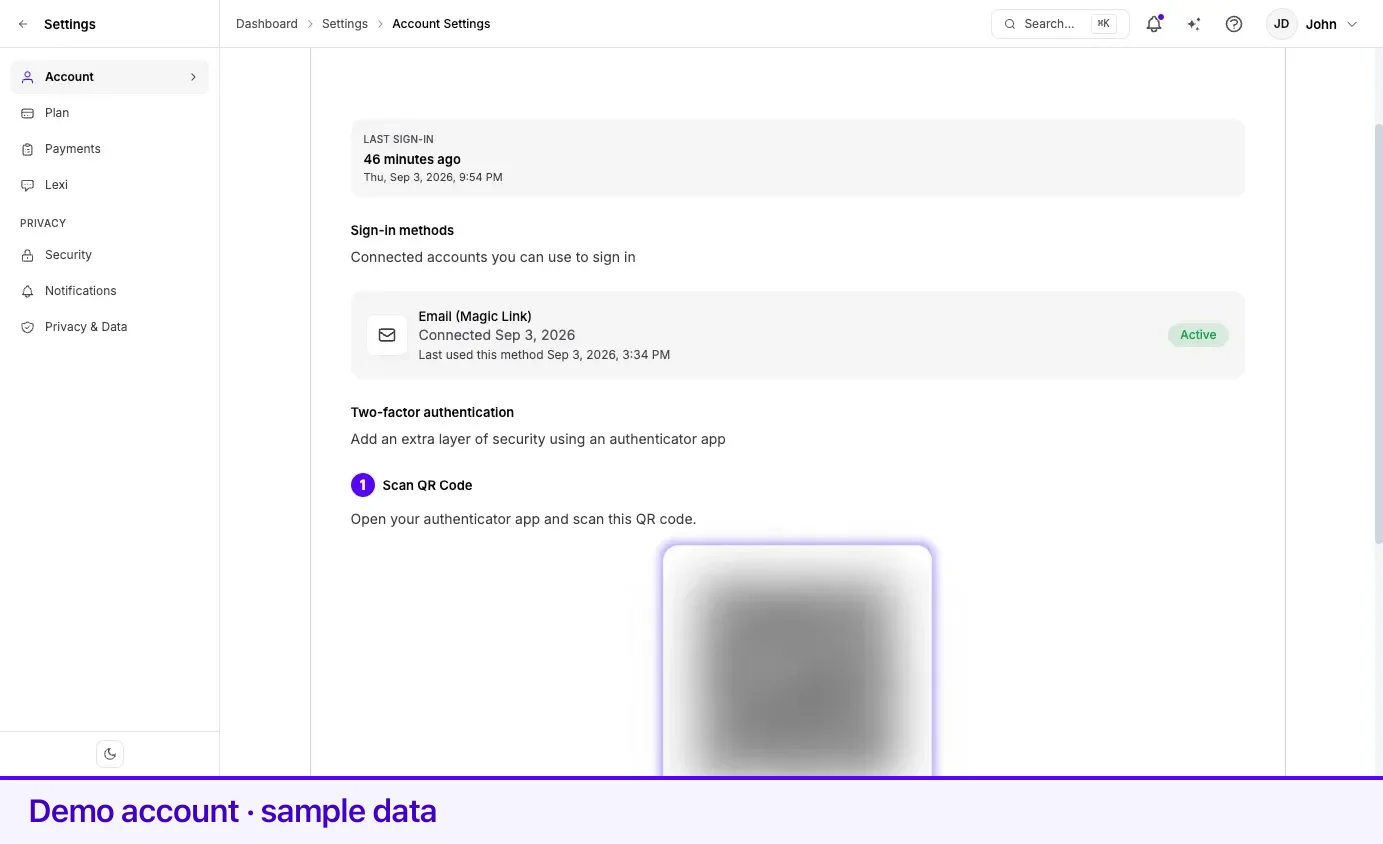
- Under Two-factor authentication, select Enable Two-Factor Authentication.
- Under Scan QR Code, open your authenticator app and scan the code — point the app’s camera at it. If you cannot scan, select Can’t scan? Enter code manually: a Secret Key appears, with a copy button, for you to type or paste into the app instead.
- Your app now shows a six-digit code for Lexpoint that changes every 30 seconds. Under Verify Code, enter the current code and select Verify & Enable.
Once confirmed, the section reads 2FA is enabled — Your account is protected with an authenticator app. Cancel setup abandons the setup before that point.
Signing in from then on
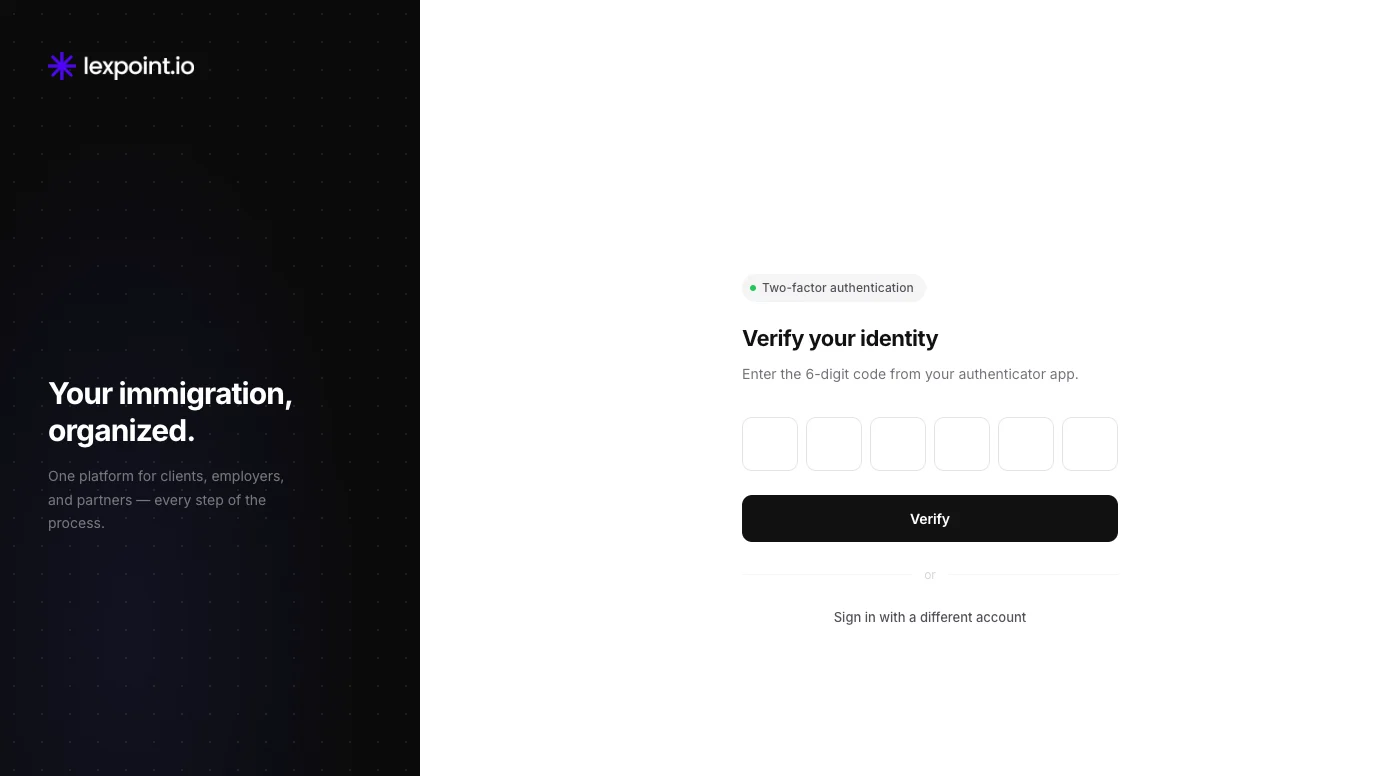
Section titled “Signing in from then on”Your next sign-in has one extra step. Sign in as usual — Google, or the magic link sent to your email — and then enter the six-digit code from your authenticator app.
The code is generated on your device and changes every 30 seconds. If it is rejected, the usual cause is a clock that has drifted — check that automatic date and time is enabled on the device running the authenticator.
Turning it off
Section titled “Turning it off”Two-step verification can be switched off from the same panel in Settings → Account → Sign-in. Select Disable Two-Factor Authentication. The panel asks Are you sure? and needs a current six-digit code from your authenticator app before Disable 2FA takes effect — so someone who reaches your open session without your device cannot switch it off.
Think carefully first. Because Lexpoint has no password, turning two-step verification off leaves your email inbox as the only thing protecting an account that holds your identity documents and immigration history. Anyone who can read your email can request a magic link and sign in.
If your reason is that the extra step is inconvenient, moving your authenticator into a password manager solves the inconvenience without giving up the protection.
Related
Section titled “Related”- Sign-in methods — Google and magic-link sign-in
- Identity verification — a different thing: proving who you are, not securing sign-in
- Access and sharing — who else can see your file
Frequently asked questions
Does Lexpoint send two-step codes by SMS?
No. Two-step verification uses an authenticator app that generates a code on your device. Codes are never sent by text message, so a hijacked phone number cannot be used to sign in as you.
What happens if I lose the phone with my authenticator app?
Contact Lexpoint support through Help and Support. Identity is confirmed before two-step verification is reset — this is deliberate, because an easy reset would defeat the protection.
Is two-step verification required?
It is not required, but it is strongly recommended. Lexpoint has no password — sign-in is by Google or a magic link sent to your email — so without two-step verification, anyone who can read your email can sign in to an account holding your identity documents, immigration history, and case files.