

Access and sharing
Seven different kinds of access can exist on a Lexpoint account, and they are not the same thing. A shared ImmiReport link is open to whoever holds it. A partner-code connection is profile consent. A delegate is one person you authorize on one case. A household link shares facts between your ImmiReport and your spouse’s or partner’s. An employer sees what you consented to on an invite page. They are granted separately and they are revoked separately. The default servicing organization listed under Associations is a routing default, not an access grant and not a client–counsel relationship — see Lexpoint and professional advice.
Sharing controls live at
Settings → Access (ImmiReport link and case grants).
Relationships live at
Settings → Associations (family, partners, employer).
Old /app/settings/security links redirect there.
The seven kinds of access
Section titled “The seven kinds of access”| Access | Who gets it | What they see | Where you revoke it |
|---|---|---|---|
| Shared ImmiReport link | Anyone who has the link, plus the PIN if you set one | Your ImmiReport | ImmiReport → Link & access |
| Primary service provider | Your default servicing organization | ImmiReport visibility only | Read-only — contact support |
| Delegate | One person you name, on one case you own | That case, at View — see it and ask your firm about it | Cases → Delegates → Remove |
| Third party case access | A partner-code organization you already connected, on one named case | One Immigratic-hosted case, at the level you choose | Cases → Partner access |
| Household link | Your spouse or common-law partner, once one of you invites and the other accepts | The facts each ImmiReport needs for spouse and partner factors — never documents, cases, or account access | Family → Household Account → Disconnect |
| Partner connection | An employer, school, agency, or other organization you connected with a partner code | Basic profile and immigration status (as consented) — not counsel | Partners → Active → Revoke |
| Employer connection | An employer whose invite you accepted | Immigration information shared through the connection, and roster visibility | Employer → Active → End |
The steps for a delegate are in Add a delegate. The household link, end to end, is in Link with your partner.
Your ImmiReport link
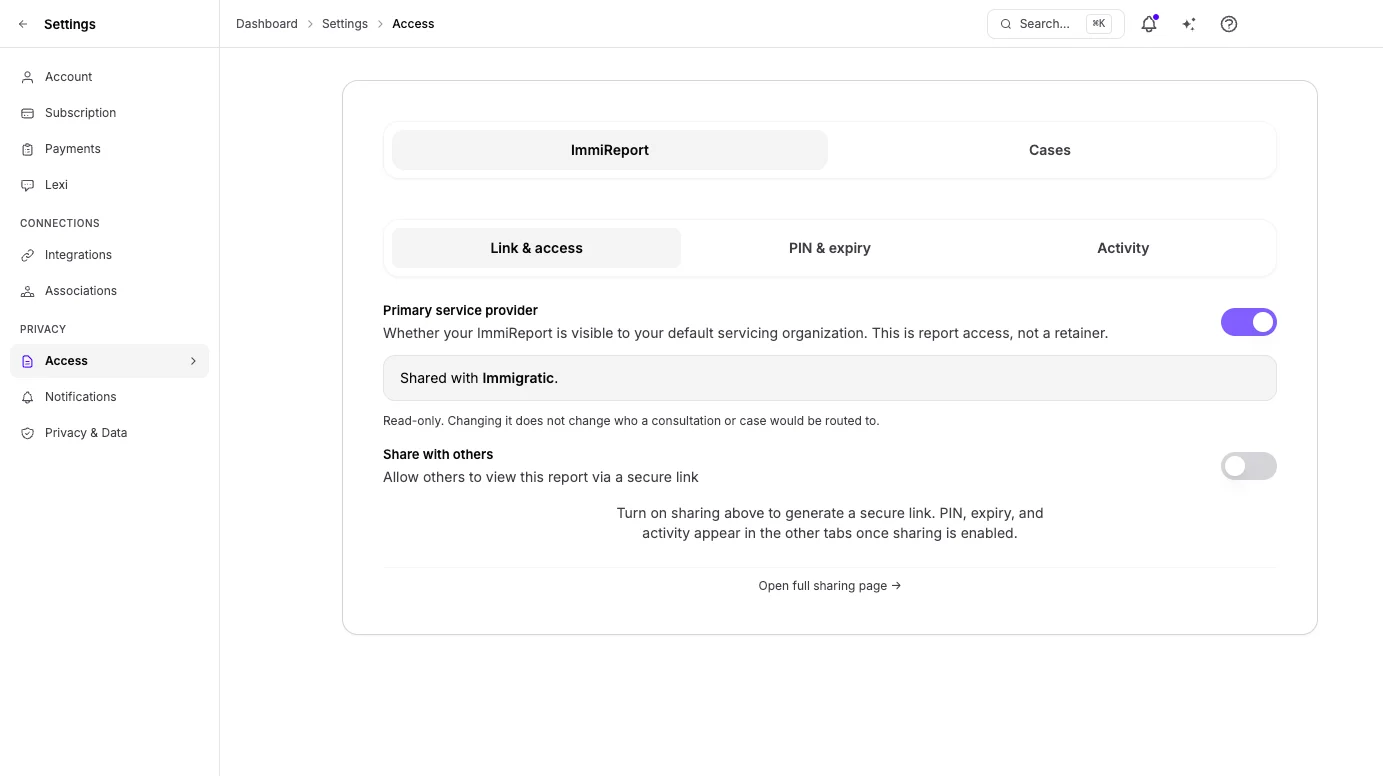
Section titled “Your ImmiReport link”The ImmiReport tab has three sub-tabs: Link & access, PIN & expiry, and Activity.
If you have not created an ImmiReport yet, the tab reads Create an ImmiReport first to enable sharing.
Turning sharing on and off
Section titled “Turning sharing on and off”Under Link & access, Share with others — Allow others to view this report via a secure
link — is the master switch. Turn it on and Lexpoint generates a link of the form
/report/<your report code>, shown under Shareable URL with a Copy button.
Lexpoint may generate a PIN at the same time, shown as PIN Auto-Generated with a Copy button and the note Save this PIN securely. Share it with anyone who needs to access your report.
Turning Share with others off ends access for new visitors and for anyone who already entered the PIN. It is the single fastest way to close everything in this section.
If you have a household link, the shared report includes the spouse and partner factors computed from your partner’s facts.
Under PIN & expiry, PIN management adds an extra layer of security with a 6-digit PIN. The PIN must be exactly six digits — a shorter one is rejected with PIN must be exactly 6 digits.
PIN Status reads Active or Inactive. When a PIN is set, the current PIN is displayed and copyable from this panel, so you can retrieve it later rather than resetting it.
Expiry
Section titled “Expiry”Also under PIN & expiry, Link expiration states the rule: while sharing is on, the link stays valid for 30 days from when you last turned sharing on or changed your PIN. The panel shows the exact expiry date and a countdown chip — 12 days left, 1 day left, Expires today, or Expired.
To start a new 30-day period, either turn sharing off and on again, or change your PIN while sharing is on.
Who has opened it
Section titled “Who has opened it”Activity shows the access log: Date & Time, Email, Status, and Browser for each attempt, with a Professional badge on viewers Lexpoint identifies as professionals. Denied attempts appear alongside granted ones.
The access log is a Pro feature. On the free plan the tab shows an upgrade panel instead of the entries. Full filters and export live on the dedicated share page, reachable from Open full sharing page → at the bottom of the tab.
Primary service provider
Section titled “Primary service provider”Above Share with others sits Primary service provider — Whether your ImmiReport is visible to your default servicing organization. This is report access, not a retainer. It reads Shared with [organization], Not currently shared with [organization], or No primary service provider is assigned to your account yet.
This toggle is read-only. Changing it does not change who a consultation or case would be routed to. Contact support if the named organization looks wrong.
The default servicing organization itself lives on Settings → Associations → Partners. Listing a firm there does not create a client–counsel relationship — see Lexpoint and professional advice.
The Cases tab has two sub-tabs: Partner access and Delegates.
Third party case access
Section titled “Third party case access”Cases → Partner access is how you let an organization you have already connected see one specific case. The panel describes it as sharing specific Immigratic-hosted cases with partners you have already connected under Partners (profile consent).
Two constraints are enforced by the form itself:
- The case list contains only Immigratic-hosted cases you own.
- The organization list contains only organizations you have granted profile access to under Partners. With no active partner connections, the form tells you to add a partner first.
Each grant carries an access level:
| Level | Meaning |
|---|---|
| View | Read the case |
| Contribute | Take part in the case |
| Manage | Manage the case |
Grant one from the + Add sub-tab: pick the case, pick the partner organization, pick the access level, then Grant access.
To change a level, use the dropdown on the row under Active — the change saves immediately.
To revoke, click the bin icon on the row. You are asked to confirm: Remove third party access for this case? The organization will no longer see it on the partner portal. Revoked grants move to the Revoked sub-tab, where a restore button puts one back if you removed it by mistake.
Revoking the underlying partner connection removes this too — the panel states that case access is removed automatically if you revoke that partner connection.
Delegates
Section titled “Delegates”Cases → Delegates is where you authorize one person to follow one case you own. See Add a delegate.
Associations
Section titled “Associations”Family
Section titled “Family”Family lives at Settings → Associations → Family, not on Access.
Connected means shared. When you and your spouse or common-law partner link your accounts, each of your ImmiReports uses the other’s education, language results, Canadian work, status, and sponsor-eligibility answers wherever a spouse or partner factor applies — including where the report is viewed or shared. Documents, cases, and account access are never shared. There is no separate sharing switch.
Household Account shows your connected partner, Your ImmiReports use each other’s real details for spouse and partner factors, and What connecting shares. Disconnect is the only control. It asks Disconnect this household account? This will remove the active household link. and ends the sharing.
Invites & History is where you Invite, Resend, Revoke, or Re-invite your spouse or partner. Sending the invite is your consent. See Link with your partner for the whole flow.
A delegate is not a household link. Delegates are on Settings → Access → Cases → Delegates, one person on one case.
Partners
Section titled “Partners”Partners has two blocks that are easy to mix up.
Default servicing organization is a routing default — who Lexpoint would send a consultation, proposal, or case to. Being listed is not a retainer or a client–counsel relationship. Immigratic is the only service provider rolled out on Lexpoint today. Other licensed firms are not available yet. See Lexpoint and professional advice.
Partner organizations are connections you make with a partner code. They are profile consent: an employer, school, agency, or other organization can view parts of your profile and immigration status. A partner-code connection is not a client–counsel relationship and it is not how licensed second-opinion firms will work when that is available.
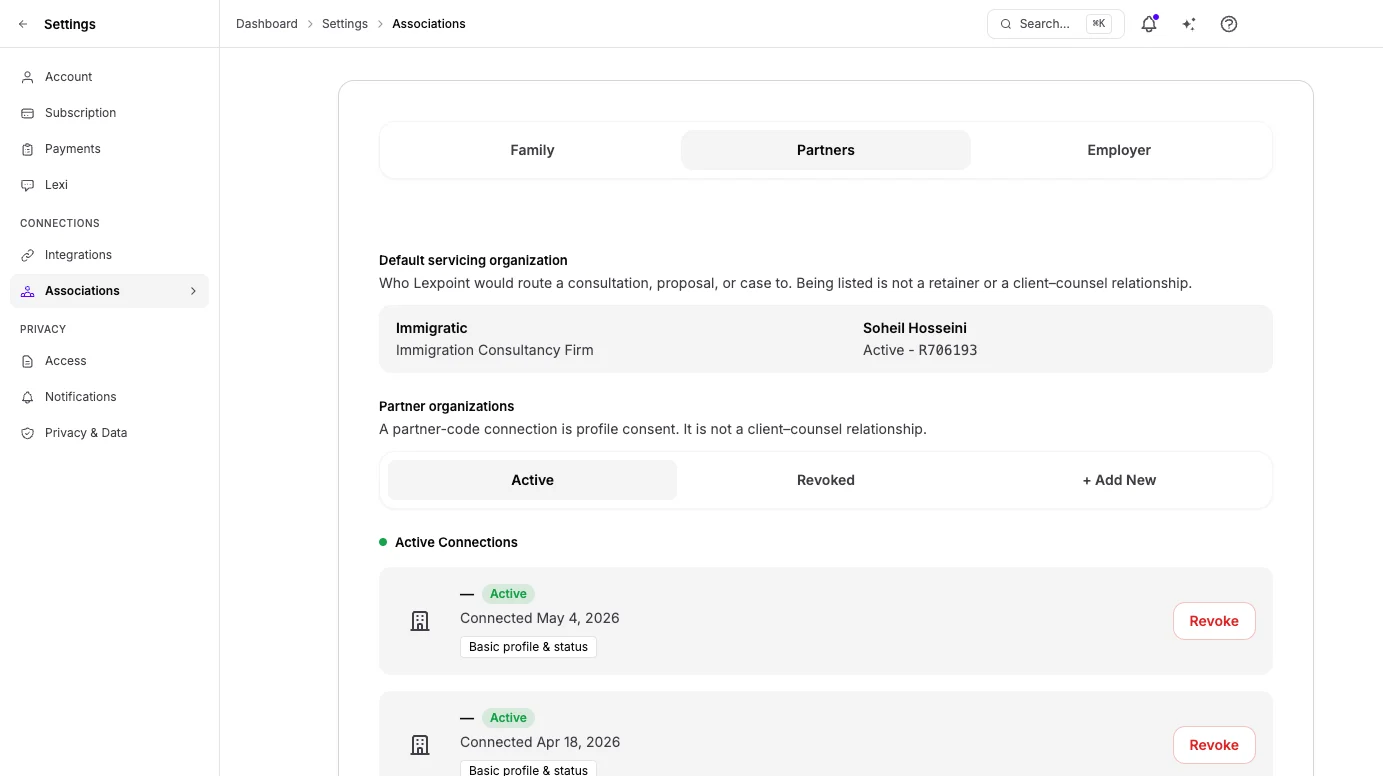
To connect one, open + Add New, enter the partner code or referral link they gave you (a
short code such as passage, or the full link), and press Preview. Lexpoint shows you who the
organization is, its type, and the specific data they will be able to access, before anything is
granted:
| Scope shown in the preview | What it covers |
|---|---|
| Basic profile & status | Your basic profile and immigration status |
| Immigration report | Your immigration report |
| Case progress | Your case progress |
You then have to tick the consent box — I consent to share my basic profile information and immigration status with this organization. I can revoke this access at any time — before the Connect button becomes usable.
The panel is explicit about the ceiling. Partners can see:
- Your name and contact information
- High-level immigration case status
- Key milestones and progress
And it states that they cannot see your documents, detailed answers, or financial information.
To revoke, open Active and press Revoke on the organization. You are asked to confirm: Are you sure you want to revoke access for [partner]? They will no longer be able to see your profile or case status. The connection moves to the Revoked sub-tab, which keeps the date you connected, the date you revoked, and the reason — so the history of who once had access is not erased along with the access.
Employer
Section titled “Employer”Employer connections lists employers on your Lexpoint workforce roster, under Active, Ended, and Pending.
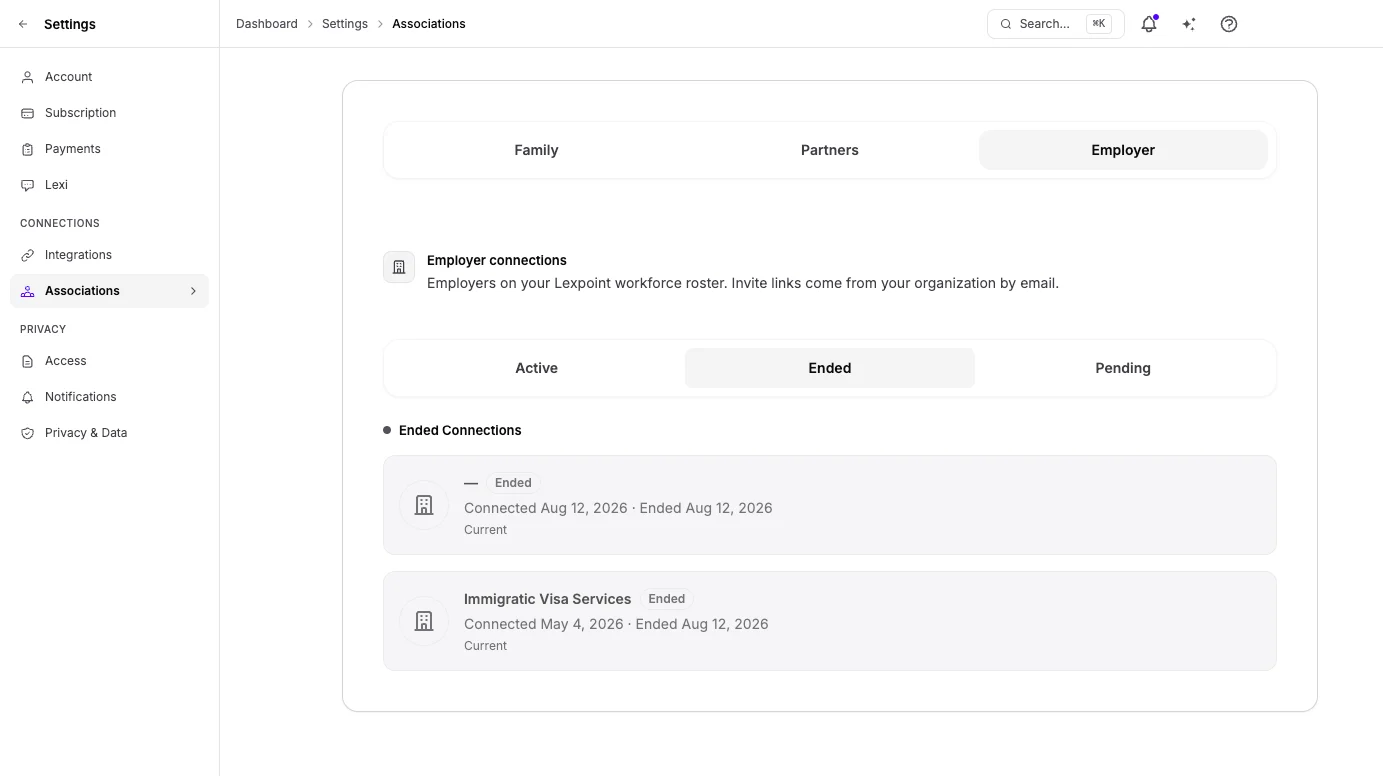
Each active row shows the employer name, the connection status, the date you connected, and, where recorded, your job title, the employment period, and the employment context.
You cannot connect yourself with a code. Your employer sends an invite email with a Lexpoint link — they must invite you; this is not a partner code. Invites you have signed in for but not yet consented sit under Pending. You finish consent on the invite page itself.
To revoke, press End on the row. The confirmation spells out the consequence:
End connection with [employer]?
[employer] will lose access to immigration information shared through this connection, including visibility on their workforce roster. You can reconnect later if they send a new invite.
Ended connections move to the Ended sub-tab with both the connected and ended dates. Reconnecting requires a fresh invite from the employer — ending a connection is not something you can undo on your own.
If you want to close everything
Section titled “If you want to close everything”There is no single master switch. In order of how exposed each one leaves you:
- ImmiReport → Link & access — turn Share with others off. This is the only access that a stranger can hold. Access ends for everyone, including anyone who already entered the PIN.
- Cases → Partner access — remove each active grant. Cases → Delegates — Remove each delegate.
- Partners → Active — Revoke each organization. This also clears their case access.
- Employer → Active — End each connection.
- Family → Household Account — Disconnect.
ImmiReport visibility to the default servicing organization is platform-managed. Changing the default servicing organization is not self-serve — contact support through Help & Support. Revoking a partner code does not change the default servicing organization.
Related
Section titled “Related”- Privacy and your data — what Lexpoint stores and how to ask for a copy of it
- Deleting your account — the end of the line, and what survives it
- Two-step verification — stopping someone signing in as you in the first place
- Your ImmiReport — what is actually in the report you would be sharing
- Employment — the employee side of an employer relationship
Frequently asked questions
How do I stop sharing my ImmiReport?
Go to Settings → Access → ImmiReport → Link & access and turn off Share with others. Access ends for everyone, including anyone who already entered the PIN, from the next time the report loads.
Can a partner organization see my documents?
No. The Partners panel states that partners see your name and contact information, high-level immigration case status, and key milestones and progress. It also states they cannot see your documents, detailed answers, or financial information.
If I revoke a partner, does their case access go too?
Yes. Third party case access is built on top of a partner connection, and the panel states that case access is removed automatically if you revoke that partner connection.
Why can I not turn off sharing with my primary service provider?
That toggle is ImmiReport visibility to your default servicing organization. It is read-only. Changing it does not change who a consultation or case would be routed to, and it is not a retainer. Contact support if it looks wrong.