

Finalization and the submission package
Finalization turns a completed checklist into the files you upload to the portal you are filing in. It happens in two places: Mapping, per application, and Packages, for the case.
Mapping
Section titled “Mapping”Why mapping exists
Section titled “Why mapping exists”The documents you gather in Lexpoint and the upload slots a government portal offers are not the same list, and usually not the same length.
Which portal that is depends on what you are applying for: IRCC for federal applications, and a province’s own system — OINP, BC PNP, and the rest — for provincial ones. Each has its own slots and its own limits, and none of them look like your checklist.
Say you are extending a work permit. Lexpoint asks you for four things:
- your current work permit
- a notice of assessment
- an employment letter
- a lease agreement
The portal, meanwhile, may offer a single additional slot — Client Information. Four documents, one slot. That mismatch is normal, it is not specific to any one portal, and it is the problem mapping solves.
Mapping tells the assembler which of your documents belong together and which portal slot they become. Assign all four to Client Information and they are merged, in order, into one PDF that fills that one slot. You upload one file to the portal, and everything is inside it.
Doing it
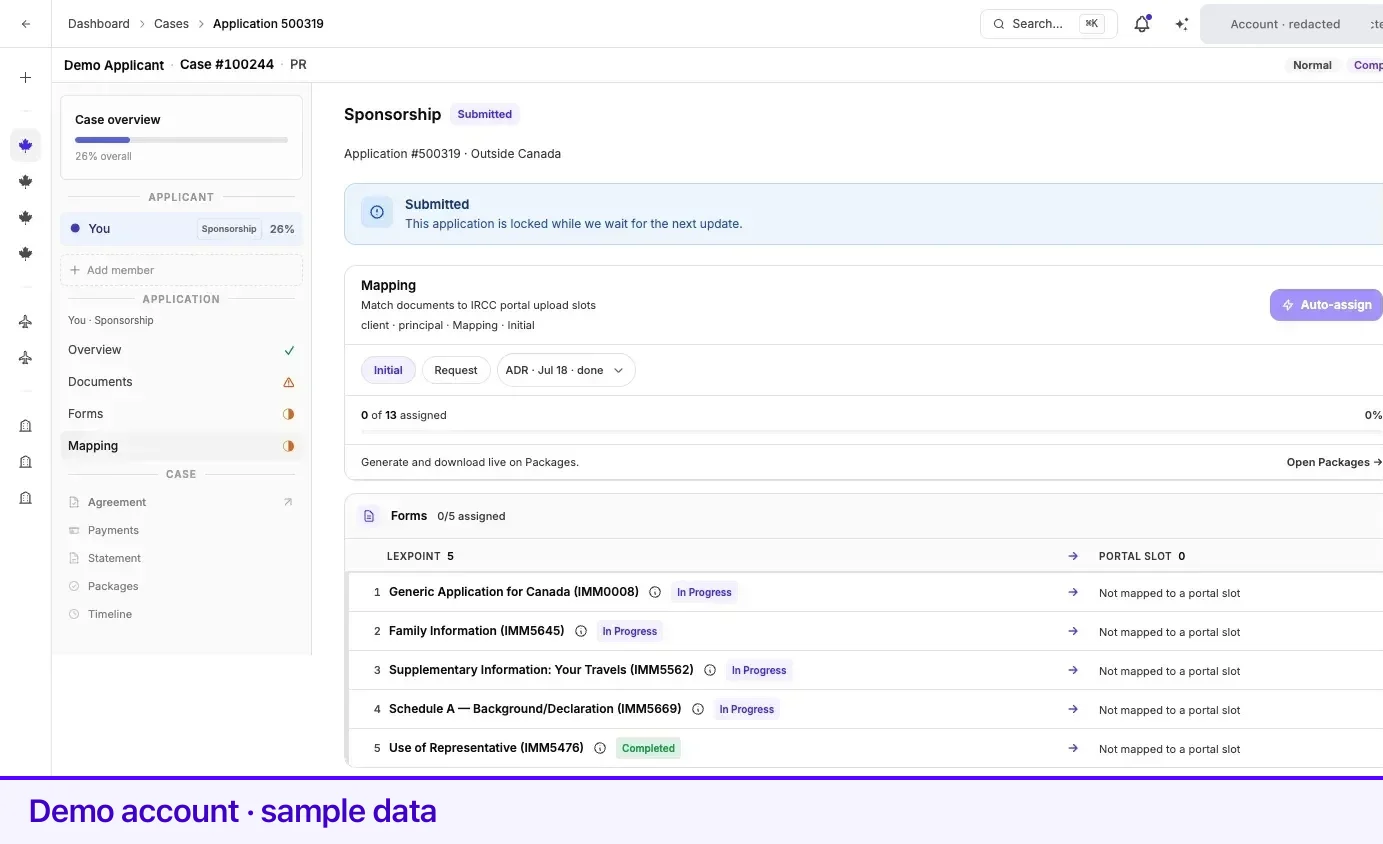
Section titled “Doing it”Open an application and choose Mapping in the case tree, the last of the four workflow steps. The heading on that screen reads Match documents to IRCC portal upload slots; the step works the same way whichever portal your application is bound for.
The bar at the top counts X of Y assigned with a percentage; the case tree’s Mapping glyph turns to ✓ when every required item has a slot. Rows are split into a Forms section and a Documents section.
| Control | What it does |
|---|---|
| Auto-assign | Assigns every item Lexpoint can match to its slot in one pass. Start here, then correct what it got wrong. |
| Slot selector on a row | Sets or changes the slot for that one item. |
| Drag handle | Reorders documents within a slot — see below. |
| Initial / Request | Scope chips. Initial is the original package; Request is a later post-submission ask. A picker appears when there has been more than one. |
| Open Packages → | Jumps to the case-level Packages screen. Generating and downloading happen there, not here. |
Order is the order in the bundle
Section titled “Order is the order in the bundle”Where several documents share a slot, the order you put them in is the order they appear in the merged PDF. Drag a row to move it. Whatever sits first in a slot is the first thing an officer sees when they open that file, so put the document that establishes the point first — the work permit before the lease.
Leaving something out
Section titled “Leaving something out”Anything you leave unassigned is not in the package. That is the mechanism for excluding a document: if you gathered something that should not be filed, or that belongs to a different submission, leave its slot empty and it is simply not assembled.
Unassigned items still count against the X of Y bar, so a deliberately excluded document will keep the counter short of complete. That is expected — the counter tracks what is assigned, not whether you are finished.
What the assembler builds
Section titled “What the assembler builds”Once every application on the case is mapped, the package can be generated — and what comes out is more than the files concatenated.
For each slot that holds more than one document, the assembler prepends a cover page and a table of contents, so an officer opening a merged bundle can see what is inside it and in what order. Across the application it builds a case index. The result is a package in a consistent, standard shape rather than a pile of PDFs named whatever they were named on your laptop.
You do not configure any of this. It is applied when the package is generated.
Confirming what will be filed
Section titled “Confirming what will be filed”On cases where your confirmation is required, Mapping gains a Confirm slots banner counting N/M confirmed, and every row gains a Confirm column.
- Select Review → on a row. The portal PDF opens in a viewer.
- Read it. The footer says Confirm only after you have reviewed this file. The confirm button stays disabled until the file has loaded.
- Select Confirm.
Where one portal PDF covers several of your requirements, the viewer says so — One confirm covers N Lexpoint items mapped to this portal PDF — and one confirmation settles all of them.
Confirm column statuses
Section titled “Confirm column statuses”| Chip | Meaning | What to do |
|---|---|---|
| Confirmed | You have confirmed this slot and its content has not changed since. | Nothing. |
| Stale | The content changed after you confirmed. | Select Review again →, then confirm. |
| Needs confirm | Not yet confirmed. | Select Review →, read the file, confirm. |
| Regen needed | The package has to be produced again before this can be confirmed. | Regenerate on the Packages screen. |
| Package pending | No package has been generated for this scope yet. | Generate it on the Packages screen first. |
| Not in package | A package exists but this slot is not in it. | Regenerate the package so the slot is included. |
| No principal | No principal account is linked to confirm against. | Raise it in the case conversation. |
Forms behave slightly differently: a form you already confirmed inside its own Review & Confirm section shows as Confirmed here too, with a Review & Confirm → link back to the form when it is not.
Packages
Section titled “Packages”Open Packages from the Case section of the case tree. This is where files are produced.
The header explains the two shapes: Initial = one case package for all apps · ADR = per-application tip. One initial package covers the whole case; each later request produces its own package for the application it concerns.
| Control | What it does |
|---|---|
| Generate package | Opens package settings, then produces the package. |
| Application selector | Appears when the case has more than one application. |
| Stage selector | Switches between the initial package and each later request. |
Under those, three cells stay visible:
| Cell | What it shows |
|---|---|
| Initial assemble | The case package’s state, with Download case ZIP → once it exists. |
| Your Drive | A copy of that package in your Google Drive — not a firm folder. |
| Document uploads | Upload readiness across the case. |
Your Drive uses the Google account you connected under Settings → Integrations. It is a second destination for the same package tree you can download as a ZIP.
| The cell reads | What to do |
|---|---|
| Not connected | Connect Drive → opens Google sign-in, then returns you here. |
| No package yet | Generate the package first. |
| Ready | Save to Drive → copies the package. |
| Queued or N of M | The copy is running. It continues if you leave the page. |
| Saved | Open in Drive → opens the copy in Google Drive. |
| Failed | The error is under the status. Try Save to Drive → again. |
Package settings
Section titled “Package settings”Generate package first opens a settings panel. Under Continued pages sit two checkboxes, both ticked by default — Additional employment history and Additional background history (Schedule A) — with the note Unchecked items are left off the next package, contents, and case index. Confirming with Generate package starts the build.
Actions on a stage
Section titled “Actions on a stage”The buttons on the stage workspace depend on where that package is.
| Button | When it appears |
|---|---|
| Map this request | Nothing has been mapped for this request yet. |
| Generate | Mapping is done and no package exists. |
| Retry | The last generation failed. |
| Download | A package exists. |
| Regenerate | A package exists and you want it rebuilt from current content. |
| Seal | Everything requiring confirmation has been confirmed. |
| Mapping | Opens the Mapping step for that application. |
A line under the buttons tracks the confirmation gate: N/M confirmed · Review & Confirm then Seal, then Confirmed — ready to seal, then Sealed.
While a package is building
Section titled “While a package is building”Generating takes over the whole window rather than leaving you watching a spinner on the Packages screen. The page is headed with one row per application plus a final Case package row, each carrying a state — Not started, Queued, Processing, Building file, Assembling, Building ZIP, Finalizing, Complete, or Unsuccessful. An Events panel below it narrates the run as it happens. With more than one application it says Each application builds independently — finish order may vary, and on a quiet stretch a line reads Still working — large cases can take a minute.
- Continue working → at the bottom leaves the screen. The build carries on without you.
- Download appears on the Case package row the moment the case ZIP is ready.
- When everything finishes the screen says Complete and counts you back to the case.
- If it fails it says Not completed, gives the reason, and offers Return to case — retry from Packages.
Saving a copy to Your Drive stays on Packages: the cell moves through Queued or N of M until it reads Saved.
Package states
Section titled “Package states”| State | Meaning |
|---|---|
| Queued | Waiting to start. |
| Generating | Being built. |
| Completed | Ready to download. |
| Submitted | Filed. |
| Failed | Generation failed — use Retry. |
| Stalled | Generation has been running far longer than expected. Retry, and raise it in the case conversation if it recurs. |
Related
Section titled “Related”- Case status — what the service on your case changes about this screen
- Requirements and checklists — everything must be complete before mapping is useful
- Applications and IRCC forms — confirming a form is a prerequisite here
- Case timeline — package events appear there
- Messages on a case — where to ask about a slot you do not recognize
- Integrations — connect Drive so Your Drive can receive a copy
Frequently asked questions
What is the difference between Mapping and Packages?
Mapping is per application: which of your documents go into which portal upload slot, and in what order, given that a slot usually holds several of them. Packages is the case-level screen where the files are generated, downloaded, and sealed. Mapping decides what is merged with what; Packages produces the result.
What does "One confirm covers N Lexpoint items" mean?
Several of your requirements can be combined into a single PDF for one portal slot. Confirming that portal PDF confirms all of the requirements behind it at once.
I confirmed a slot and it now says Stale. Why?
The content behind that slot changed after you confirmed it. Review the portal PDF again and confirm again, so what you attested to is what will actually be filed.