

Applications and IRCC forms
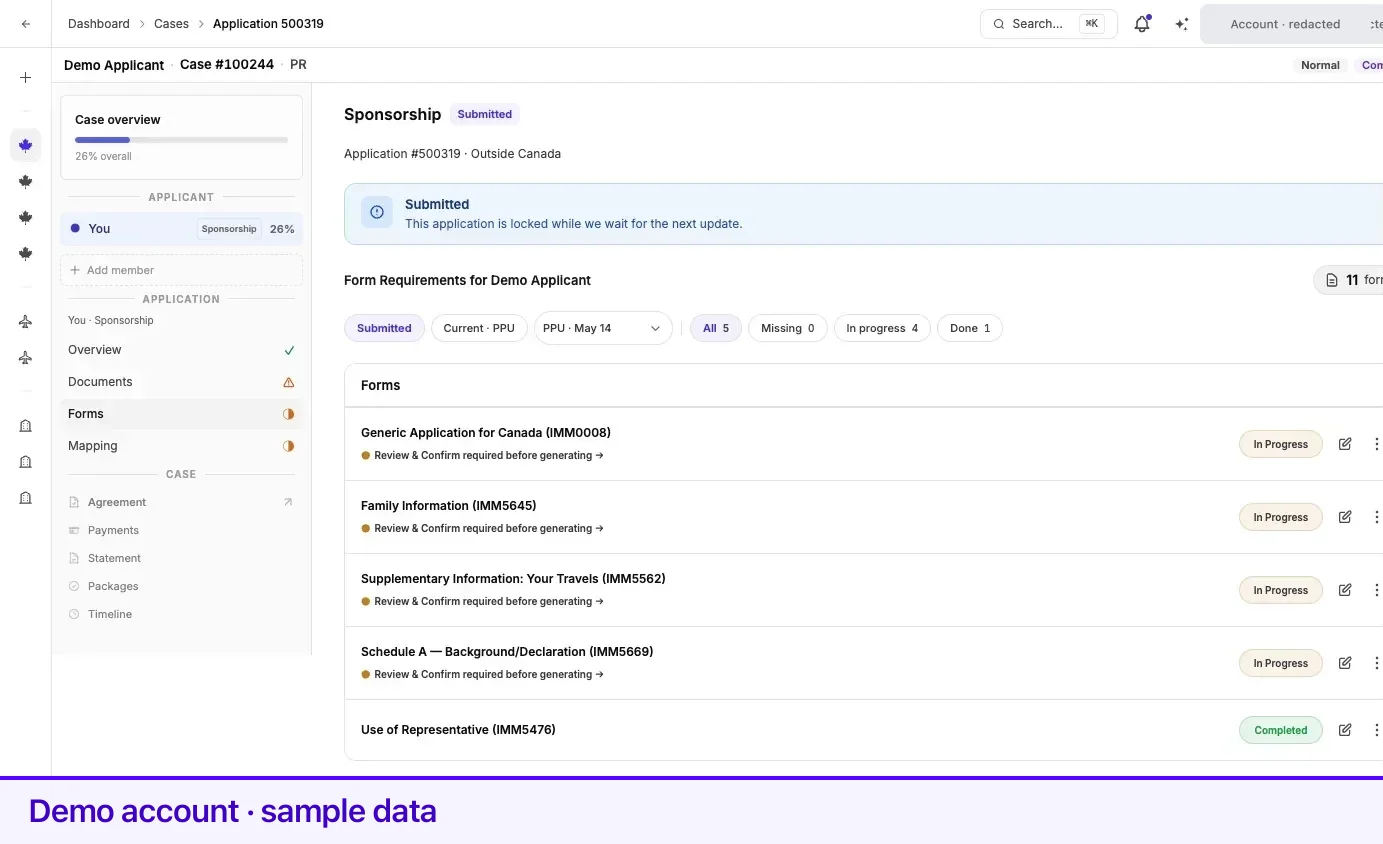
An application groups everything for one person under one program. Its Forms tab holds the IRCC forms Lexpoint prepares for you.
You never fill an IRCC PDF by hand. Lexpoint asks the same questions as a sectioned questionnaire, carries over what it already knows about you, and produces the official PDF from your confirmed answers.
Before you start
Section titled “Before you start”Open the application and choose Forms in the left case tree, under Application. Each row is one form. Open form (the pencil) starts or continues it.
Filling a form
Section titled “Filling a form”- Open the form. It has a section list down the left with a X / Y progress count, and one section at a time on the right.
- Answer the section, then save it. A toast confirms Section saved successfully and the section gets a check in the list.
- Use Previous and the continue button to move through the sections. Leaving a section with unsaved answers raises an Unsaved Changes dialog offering Stay Here or Discard & Continue.
- When every section has a check, the list reads All sections complete.
Review & Confirm
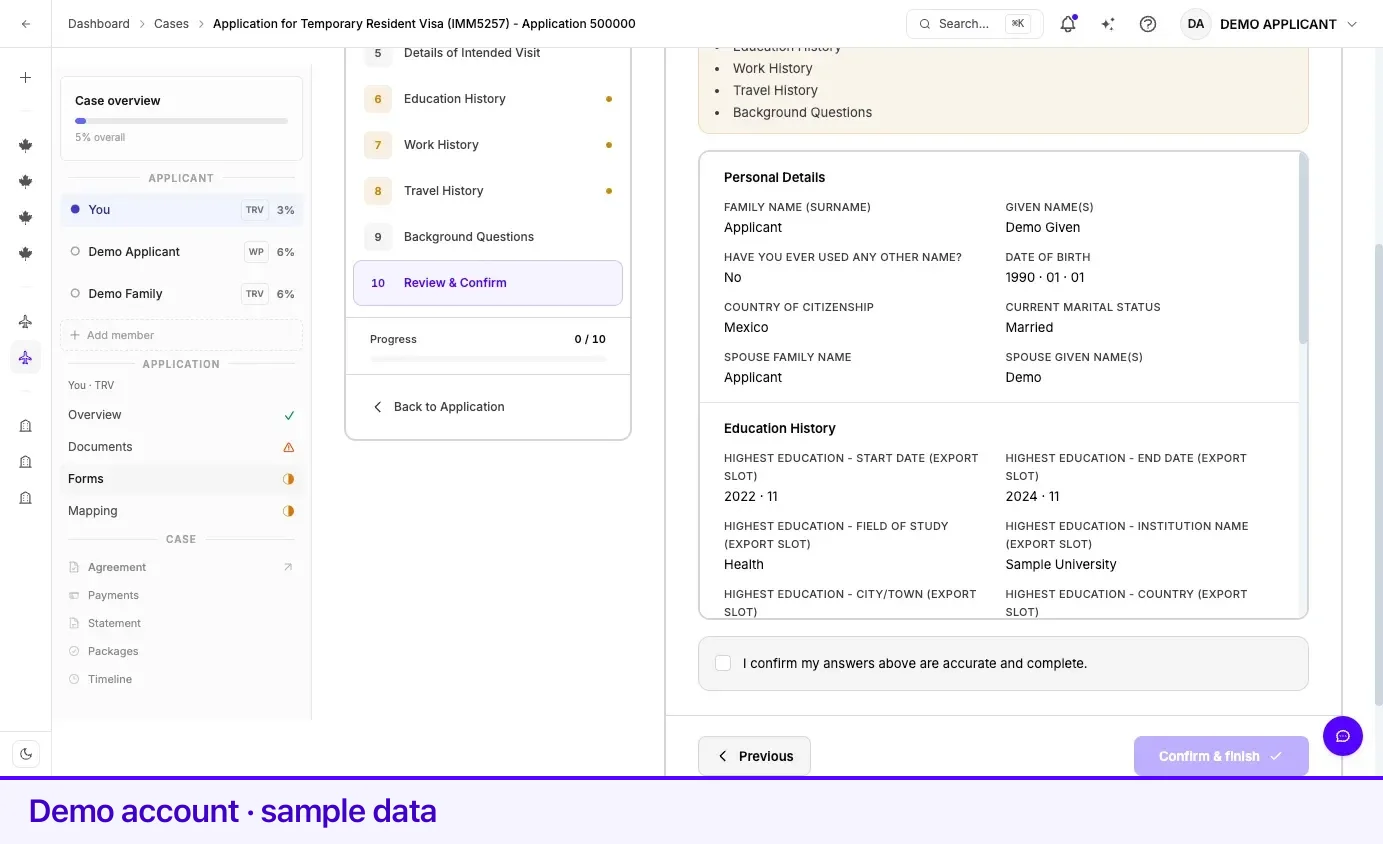
Section titled “Review & Confirm”The last section of a form is Review & Confirm. It shows every answer you gave, grouped by section, exactly as it will appear on the IRCC form.
- Read the summary. Anything wrong is fixed by going back to the section that owns it.
- Tick I confirm my answers above are accurate and complete.
- Select Confirm & finish.
The section then shows Confirmed with the date and time.
If any section is still incomplete, the page lists the ones to finish first and the confirm button stays disabled.
Who confirms
Section titled “Who confirms”Review & Confirm is completed by the principal applicant on their own Lexpoint account. On a form where you are not the confirming party the notice reads Review & Confirm must be completed by the principal applicant on their Lexpoint account, and the button area reads Waiting for principal applicant.
Sponsorship forms — IMM1344, IMM5532, and IMM5533 — are confirmed twice, once as each party. They show Confirm as sponsor and Confirm as principal, and the form is only finished when both are current.
Correcting an answer after confirming
Section titled “Correcting an answer after confirming”Confirming does not freeze the form. To correct something:
- Reopen the form and go to the section holding the answer.
- Change it and save.
- Return to Review & Confirm. It now reads Some answers were updated since you last confirmed. Review the summary, then confirm again.
- Confirm again.
- Generate the PDF again — until you do, the form’s requirement shows Regenerate PDF and blocks the submission package.
The PDF
Section titled “The PDF”Each form row’s actions menu carries the two PDF actions.
| Menu item | When it works |
|---|---|
Generate PDF / Regenerate | After the form is complete. Disabled with Complete the form first until then. |
| Download v | Once a PDF exists. Disabled with No PDF generated yet before that, and with Regenerate the PDF first when your answers have moved on since the PDF was made. |
While the PDF is being made
Section titled “While the PDF is being made”Choosing Generate opens a full-screen progress page for that one form. It works through four steps — Prepare application data, Build the IRCC PDF, Save to the case file, and Record the form version — with a live line naming the stage it is on: Checking permissions, Loading application data, Preparing the form fields, Verifying the review confirmation, Building the PDF, Retrieving the PDF, Saving to the case file, Recording the form version, and finally PDF ready.
It ends on Generation complete and returns you to the checklist. Leaving early is safe — the page says Generation continues in the background. If it fails it says so and shows the reason; generate again from the same menu.
Some forms cannot be generated from this menu. The reason is shown in place of the action:
- Generate this PDF inside the form — the PDF is produced within the form itself.
- PDF generation is not available for this form yet — no generator is wired for that form.
- Not available on this page — on a full-representation case your representative produces the PDFs.
Forms Lexpoint prepares as questionnaires
Section titled “Forms Lexpoint prepares as questionnaires”| Code | Form |
|---|---|
| IMM0008 | Generic Application for Permanent Residence |
| IMM0008_SCHEDULE_4 | Schedule 4 — Provincial Nominees |
| IMM0149 | Details of Government Employment |
| IMM0150 | Details of Police Service |
| IMM1294 | Application for Study Permit Outside Canada |
| IMM1295 | Application for Work Permit Outside Canada |
| IMM1344 | Application to Sponsor |
| IMM5257 | Application for Temporary Resident Visa |
| IMM5257_SCHEDULE_1 | Schedule 1 — Background/Declaration |
| IMM5406 | Additional Family Information |
| IMM5476 | Use of a Representative |
| IMM5532 | Relationship Information |
| IMM5533 | Document Checklist Spouse |
| IMM5546 | Details of Military Service |
| IMM5562 | Supplementary Information: Your Travels |
| IMM5645 | Family Information Form |
| IMM5647 | Family Information Form |
| IMM5669 | Schedule A — Background/Declaration |
| IMM5707 | Family Information Form |
| IMM5708 | Application to Extend Stay as a Visitor |
| IMM5709 | Application to Extend Stay as a Student |
| IMM5710 | Application to Change Conditions or Extend Stay as Worker |
| EE-INTAKE | Express Entry Intake |
| OINP-INTAKE | OINP Intake |
Which of these appear on your application depends on its program and location. Lexpoint decides that; you do not pick from this list. Nothing here says whether a form applies to your situation — for that, see immigratic.com or ask your representative.
Related
Section titled “Related”- Requirements and checklists — the Documents half of the same list
- Document review statuses — what Regenerate PDF and the other pills mean
- Finalization and the submission package — where the generated PDFs end up
- Your profile — the source of the pre-filled answers
Frequently asked questions
Do I have to type my answers into the IRCC PDF myself?
No. Lexpoint asks the questions as a plain questionnaire, pre-filled from your profile where it can, and produces the IRCC PDF from your answers once you confirm them.
I confirmed a form and then changed an answer. What happens?
The confirmation goes stale and the form shows "Some answers were updated since you last confirmed. Review the summary, then confirm again." Re-confirm, then generate the PDF again — the requirement shows Regenerate PDF until you do.
Why can I not confirm a form?
Review & Confirm is completed by the principal applicant on their own Lexpoint account. On another member's form you will see "Waiting for principal applicant".