

I cannot sign in
Lexpoint has no password, so almost every sign-in failure is one of a few things: a link that is no longer valid, a link that never arrived, the wrong Google account, a six-digit code that does not match, or a security check that has not passed. Each has a different fix.
Signing in normally is covered in sign in and account recovery. This page is for when it does not work.
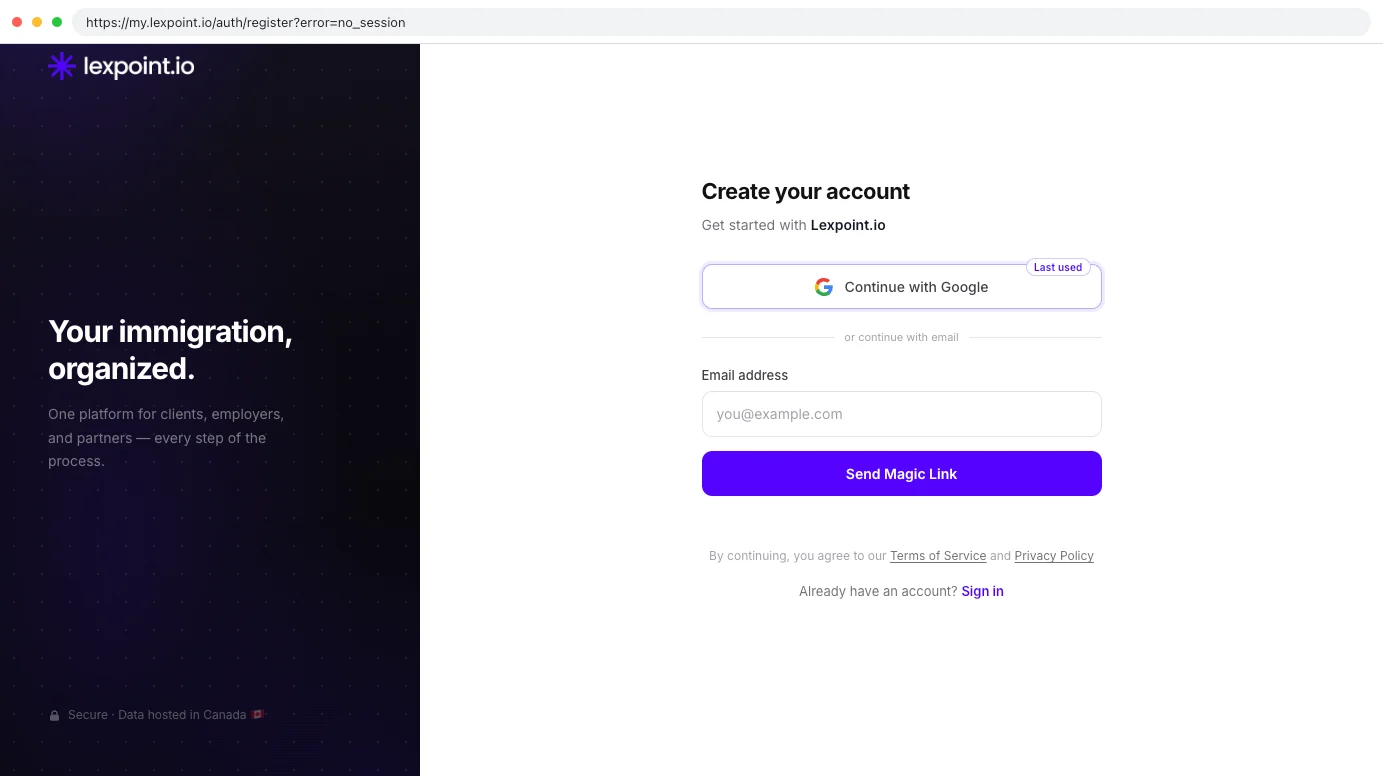
The link in my email took me to the sign-up page
Section titled “The link in my email took me to the sign-up page”Cause. A magic link works once, and only for a limited time. When you open one that has already
been used or is no longer valid, no session is created. Lexpoint does not leave you on a dead
screen: it sends you to the sign-up screen, and the address bar ends in ?error=no_session or
?error=auth_failed.
Nothing has happened to your account. The sign-up screen is a fallback destination, not a statement about your file.
Fix.
- Go back to my.lexpoint.io/auth/login.
- Enter the same email address and select Send Magic Link.
- Open the newest Lexpoint email and select its link.
- The link signs in the browser that opens it. If your mail app opens links in its own built-in browser, you are signed in there, not in your usual browser — copy the link into the browser where you use Lexpoint instead.
The magic link never arrived
Section titled “The magic link never arrived”Cause. In order of how often it happens: the mail is in a spam or promotions folder, the address was mistyped, or you are watching a different inbox than the one on the account.
Fix.
- Search the spam and promotions folders for
lexpoint. The confirmation dialog says Check spam folder if you don’t see it for a reason. - Check the address in the dialog. If it is wrong, select Use a different email and try again.
The email field validates as you type and shows a green checkmark when the address is well formed,
and it asks Did you mean …? before sending to a common slip such as
gmai.com— but it cannot tell a valid address from your address. - Wait for the Resend in 60s countdown to finish, then select Resend, and open the newest email.
If your address is right and nothing arrives after a resend, the block is on the mail side. Bring the exact address and the time you requested the link to Help & Support.
Continue with Google signs me in, but my file is gone
Section titled “Continue with Google signs me in, but my file is gone”Cause. You are in a different Lexpoint account. A Google sign-in identifies you by the Google account’s email address. If that address is not the one your Lexpoint file was created with, you land in a second, empty account rather than yours — usually because a personal Google account was picked in the account chooser when the file belongs to a work address, or the other way round.
Fix.
- Sign out from the account menu.
- Return to the sign-in screen and use Send Magic Link with the email address you know the file is under. A magic link signs you into the account for exactly that address.
- Once inside, open Settings → Account → Sign-in. The Sign-in methods panel lists every method connected to this account — that is the definitive answer to which Google account belongs to this file. See sign-in methods.
The six-digit code is rejected
Section titled “The six-digit code is rejected”The screen shows Invalid code. Please try again. and the boxes turn red.
Cause. Two-step verification codes are generated from the clock on the device running your authenticator app. If that clock has drifted by more than a few seconds, every code it produces is rejected, including the one currently on screen. The second cause is timing — a code lives for 30 seconds, and one typed as it rolls over will not verify.
Fix.
- Turn on automatic date and time on the device running the authenticator app, then open the app again.
- Wait for a fresh code to appear rather than entering one that is about to expire, and enter it promptly.
- Confirm you are reading the Lexpoint entry in the app, not another service’s.
Sign in with a different account, below the code boxes, does not help here — it abandons the sign-in and returns you to the start. Use it only when you have begun signing in as the wrong person.
If your clock is correct and fresh codes are still rejected, stop — you have lost access to the factor. Contact Help & Support. Identity is confirmed before two-step verification is reset, which is deliberate: an easy reset would defeat the protection. See two-step verification.
A security-check message appears, or the buttons are greyed out
Section titled “A security-check message appears, or the buttons are greyed out”Cause. The sign-in and sign-up screens run a Cloudflare security check before a magic link is sent. It is usually invisible. Three things can stop you:
- The check wants a click. A checkbox appears under Send Magic Link, with Please tick the security check above to continue. While it waits, the button reads Sending…
- The check failed. The screen reads We could not complete the security check. If a checkbox appears, tick it, then try again.
- An unticked partner consent box. If you arrived through a partner or referral link, the screen shows a consent panel and both Continue with Google and Send Magic Link stay disabled until it is ticked. Attempting to submit shows Please accept the partner consent checkbox to continue.
Fix.
- For a checkbox, tick it. A send you already started goes through on its own once the check passes.
- For the failure message, tick the checkbox if one is showing, then select Send Magic Link
again. If no checkbox ever appears and the message keeps coming back, a browser extension may be
blocking Cloudflare’s check (
challenges.cloudflare.com). Allow it on my.lexpoint.io, or try another browser. - For the consent panel, read it and tick the box, or open my.lexpoint.io/auth/login with no partner code in the address to sign in without it.
Lexpoint says my profile has been removed
Section titled “Lexpoint says my profile has been removed”Cause. The account’s assessment data was deleted. The screen reads Your profile has been removed — Your assessment data in the app was erased and you were signed out — and it appears only after a deletion has actually run.
Fix. Your email address stays on file, and Sign up again on that screen starts a new account on the same address. What was deleted does not come back. If you did not request the deletion, contact Help & Support immediately with the date you last signed in successfully. See deleting your account.
I keep being asked to extend my session or sign in again
Section titled “I keep being asked to extend my session or sign in again”Cause. This is by design. Lexpoint never renews a session in the background, so an unattended screen does not stay open on your file:
- About five minutes before a session ends, the Extend your session dialog asks for a click. If nobody clicks before the countdown ends, you are signed out.
- If the session ran out while the tab was in the background, coming back to the tab signs you out.
- If you open a page less than 30 minutes after the session ended, you see the Extend your session screen. After 30 minutes, you sign in again.
Fix. Select Extend session when the dialog appears. When you do have to sign in again, Lexpoint returns you to the page you were on, carrying that destination through the six-digit challenge too.
Each browser, browser profile, and private window keeps its own session. Moving between them means signing in, or extending, in each one.
What to bring to support
Section titled “What to bring to support”Open a ticket at my.lexpoint.io/app/tickets from a device where you can still sign in, with:
- The email address on the account.
- Which method you used: Continue with Google or Send Magic Link.
- The exact on-screen message, copied word for word.
- The full address bar contents when it failed, including anything after
?error=. - The date and time you tried, and your time zone.
Related
Section titled “Related”- Sign in and account recovery — how signing in is meant to go, and how sessions are extended
- Sign-in methods — which accounts are connected to your file
- Two-step verification — setting it up, and losing the device
- Contacting support — what makes a ticket answerable fast
Frequently asked questions
I forgot my Lexpoint password.
There is no Lexpoint password. A client account signs in with Google or with a one-time link emailed to your address, and the sign-in screen has no password field — so there is nothing to reset.
My magic link sent me to the sign-up page. Has my account been deleted?
No. The link had already been used or was no longer valid, so no session was created and Lexpoint fell back to the sign-up screen. Return to the sign-in screen and send a fresh link.
Why does Lexpoint reject a code my authenticator app is showing right now?
A one-time code is derived from the clock on the device generating it. If that clock has drifted, every code it produces is rejected. Turn on automatic date and time on that device and try the next code.
Why do I keep being asked to extend my session?
By design. Lexpoint never renews a session in the background, so it asks for one click before a session ends and signs you out if nobody answers. Select Extend session to keep going.