

Asking Lexi
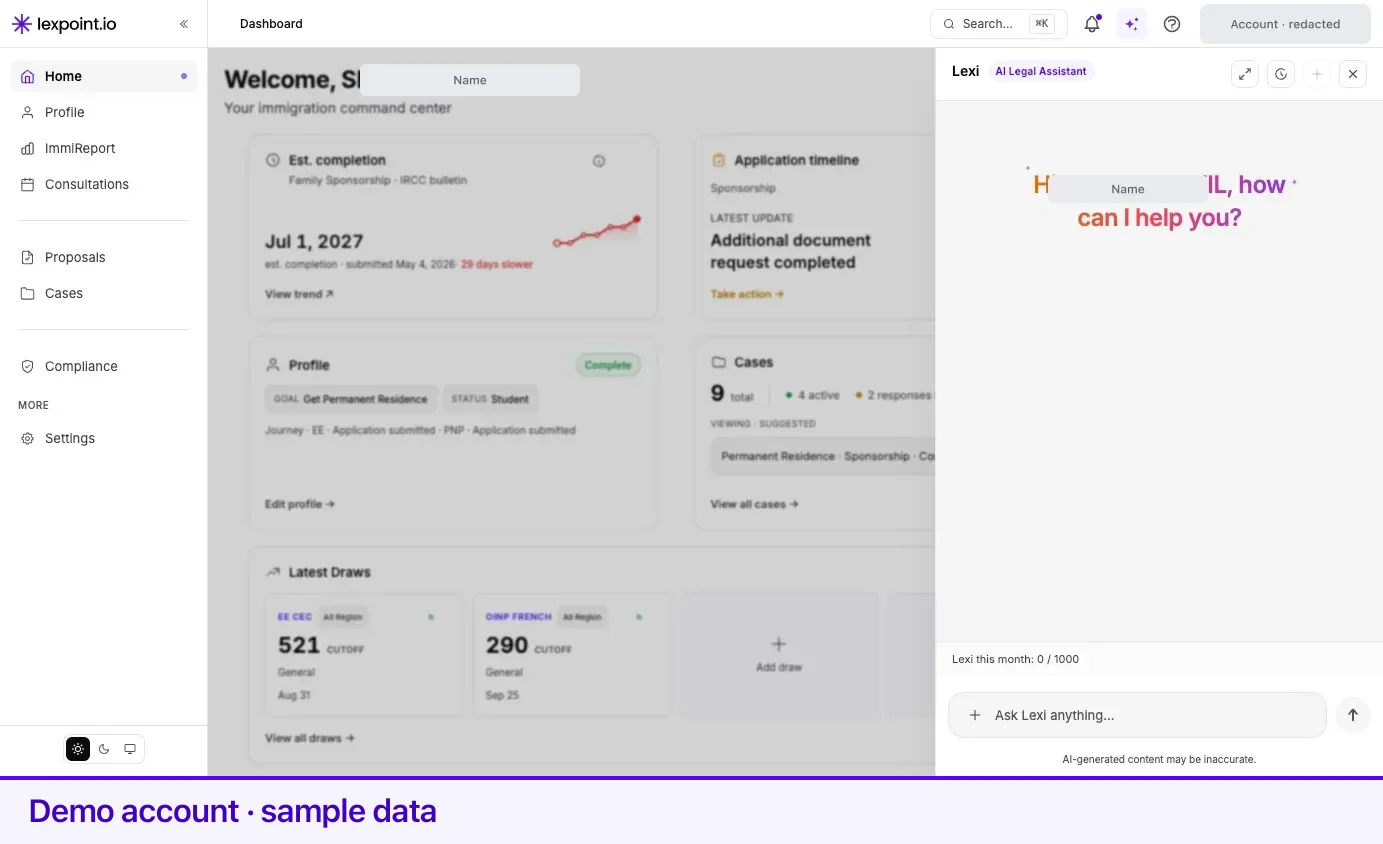
Lexi lives in a panel that slides in from the right, and it is reachable from every page inside your account. The sparkle button in the top navigation bar — labelled Ask Lexi — opens it. So does Ctrl+Shift+L, unless your cursor is already in a text field. Escape closes it.
Lexi in this panel is private to you. Nobody else sees the conversation.
Starting a chat
Section titled “Starting a chat”Opening the panel lands you on your chat list: a Start new chat button, your recent chats with a one-line preview and how long ago each was active, and View all chats for the full history.
If you were talking to Lexi moments ago, the panel skips the list and drops you straight back into that conversation.
A new chat opens with a greeting and the message box reads Ask Lexi anything…. Type a question and send it. Under the box, Lexi carries a standing reminder that AI-generated content may be inaccurate — it is there on every turn, and it is meant literally.
While Lexi is replying, the send button becomes a Stop button, so you can cut a long answer short and ask again more precisely.
The panel can be widened to fill the workspace when an answer is long or contains a table. Escape returns it to the narrow panel before it closes.
Telling Lexi what you are asking about
Section titled “Telling Lexi what you are asking about”This is the single biggest difference between a vague answer and a useful one. Lexi answers from your own account, but it needs to know which part of it you mean.
Two controls in the message box set that scope:
- Type
@to open a Lexi scope list of your cases. Choose one, and the rest of the chat is about that case. Arrow keys move through the list, Enter picks, Escape cancels. - Select
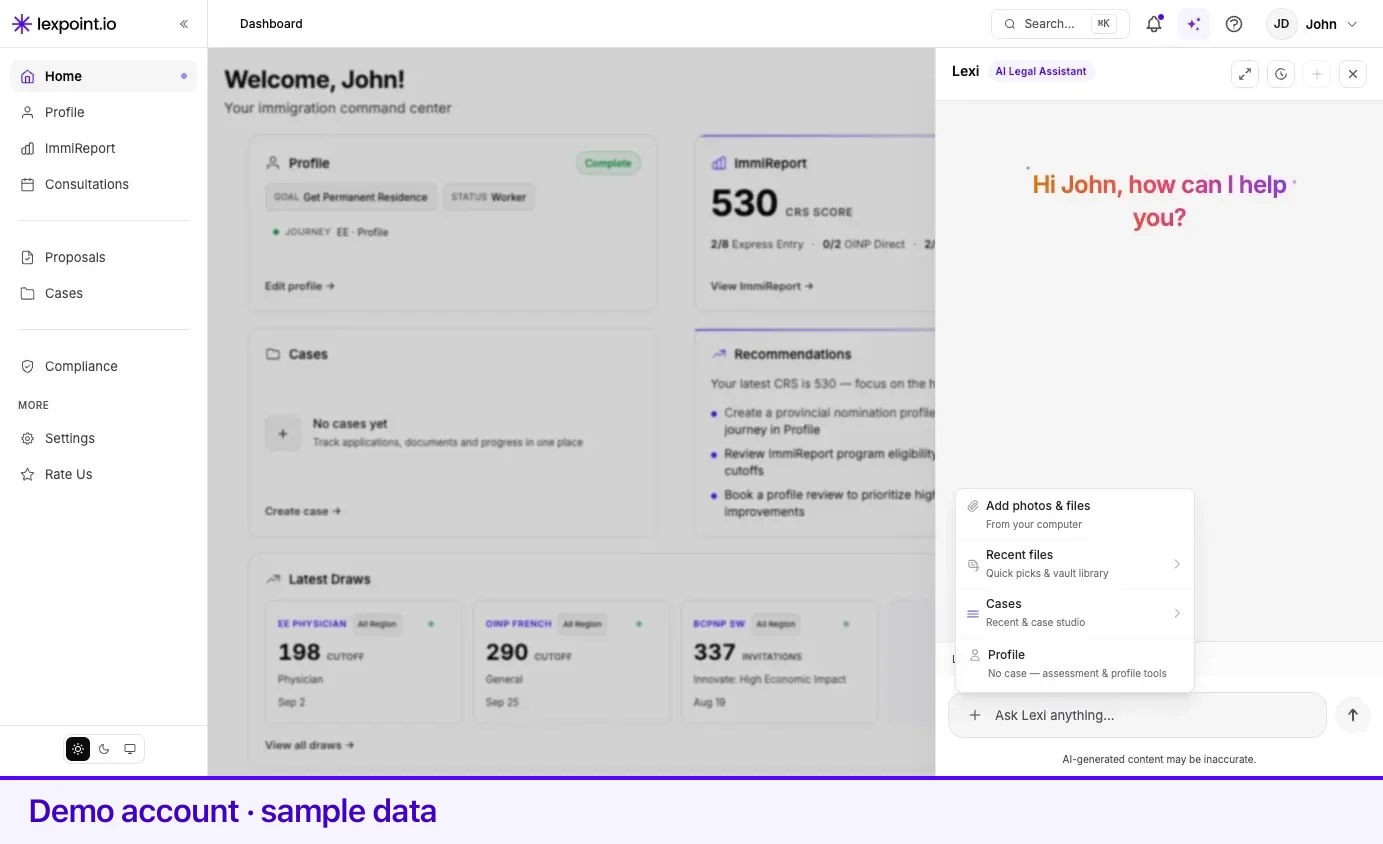
+— Attach file or set case scope — for a menu with the same cases plus a Profile option, described as No case — assessment & profile tools. Pick Profile when your question is about your own profile or your ImmiReport rather than an open case.
If you have no cases yet, the @ list says so and points you to + for profile scope.
Chats also remember where they were started. A chat begun on your ImmiReport is tagged ImmiReport in the list, one begun on your profile is tagged Profile, and general chats show as Workspace — useful when you are scanning the list for the one you want.
Attaching a document
Section titled “Attaching a document”Lexi can look at a file you attach — for example an employment letter you want it to read alongside a job in your work history.
Four ways to attach, all from the + menu or the box itself:
- Add photos & files — upload from your computer.
- Recent files — a file you have already uploaded to Lexpoint.
- Add from library — search everything in your documents.
- Drag a file onto the message box, or paste one.
| Limit | Value |
|---|---|
| Files per message | 1 |
| Maximum size | 10 MB |
| Accepted formats | PDF, JPEG, PNG, WebP |
Word documents are rejected before upload. If you only have a .docx, export it to PDF first.
While a file is uploading the box shows Uploading attachment…, and once it is staged the hint reads Send so Lexi can review your attachment. You can send an attachment with no message text at all.
Files you attach here land in your documents like any other upload — see Documents for how the vault works.
When the message box locks
Section titled “When the message box locks”The box is deliberately disabled in a few states, and each one tells you what it wants:
| The box says | What is happening |
|---|---|
| Lexi is replying… | An answer is streaming. Wait, or use Stop. |
| Choose an option above… | Lexi has asked you to confirm something or pick from a list. Answer with the buttons in the message — the hint reads Your turn — Confirm, Skip, or pick from the options above. |
| Continue this chat to send messages… | You are looking at a closed chat. Continue it to reopen it. |
| Message limit reached | You have used your monthly messages. You can keep drafting; Send opens the upgrade window. See Lexi settings. |
Getting a better answer
Section titled “Getting a better answer”- Scope first, ask second. Set the case with
@, or Profile from+, before the question. - Attach the document you are asking about rather than describing it. Lexi reads the file.
- Keep a topic in one chat. Each chat carries its own history, so follow-ups land in context. Start a new chat when the subject genuinely changes.
- Keep your profile current. Lexi answers from your saved data, so an out-of-date profile produces an out-of-date answer. See Your profile.
- Ask it to show its working. Lexi can say which of your records an answer came from.
Getting a Google Doc instead of a long chat
Section titled “Getting a Google Doc instead of a long chat”If you want the takeaway as a document — draft a summary of my ImmiReport in a clean doc format, or similar — Lexi can save it to your Google Drive after you connect Drive.
It pauses for Confirm first. After that, a chip under the reply (the title, then →) opens the Google Doc. Lexi does not paste the docs.google.com link into the chat. The Doc is a draft, not something to file with IRCC.
Connect Drive before you ask, or Lexi will point you to Integrations. This write is only in your private Lexi panel, not in a shared case thread.
Related
Section titled “Related”- What Lexi can do — the capabilities behind the panel
- Confirmations and limits — what Lexi asks before changing anything
- Integrations — connect Drive so Lexi can save a Google Doc
- Lexi settings — engine choice and your monthly message allowance
- Your profile — the data most of Lexi’s answers are built from
Frequently asked questions
How do I open Lexi?
Select the sparkle button labelled Ask Lexi in the top navigation bar. It is on every page inside your account. Ctrl+Shift+L opens and closes the same panel, and Escape closes it.
Can I attach a file to a Lexi message?
Yes — one file per message, up to 10 MB, as PDF, JPEG, PNG, or WebP. You can upload from your computer, pick a file already in your documents, drag a file onto the composer, or paste one. Word documents are not accepted.
Does Lexi remember earlier chats?
Each chat keeps its own history, and your recent chats are listed when you open the panel. Starting a new chat starts a fresh conversation rather than continuing the old one.