

Requirements and checklists
Every application in a case carries a checklist. It is split across two tabs: Documents for things you upload, and Forms for IRCC forms that Lexpoint fills and you confirm.
You do not build this list. It is generated for the application’s program and location, and it regenerates when the personal information behind the application changes — so an answer you give in one place can add or retire an item here.
Before you start
Section titled “Before you start”Open the application: from Cases, open the case, then pick the person in the left case tree and choose Documents or Forms under Application.
Reading the list
Section titled “Reading the list”Requirements are grouped into sections by category — Identity, Financial, and so on — with the most important categories first. Anything requested after submission is pinned to the top of the list in its own Post-submission ADR section.
Above the list, a counter reads X / Y uploaded: how many upload requirements have at least one file that has not been excluded, out of the total.
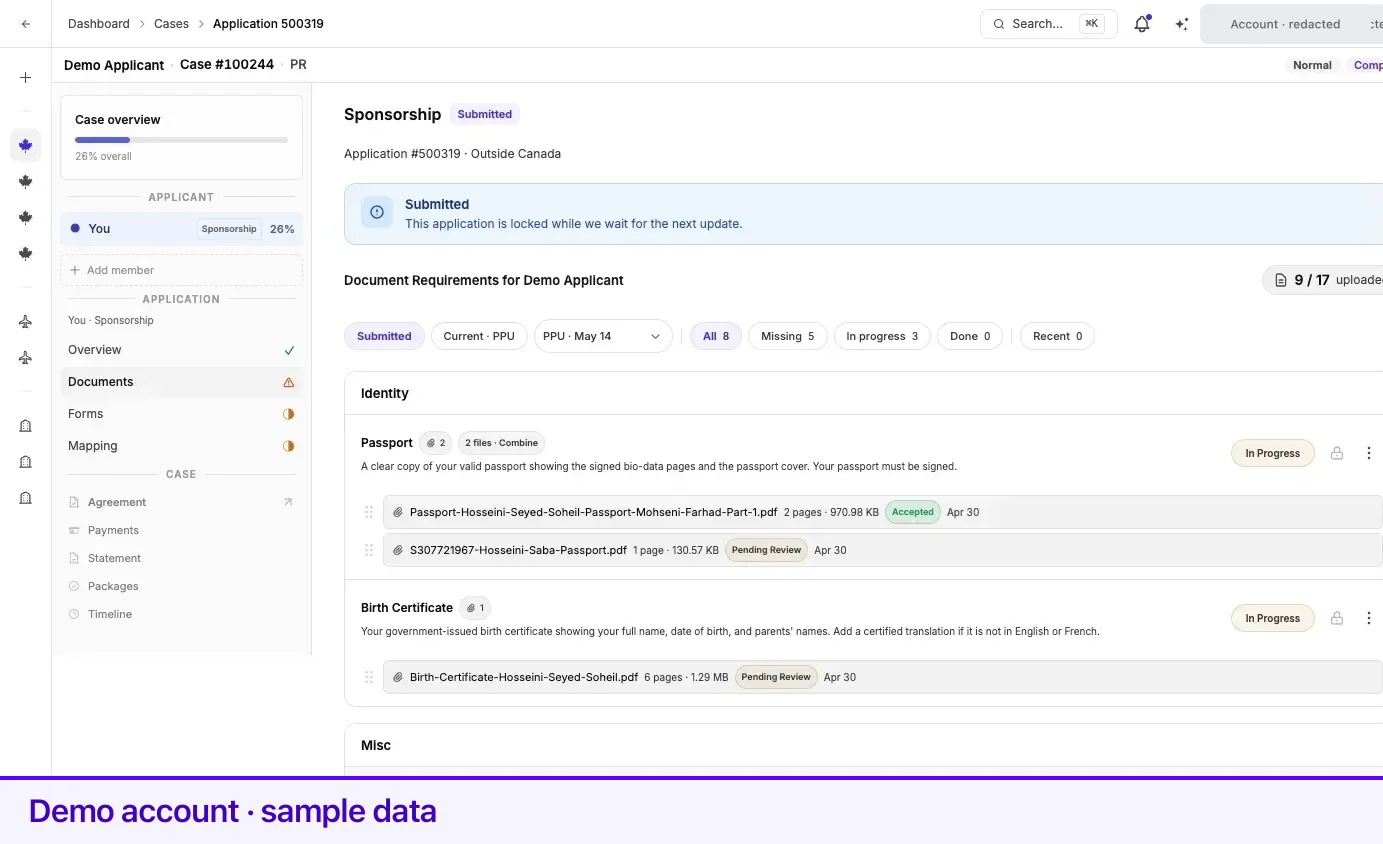
What is on a requirement card
Section titled “What is on a requirement card”| Element | Meaning |
|---|---|
| Title | The document or form being asked for. |
| Second line | The source of the requirement, and any instruction added for your case. |
| Optional tag | The requirement is on the list but is not counted as required. |
| Paperclip count | How many files are attached to this requirement. |
| Today / Yesterday tag | A file was attached to this requirement that recently. |
| N files · Combine | More than one file is attached and they can be merged into a single PDF. |
| Status pill | Where the requirement stands. See Document review statuses. |
| Upload or edit button | Upload document on an upload requirement, Open form on a form requirement. |
Filter chips
Section titled “Filter chips”A row of chips sits above the list, and the choice carries across the Documents and Forms tabs.
| Chip | What it filters to |
|---|---|
| All | Every requirement in the current scope. |
| Missing | Nothing provided yet. |
| In progress | Something is provided but not finished — uploaded, under review, or sent back. |
| Done | Complete. Waived items are not counted here. |
| Recent | Documents tab only. Requirements with a file attached in the last 7 days. |
Once an application has been submitted, two more chips appear in front of those:
- Submitted — the requirements that made up the original package.
- Current ·
— only what has been asked for since. When there has been more than one such request, a picker beside the chip lets you switch between them.
Working through the list
Section titled “Working through the list”- Start on Documents and select the Missing chip. That is the shortest path to what is actually outstanding.
- Open a requirement’s upload button and provide the file. See Uploading documents.
- Watch the status pill. A requirement moves to Completed only after review, not on upload.
- Move to Forms and work the same list there. See Applications and IRCC forms.
The list updates by itself as review outcomes land — you do not need to reload the page.
When an item is locked
Section titled “When an item is locked”An upload or form button is disabled with a lock when:
- The requirement has been accepted, so there is nothing left to change.
- The application is Submitted or has a final decision, which makes the whole checklist read-only.
- The application has been reopened by a new request, in which case only the items in that request are editable and everything else stays locked. The tooltip reads Locked — only the current request is editable.
Related
Section titled “Related”- Uploading documents — fulfilling a requirement, file by file
- Document review statuses — what every status pill means and what to do next
- Applications and IRCC forms — the Forms half of the same checklist
- Case Studio tour — how to reach any application in a case
Frequently asked questions
Can I add or remove items from my checklist?
No. On your side of a case the checklist is read-only in structure — you can fulfil items, but adding, removing, and reordering requirements are not available to you. If something on the list does not apply to you, say so in the case conversation and your representative will handle it.
Why did a new requirement appear that was not there yesterday?
The checklist regenerates when the personal information behind your application changes, and requirements can also be added after submission when IRCC or a province asks for something. Post-submission asks are grouped separately at the top of the list.
What does the Optional tag mean?
The requirement is on your checklist but is not counted as required. Providing it is still useful when you have it — ask in the case conversation if you are unsure.