

Widget reference
Every widget on /app/dashboard answers one question and appears only when it has an answer. This page lists all of them, what feeds each one, and — the question that brings most people here — why one might not be showing.
The dashboard’s main column holds at most six widgets, laid out in up to three rows of two.
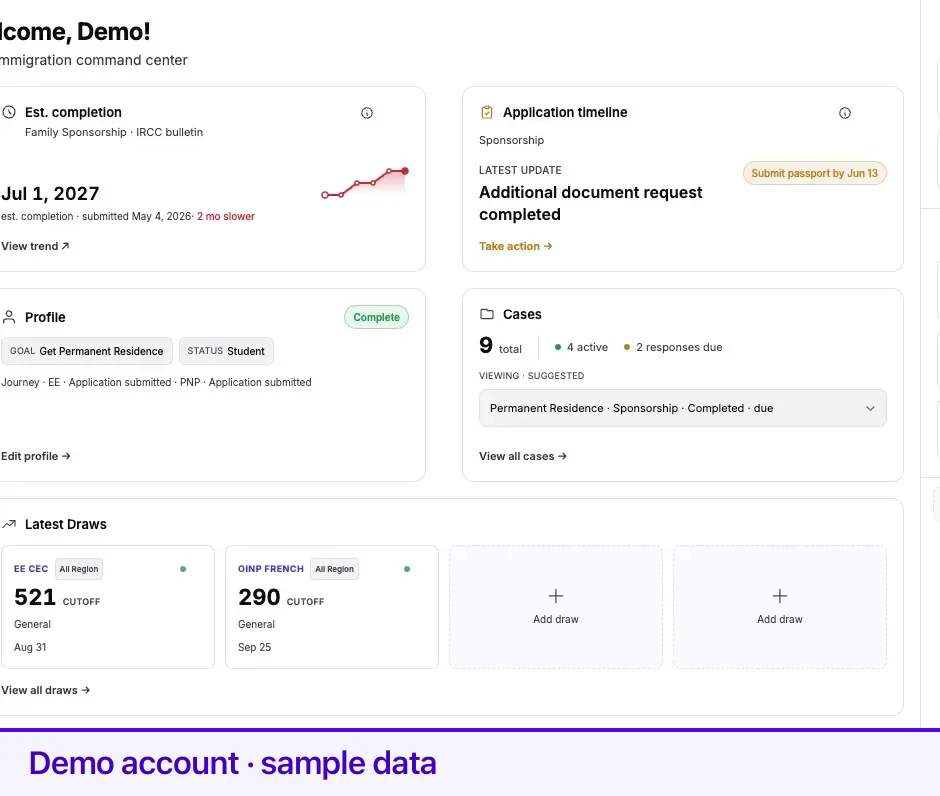
Main column widgets
Section titled “Main column widgets”| Widget | The question it answers | What the numbers are | Why it might not be showing |
|---|---|---|---|
| Profile | How complete is my profile, and what did I say my goal and status were? | Four sections — Personal Info, Work History, Education, Language Tests — counted as n / 4 done, with a status pill. Once complete it shows your Goal and Status instead. | It always shows. Profile cannot be removed or hidden. |
| ImmiReport | What is my CRS score, and how many programs is my report counting? | The CRS total from your latest ImmiReport, plus eligible-program counts for Express Entry, OINP Direct, and Other PNPs. A pill shows when it was last calculated. | You are not on a permanent-residence track, PR widgets are switched off for your journey, or your report is masked because a legacy review is still outstanding. If you have no report yet, the widget shows a Profile Complete — your report is being generated state instead. |
| Latest Draws | What were the most recent draw results? | The most recent draw for each program in a four-slot board — cutoff, date, invitations — from Lexpoint’s draw data across Express Entry, OINP, and BCPNP. | No draw data is loaded, or PR-pathway widgets are switched off for your journey. |
| Cases | How many cases do I have and how many need something? | Total case count, split into active, draft, and responses due. With more than one case, a focus selector picks which case the timeline and processing widgets follow. | You do not have case access yet. With no cases at all it shows a Create case → shell — except when you have told us you already applied yourself, where the empty shell is suppressed because it would repeat the same prompt. |
| Application timeline | Where is my managed case in its workflow, and what is next? | The focused case’s progress, next step, and any response deadline. The completion ring is hidden once the application is submitted. | You have no active managed case with Lexpoint, or your journey is not in a stage where a case timeline applies. |
| Est. processing time / Est. completion | How long is this kind of application taking? | A published processing benchmark for your program, with a trend and a direction of change. It reads Est. completion with a date once a submission date is known, and Est. processing time otherwise. | Your journey is not at a filing or post-filing stage, so there is no benchmark to anchor to. |
| Filing deadline | How long do I have to file after an invitation? | Days remaining against the filing window for the invitation you reported, anchored on the draw date. After the window closes the title changes to ITA status or Invitation status. | You have not told Lexpoint you received an invitation, or you have an open case with us, which moves you out of the self-filing view. |
| Your progress | What did I report about my own application? | The pathway and submission date you reported yourself, labelled Self-reported. | You have not reported that you applied on your own, or you have a managed case, which supersedes it. |
| Recommendations | What would move my file forward? | A list built from what your profile is missing — language tests, work history, education — plus your report and a consultation prompt. | Your journey is past the planning stage, or you have not run a report yet where one is required for the list to mean anything. |
| Smart Journey | What should I be preparing for my pathway? | A prep checklist for your inferred program, personalized against what your profile already holds. | Your journey has not resolved a pathway to prepare for yet. |
Two widgets that are switched off
Section titled “Two widgets that are switched off”These are in the widget registry and have finished cards, but the compliance product is not released, so the dashboard does not place them for anyone. Looking for them is not a fault on your account.
| Widget | Would answer |
|---|---|
| Compliance | How many permits, filings, and threads are on my status record, and what needs attention. |
| Status in Canada | What my current status is and whether my status documents are current. |
Fixed regions that are not widgets
Section titled “Fixed regions that are not widgets”These are not part of the six-widget count and cannot be reordered or removed. The welcome line and the quick actions strip always render; the attention banner renders only when a prompt applies.
| Region | What it is |
|---|---|
| Welcome line | A Welcome greeting with your first name, and a subtitle matched to your situation. |
| Attention banner | One banner at most, above the widgets, and none when nothing applies. Lexpoint shows only the highest-priority prompt — the full order is in the dashboard tour. |
| Quick actions strip | The chip row under the widgets: Widgets, Contact Us, Update Profile, Book a Call, and View ImmiReport when you have a report and the ImmiReport widget is placed. |
| Right sidebar | Consultations, Proposals, Cases, Tickets, Updates — a separate set with its own rules. |
Right sidebar blocks
Section titled “Right sidebar blocks”The sidebar appears on wide screens only. Below that width, Consultations and Proposals fall back into the main column. It holds at most three blocks, and starts with Consultations and Proposals. If you have never arranged it, Cases is added third once a permanent-residence case with us has been submitted, or when you hold both a permanent-residence and a temporary-residence case.
| Block | What it shows | When it can be added |
|---|---|---|
| Consultations | Your next three upcoming calls, with a Book a Call prompt when there are none. | Always. On by default. |
| Proposals | Your two most recent active proposals with their expiry, and a count. | Always. On by default. |
| Cases | A visual pulse of your cases. | Only when you have case activity to draw. |
| Tickets | Your three most recently updated support tickets and the open count. | Always. |
| Updates | Your three most recent notifications and the unread count. | Always. |
Once three blocks are placed, the Add widget control disappears until you remove one. Removing a block is remembered — nothing is auto-filled back into the free slot.
When a widget shows a setup message
Section titled “When a widget shows a setup message”If a widget sits in your layout but its data is not ready, the slot renders a short setup card instead of an empty one. Each names what is missing:
| Widget | The card says |
|---|---|
| Smart Journey | Complete your profile and ImmiReport so we can build a prep checklist for your pathway. |
| Filing deadline | Tell us you received an ITA or provincial invitation in your immigration journey. |
| Est. processing time | Processing benchmarks appear when you are preparing to file or have a PR/TR case in progress. |
| Your reported progress | Share where you are in your EE or PNP journey so we can nudge the right next steps. |
| Recommendations | Finish your assessment and run ImmiReport to see score improvement tips. |
| Application timeline | Timeline progress appears when you have an active managed case with Lexpoint. |
What decides eligibility
Section titled “What decides eligibility”Two things gate every widget above, and knowing which one is at work usually explains a missing card.
- Where you are. Lexpoint resolves a single dashboard shape from your segment, what you have told it about your own journey, and any managed cases you hold with us. Moving between those — reporting an invitation, retaining us, an application being submitted — changes which widgets are in play.
- Whether the data exists. A widget with nothing to draw does not render its card. Some show the setup message above; the rest are not placed.
Neither of these is a statement about your immigration prospects. A widget appearing or not is a product rule about available data, never an eligibility outcome. For program rules and what a score means, see immigratic.com or book a consultation.
Related
Section titled “Related”- Choosing and ordering widgets — adding, hiding, and rearranging what is above
- Dashboard tour — where each region sits on screen
- Notifications and the updates feed — the bell and the Updates block
- Your profile — the four sections the Profile widget counts
- ImmiReport — the report behind the CRS number and program counts
Frequently asked questions
A widget I had yesterday is gone. What happened?
Most likely the condition behind it changed. Widgets are tied to what is true for your account — an invitation you reported, a case that moved from preparing to submitted, a report that finished calculating. When the condition stops being true, the widget goes. Your Profile and Quick actions never go.
Why can I only add four widgets from the Widgets menu?
The menu lists ImmiReport, Latest draws, ITA deadline, and Processing time, and only the ones you currently qualify for. Everything else is either permanent — Profile, Cases — or placed automatically when it has something to show.
Why does a widget show a short setup message instead of its numbers?
It is in your layout but has nothing to draw on yet. The card names what is missing and links to the screen where you can supply it.