

Document review statuses
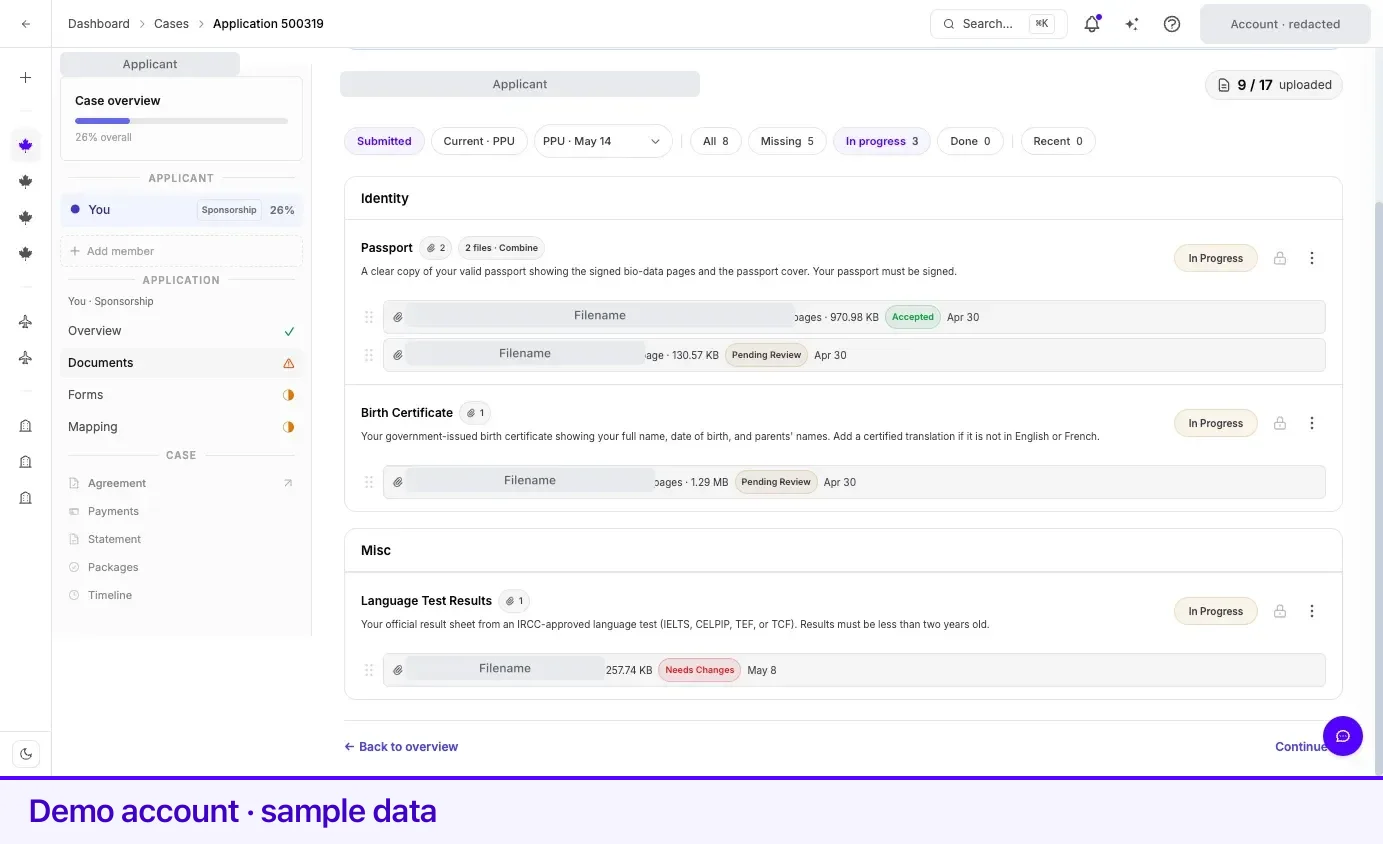
Lexpoint shows status in three places at once, and they mean different things: on each file, on each requirement, and on the application as a whole. A file can be accepted while its requirement is still in progress, because a requirement can be waiting on more than one file.
File statuses
Section titled “File statuses”Shown as a small pill on each file row under a requirement, and in the document viewer.
| Status | What it means | What to do |
|---|---|---|
| Reading file | Lexi is analyzing the document you just attached. | Nothing. It clears on its own; if it lingers more than a few minutes the file falls back to Pending Review. |
| Pending Review | The file is attached and waiting on your representative’s review. | Nothing. Move on to the next requirement. |
| Accepted | The file has been reviewed and accepted. | Nothing. Do not replace an accepted file. |
| Needs Changes | The file was reviewed and sent back. | Open the file, read the note under the preview, then upload a corrected file to the same requirement. |
| Excluded | The file has been set aside and no longer counts toward its requirement. | Read the reason in the document viewer. If the requirement has dropped back to Missing, provide a replacement. |
The note on a reviewed file
Section titled “The note on a reviewed file”Open a file to see the viewer. Below the preview, one of these appears:
| Card | Meaning |
|---|---|
Lexi with reviewing this document… | The analysis has not finished yet. |
Lexi with Recommendation: Accept / Review / Changes, and a relative time | Lexi’s assessment of the file. It is an assessment, not the decision — the file’s own status pill is what counts. |
| Note | A written note about this file from your representative. This is where a Needs Changes reason is explained. |
Requirement statuses
Section titled “Requirement statuses”Shown as the pill on the right of each requirement card, in the Documents and Forms tabs.
| Status | What it means | What to do |
|---|---|---|
| Missing | Nothing has been provided for this requirement. | Use the upload button on the card, or Open form if it is a form requirement. |
| In Progress | Something has been provided but the requirement is not finished — a file is awaiting review, a file was sent back, or a form is started but incomplete. | Check the file rows underneath. Anything reading Needs Changes is yours to fix; anything reading Pending Review is not. |
| Completed | The requirement is satisfied. | Nothing. The upload button is locked once a requirement is accepted. |
| Regenerate PDF | The form’s answers changed after its PDF was produced, so the PDF no longer matches. | Open the form and generate the PDF again. Until you do, this item blocks the submission package. |
| Waived | This requirement has been set aside for your case and is not counted. | Nothing. |
| Combining… | A merge of this requirement’s files into a single PDF is running. | Wait. The pill clears when the merge finishes. |
Two tags can sit beside the title rather than in the pill:
| Tag | Meaning |
|---|---|
| Optional | The requirement is on your list but is not counted as required. |
| N files · Combine | More than one file is attached. They can be merged into a single PDF from the card’s actions menu. |
How requirement status is grouped by the filter chips
Section titled “How requirement status is grouped by the filter chips”The status chips above the list collapse the pills into four buckets.
| Chip | Includes |
|---|---|
| All | Everything in the current scope. |
| Missing | Missing only. |
| In progress | In Progress and Regenerate PDF. |
| Done | Completed. |
| — | Waived is counted in All only; it appears in no status bucket. |
Case tree glyphs
Section titled “Case tree glyphs”The Application section of the left case tree carries one glyph per step. Hovering a step shows the same wording.
| Step | Glyph | Meaning |
|---|---|---|
| Documents | ✓ | All required documents are complete or accepted — or the application has no required documents. |
| Documents | ◑ | Uploads still in progress or documents still missing. |
| Documents | ⚠ | A document needs replacement, was rejected, or requires action. |
| Forms | ✓ | All required forms are complete — or there are none. |
| Forms | ◑ | Required forms are incomplete or still in progress. |
| Mapping | ✓ | Every required document and form is assigned to an IRCC submission slot. |
| Mapping | ◑ | Some required items are not yet mapped to a slot. |
| Mapping | – | Nothing mapped yet, or the application has no requirements. |
The ⚠ on Documents is the one glyph that means you have something to do. The others are progress, not a request.
Application statuses
Section titled “Application statuses”Shown as a banner at the top of the application and as a chip beside its title. The application’s status decides whether the checklist can be edited at all.
| Status | Banner text | Checklist |
|---|---|---|
| Initiated | No banner. | Fully editable. |
| Submitted | This application is locked while we wait for the next update. | Locked. |
| Action required | A new request was received from IRCC or the province. Upload or update only the requested information below. | Only the items in the current request are editable. Everything else stays locked. |
| Approved | This application has a positive final decision. Read-only. | Locked. |
| Refused | This application has a negative final decision. Read-only. | Locked. |
| Withdrawn | This application is closed. Read-only. | Locked. |
| Archived | This application is hidden from active workflow. | Locked. |
When an application is in Action required, the checklist gains a Current ·
Related
Section titled “Related”- Uploading documents — how to fix a file that came back
- Requirements and checklists — where these statuses appear
- Messages on a case — asking why something was sent back
- Your documents — the vault the files live in
Frequently asked questions
My document says Needs Changes. What do I do?
Open the file in the document viewer and read the note under the preview — it says what is wrong. Then upload a corrected file to the same requirement. The requirement stays In Progress until the replacement is accepted.
Why does my requirement still say In Progress after I uploaded everything?
Uploading does not complete a requirement. The requirement reaches Completed only after the file is accepted in review. In Progress covers uploaded, awaiting review, and sent-back files alike.
What does Excluded mean on one of my files?
The file has been set aside and no longer counts toward the requirement. The reason is shown in the document viewer. The requirement behaves as though that file is not there, so it may return to Missing.
What is "Reading file"?
Lexi, the Lexpoint assistant, is analyzing the document you just uploaded. It resolves on its own, usually within a few minutes, and then the file shows its review status.