

Choosing and ordering widgets
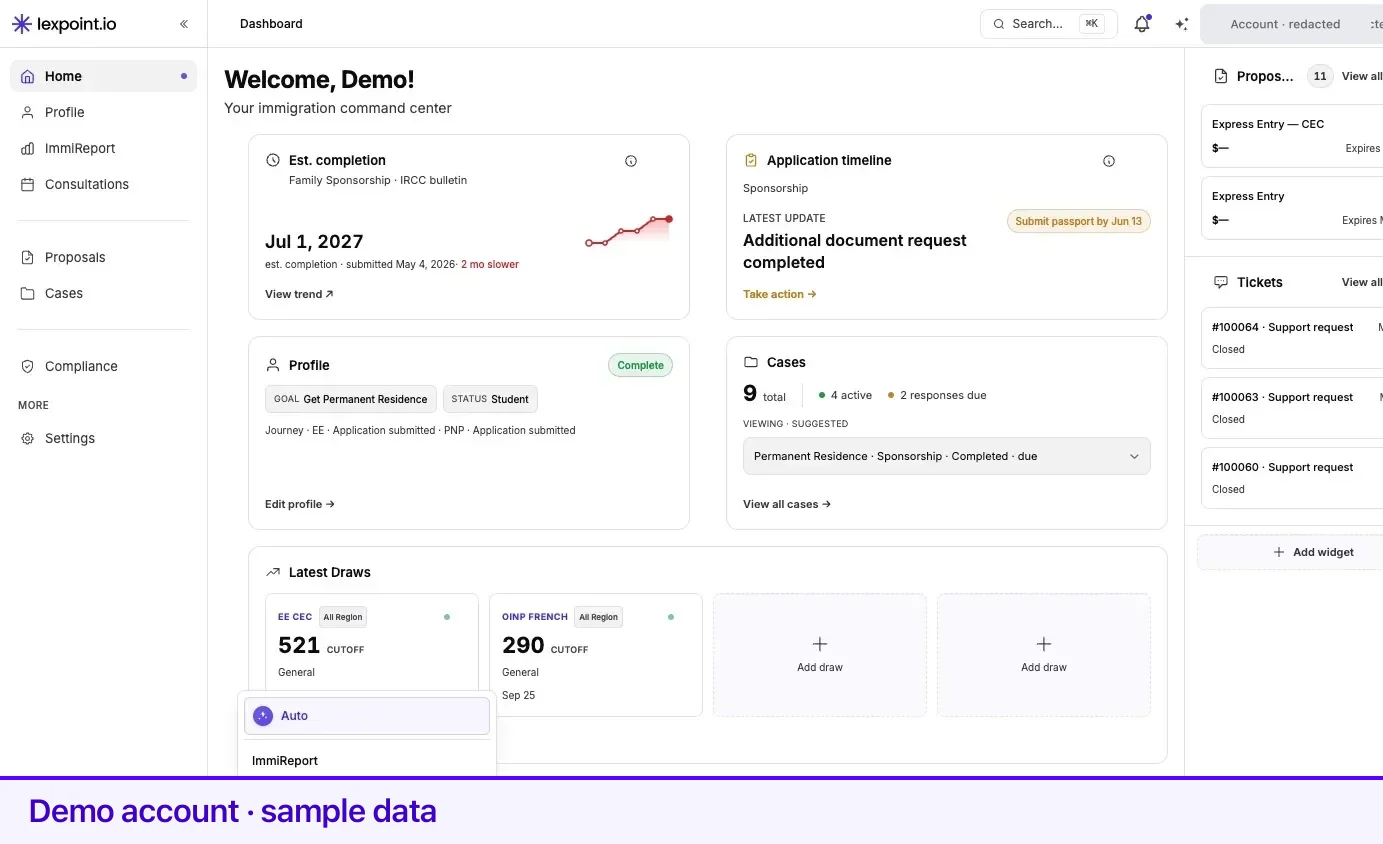
The dashboard’s main column holds six widgets at most, in up to three rows of two. You control which six and where they sit. The right sidebar is arranged separately, with its own cap of three.
Before you start
Section titled “Before you start”Three widgets have no hide control: Profile, Cases once you have case access, and Application timeline. They count against the six. Application timeline still leaves on its own when you no longer have an active managed case.
Add a widget
Section titled “Add a widget”- Go to /app/dashboard.
- In the chip row under the widgets, click Widgets. The count beside it — for example (4/6) — is how many of your six slots are in use.
- Pick a widget from the list. It saves and the dashboard rebuilds.
The menu offers at most four: ImmiReport, Latest draws, ITA deadline, and Processing time — and only the ones that currently apply to you. Everything else is either permanent or placed automatically when it has something to show.
Hide a widget
Section titled “Hide a widget”Hover over a widget and click the × in its top-right corner.
Profile, Cases, and Application timeline have no ×. Every other widget can be hidden: ImmiReport, Latest Draws, Filing deadline, Est. processing time, Your progress, Recommendations, and Smart Journey.
A hidden widget stays hidden while your journey stage stays the same. To bring it back sooner:
- ImmiReport, Latest draws, ITA deadline, Processing time — add it from the Widgets menu.
- Recommendations, Smart Journey, Your reported progress — use Auto.
Reorder widgets
Section titled “Reorder widgets”- Hover over a widget. A drag handle appears in the narrow gutter to its left.
- Drag it onto another widget.
- Watch the drop hint before you release:
| Hint | Where it lands |
|---|---|
| A line down the left edge | Immediately before that widget |
| A line down the right edge | Immediately after that widget |
| A ring around the whole card | Beside it, sharing that row |
A row holds two widgets at most, and there are three rows. The layout saves as soon as you drop.
Auto sits at the top of the Widgets menu. It discards your arrangement and rebuilds the dashboard for where you are now: the widgets that suit your current stage, in their intended order. It also clears your hidden list, so anything you dismissed can come back, and clears the case you had pinned as the focus for the timeline and processing widgets.
Use it when the dashboard has drifted out of step with your situation — or to recover a widget the Widgets menu does not offer.
When your journey stage changes
Section titled “When your journey stage changes”Your layout is tied to the stage it was built for. When that stage changes — you update your immigration journey, report an invitation, retain us, or an application is submitted — Lexpoint rebuilds the dashboard on your next visit, exactly as Auto does. The rebuild is saved, your hidden list is cleared, and the case you had pinned as the focus is cleared. Widgets you hid for the old stage can reappear.
The right sidebar
Section titled “The right sidebar”Different rules, on wide screens only. Three blocks at most, starting with Consultations and Proposals — plus Cases in third place if you have never arranged the sidebar and a permanent-residence case with us has been submitted, or you hold both a permanent-residence and a temporary-residence case.
- Add — Add widget at the bottom of the column opens the list; pick one, or Cancel. Once three are placed the control is replaced by All available blocks are in your sidebar.
- Remove — hover a block and click the × beside its heading.
- Reorder — drag the handle at the left of a block’s heading onto another block.
Sidebar changes save immediately and do not reload the page. A removal sticks: the freed slot stays empty until you add something to it, and a journey stage change does not refill it.
Choosing which draws appear
Section titled “Choosing which draws appear”The Latest Draws widget has its own slots — four across a full-width row, two when it shares a row. Remove a draw with the × on its tile, then use an empty slot’s Add draw control to search the program list and pick another. These picks are saved to your account alongside the rest of your layout.
Related
Section titled “Related”- Widget reference — what each widget shows and when it is eligible at all
- Dashboard tour — where the Widgets chip and the sidebar sit
- ImmiReport — the report behind the ImmiReport widget
- Your profile — what the Profile widget counts
Frequently asked questions
Why is the widget I hid not in the Widgets menu?
The menu only offers ImmiReport, Latest draws, ITA deadline, and Processing time. Recommendations, Smart Journey, and Your reported progress are placed automatically for your stage and are not listed there. Auto brings them back, and so does a change in your journey stage.
Does my layout follow me between devices?
Yes. Your arrangement, your hidden widgets, and your Latest Draws picks are saved to your account, not your browser. Only the sidebar's collapsed state and your theme are per-browser.
Why does the page reload every time I change something?
Widget contents are calculated on the server. Rather than half-fill a new card in the browser, Lexpoint saves the change and rebuilds the dashboard, with a short overlay while it does.