

Sign in and account recovery
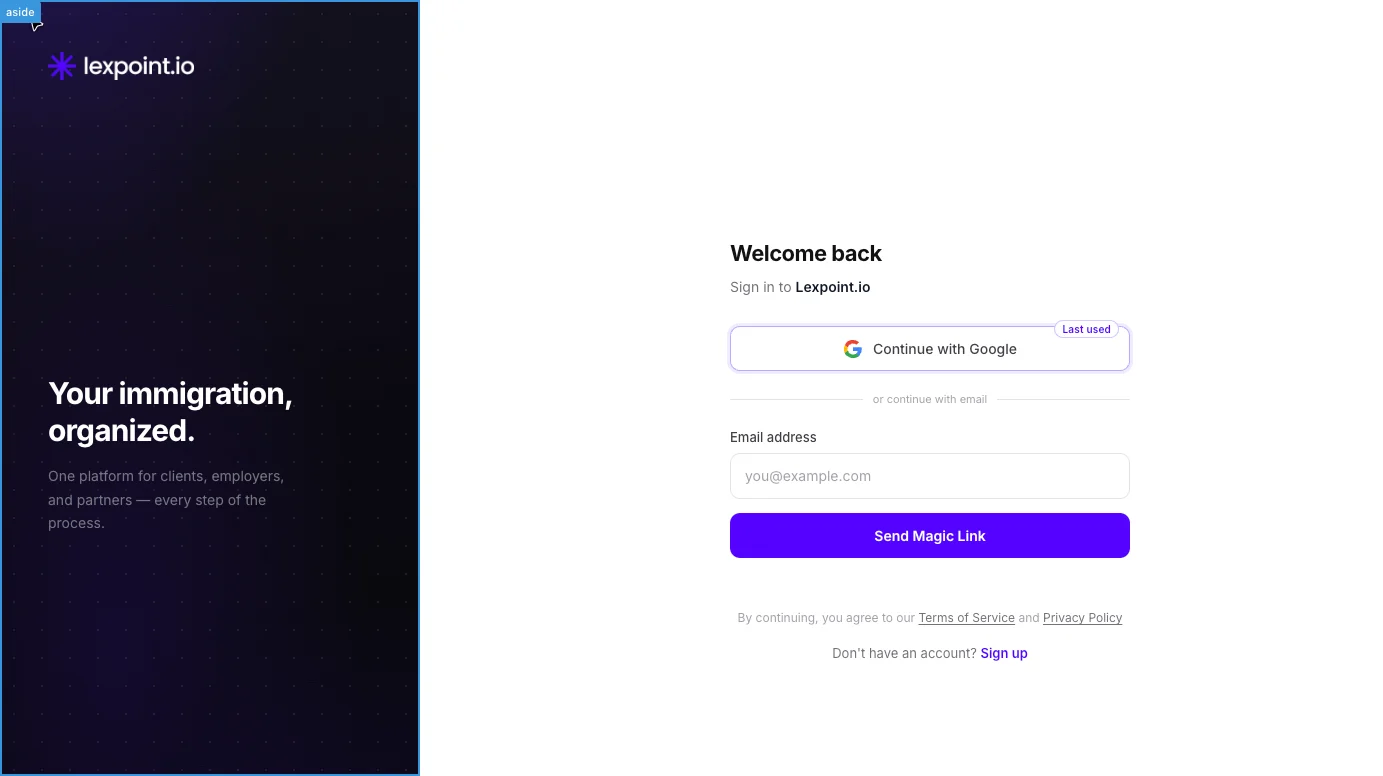
Every later visit starts at my.lexpoint.io/auth/login, where the heading reads Welcome back. The screen offers the same two methods as sign-up, and there is no password field on it.
Sign in with Google
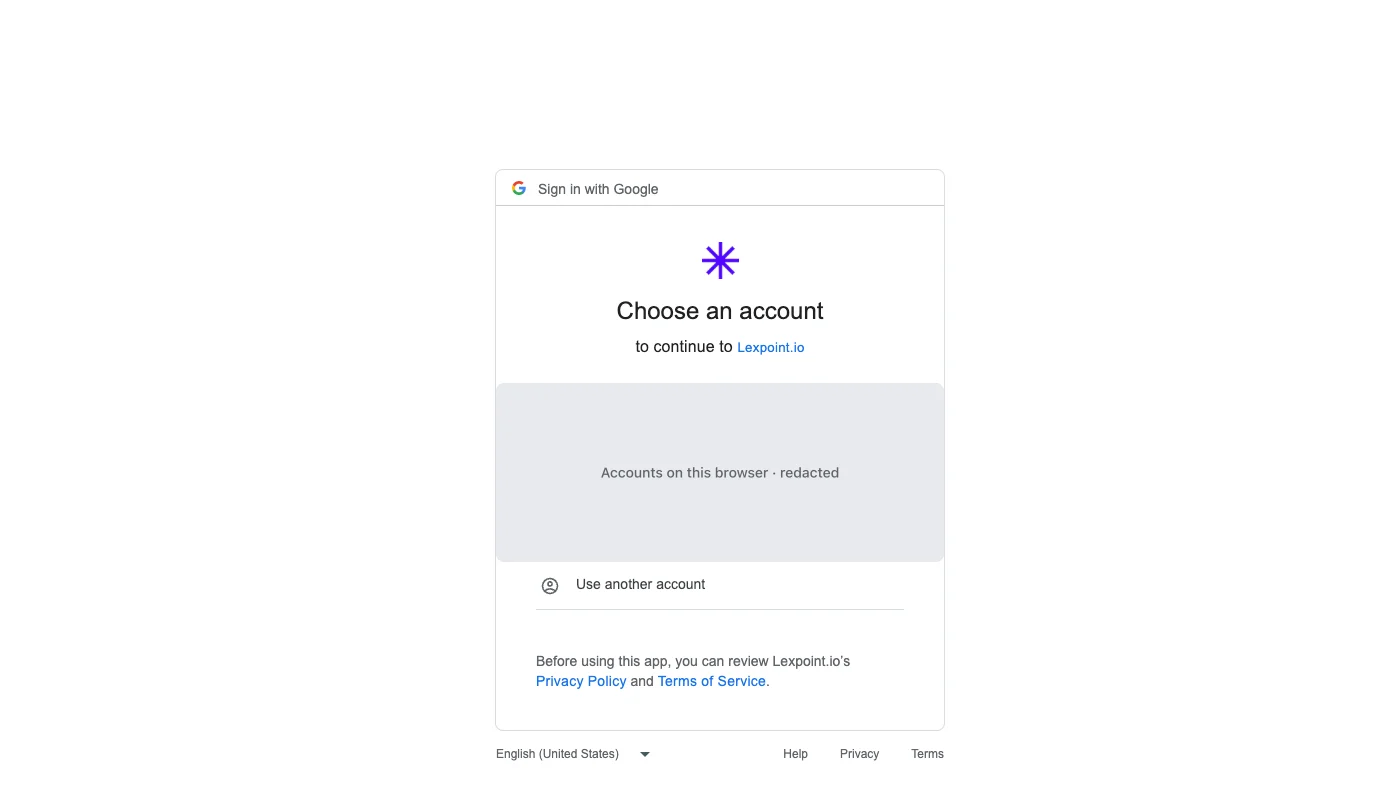
Section titled “Sign in with Google”Select Continue with Google. Google opens Choose an account — to continue to Lexpoint.io. Pick the Google account you signed up with. If that is the one on this file, you land back inside Lexpoint.
Sign in with an emailed link
Section titled “Sign in with an emailed link”- Type your address into Email address. The field checks the address as you type: a green
checkmark when it is valid, or Please enter a valid email address when it is not. Once you type
the first letter after the
@, it suggests a common domain such as gmail.com or outlook.com in grey — press Tab to accept it. - Select Send Magic Link.
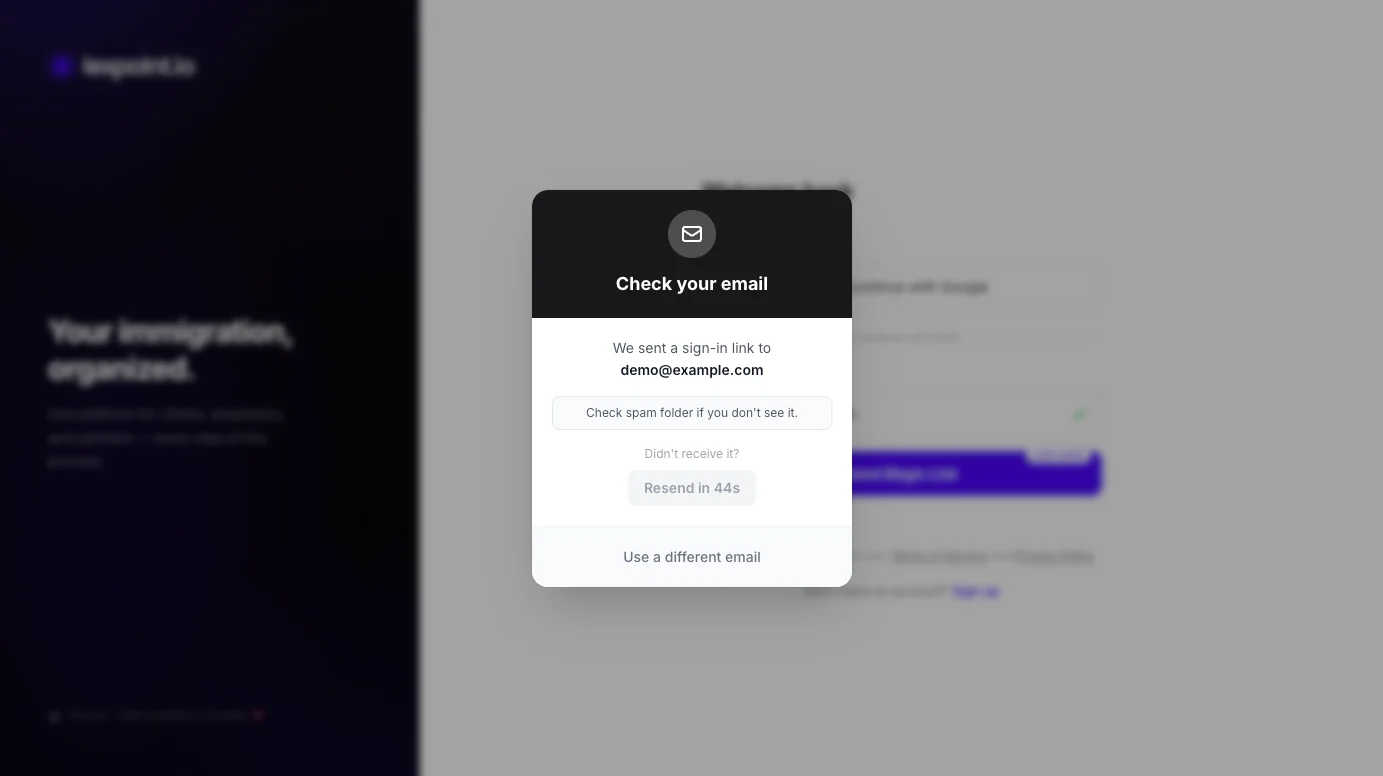
- A dialog opens: Check your email — We sent a sign-in link to your address, with the reminder Check spam folder if you don’t see it.
- Open the email and select the link.
If this browser last signed in with an emailed link, the address you used is already filled in.
The dialog stays open while you go and check. Two controls are on it:
| Control | What it does |
|---|---|
| Resend in 60s, then Resend | Sends a fresh link. It is disabled until the countdown finishes, which stops a double-tap from sending two links. |
| Use a different email | Closes the dialog and returns to the form, so you can try another address. |
The screen runs the same Cloudflare security check as sign-up. If Cloudflare wants a click, a checkbox appears under Send Magic Link with Please tick the security check above to continue. Tick it and the send goes through; you do not need to select the button again. If the check fails, the screen reads We could not complete the security check. If a checkbox appears, tick it, then try again. When this happens on Resend, the dialog closes so the message and checkbox are visible.
A likely typo. If the address looks mistyped — gmai.com or gmail.con, for example —
pressing Send Magic Link holds the send and asks Did you mean …? with a corrected address.
Select the corrected address to fix it and send, or Keep as typed to send exactly what you
entered.
If a link no longer works, nothing is broken and nothing is lost — return to the sign-in screen and send a new one.
A partner or invite link shows the same partner consent dialog and invite banner as sign-up.
The six-digit challenge
Section titled “The six-digit challenge”If two-step verification is on for your account, signing in is not finished until you clear the
challenge at /auth/mfa-challenge. Lexpoint sends you there automatically; you never navigate to it
yourself.
The screen is labelled Two-factor authentication and reads Verify your identity — Enter the 6-digit code from your authenticator app. Type the six digits into the boxes and select Verify.
Underneath is Sign in with a different account, which abandons the challenge and returns you to the sign-in screen. Use it when you have started signing in as the wrong person, not when the code is being rejected.
Setting this up, and what to do if you lose the authenticator, are covered in two-step verification.
Where you land
Section titled “Where you land”Lexpoint decides where to send you after sign-in:
- Profile incomplete — straight to
/app/onboarding. The dashboard is not reachable until the required answers exist. - Profile complete — your dashboard, or the page you were trying to reach when you were asked to sign in. That destination is carried through the whole sign-in flow, including through the two-step challenge.
Staying signed in
Section titled “Staying signed in”Lexpoint never renews your session in the background. Keeping it going takes a click.
- While an app page is open. About five minutes before your session ends, an Extend your session dialog opens: Your session expires in, with a countdown. Extend session keeps you signed in on the same page. Sign out, or pressing Esc, signs you out. If the countdown reaches zero, you are signed out and sent to the sign-in screen, which returns you to the same page afterwards.
- In a background tab. The dialog opens only while the tab is in view. If the session ends while the tab is hidden, coming back to it signs you out.
- On your next page load. If the session ended less than 30 minutes ago, Lexpoint shows a full-page Extend your session screen with the same two buttons and a short countdown. Extend session takes you on to the page you were opening. After 30 minutes, you sign in again.
Closing the tab or the browser does not sign you out on its own, but it does not keep the session alive either.
Signing out
Section titled “Signing out”Open the account menu in the app and select Sign Out. That clears the sign-in cookies on the server side, not only in the tab, and returns you to the sign-in screen.
Sign out deliberately on any device that is not yours. A closed browser tab is not a sign-out.
Related
Section titled “Related”- Create your account — if you have not signed up yet
- Two-step verification — turning the six-digit challenge on, and recovering from a lost phone
- Onboarding, step by step — where a first sign-in takes you
- I cannot sign in — when a link, a code, or a session will not cooperate
Frequently asked questions
I never chose a password. How do I sign in?
You do not need one. A client account signs in with Google or with a magic link emailed to your address. The sign-in screen has no password field.
The magic link did not arrive. What now?
Check the spam folder first — the confirmation dialog says so for a reason. If it is genuinely missing, wait for the resend countdown to finish, select Resend, and open the newest email.
Why is Lexpoint asking for a six-digit code?
Two-step verification is switched on for your account. The code comes from your authenticator app, not from an email or a text message.
Why does Lexpoint ask me to extend my session?
Lexpoint never renews a session in the background. Shortly before your session ends, the Extend your session dialog asks for one click to keep going. If nobody clicks, you are signed out, so an unattended screen does not stay open on your file.
Does Lexpoint sign me out when I close the browser?
Closing the browser does not end the session by itself, but it does not keep it alive either. When you come back, Lexpoint lets you in, asks you to extend the session, or asks you to sign in again, depending on how long you were away. Use Sign Out in the account menu when you finish on a device that is not yours.