

Integrations
Connect the accounts Lexpoint uses for files and alerts at Settings → Integrations. The page has three cards: Google Drive, Telegram, and Suggest an integration.
Each of the first two shows a Connected or Not connected pill, and Connect → or Disconnect →. Both connect and disconnect right here.
Google Drive
Section titled “Google Drive”Connect Google Drive once. That one connection is what Lexpoint uses to pick files from your Drive, copy an application package into it, and let Lexi save draft notes as a Google Doc.
Connecting
Section titled “Connecting”- Open Settings → Integrations.
- On the Google Drive card, press Connect →.
- Finish Google’s permission window with a Google account you sign in to Lexpoint with, or one with the same email as your Lexpoint account.
- You return to Integrations. The page says Google Drive connected. The pill reads Connected, and the card shows that Google account’s name.
Lexpoint asks Google only for access to the files you pick in the Drive picker and the files it creates for you. It cannot browse the rest of your Drive.
Three things can go wrong on the way back, and each has its own line:
| The page says | What to do |
|---|---|
| That Google account does not match the one you use to sign in. | Connect a Google account you sign in to Lexpoint with, or one with your Lexpoint email. |
| The connect window expired. Try again. | Press Connect → again. |
| Google connect did not finish. Try again. | Press Connect → again. |
Lexi points you here if you ask it to write a Doc before you have connected.
Add files from Drive to a requirement
Section titled “Add files from Drive to a requirement”On a case requirement, the Add window has three tabs: Local files, Lexpoint registry, and Google Drive.
- Open the Google Drive tab.
- If Drive is not connected yet, choose Select account and finish Google’s permission window. You return to the same window, on the same tab.
- Choose Select from Google Drive. It reads Opening Drive… while the picker loads.
- Pick one or more files. They are listed with their size. + Add more picks more, and Clear all files starts over.
- Choose Upload 1 file or Upload N files.
The picker accepts PDF, JPEG, PNG, DOC, and DOCX. Native Google Docs, Sheets, and Slides are refused with Google Docs, Sheets, and Slides cannot be imported yet. Download as PDF first.
See Uploading documents.
Save a copy of your package to your Drive
Section titled “Save a copy of your package to your Drive”On Packages, the middle cell is labelled Your Drive. It is a copy of the generated package into your Drive, not the firm’s Drive folder your legal team may use.
| The cell reads | Meaning |
|---|---|
| Not connected | Connect first. The action is Connect Drive →. |
| No package yet | Generate the package before you can save it. |
| Ready | A package exists. Save to Drive → copies it. |
| Queued or N of M | The copy is in progress. Stay on the page or come back; it continues. |
| Saved | The copy is in your Drive. Open in Drive → opens it. |
| Failed | The copy did not finish. The cell shows the error. Try Save to Drive → again. |
See Finalization.
Let Lexi write a Google Doc
Section titled “Let Lexi write a Google Doc”In your private Lexi panel, ask for a clean Doc — an ImmiReport summary, a letter, or draft notes. Lexi gathers the facts from your account, then pauses:
Save draft notes to your Drive as “Lexpoint · {title}” (not for IRCC filing).
Confirm creates the Google Doc. Skip does not. After Confirm, Lexi does not paste a docs.google.com link into the chat. A chip with the title and → opens the Doc instead. In Drive the file name starts with Lexpoint ·; the chip drops that prefix so the row stays short.
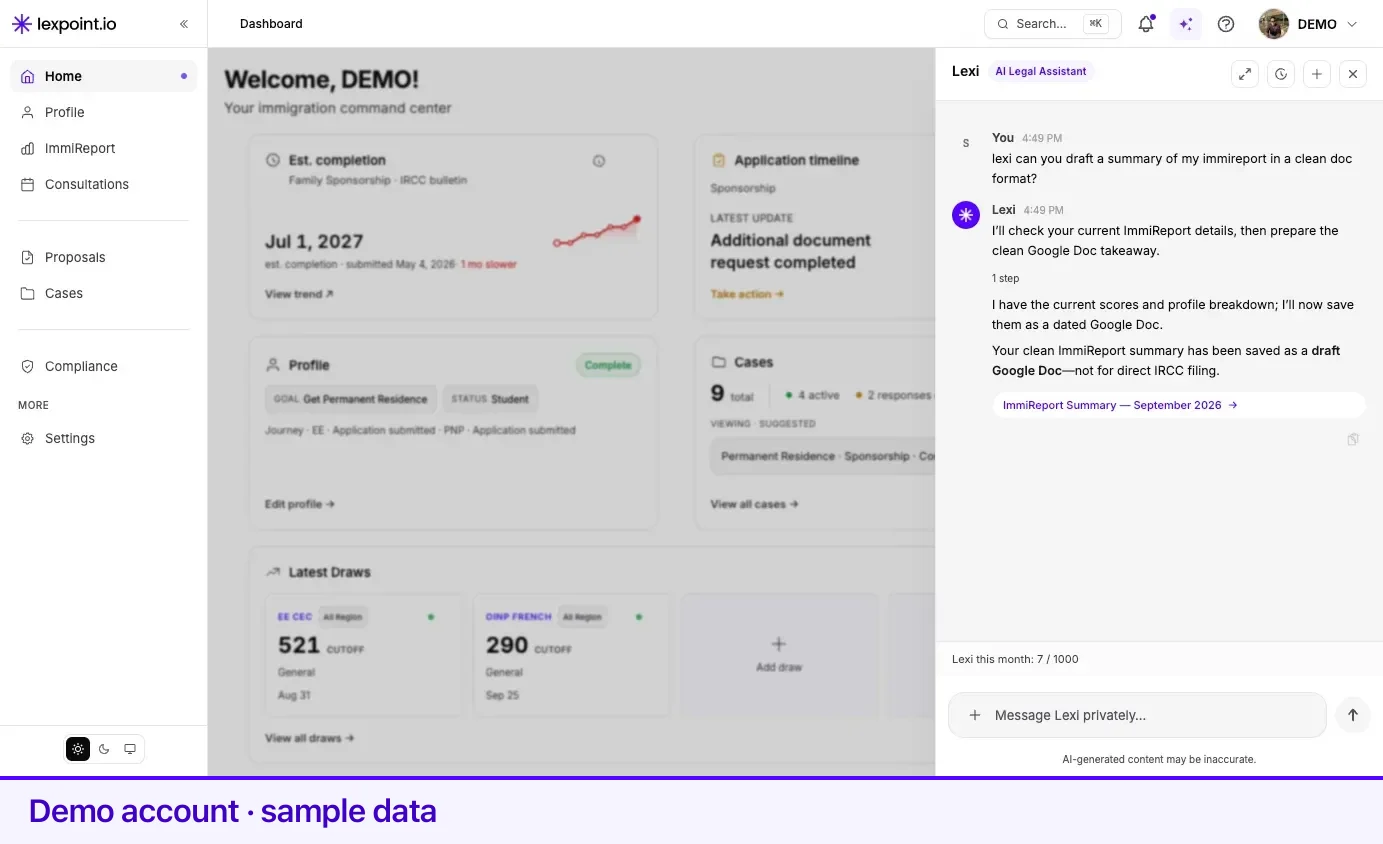
The chip is the way into the Doc. The prose will say the summary was saved as a draft Google Doc — not for direct IRCC filing. That limit is the product’s, not a suggestion.
If Drive is not connected, Lexi points you to Integrations rather than creating a file. Shared Lexi on a case cannot write this Doc; use the private assistant.
See What Lexi can do and Asking Lexi.
Disconnecting Drive
Section titled “Disconnecting Drive”On the Google Drive card, press Disconnect →. The card asks Disconnect this Drive?, with Cancel and Disconnect. Confirming returns the pill to Not connected and the page says Google Drive disconnected.
Lexpoint then cannot pick files, copy a package, or create a Doc until you connect again. Files already in your Drive stay in your Drive — delete those in Google if you do not want them.
Telegram
Section titled “Telegram”Telegram gives you Lexpoint notifications on your phone as they happen, and lets you reply to a case message without opening the app. It is an addition to email, never a replacement for it — the required email categories keep arriving either way.
Everything happens through one bot: @immiwatch_bot. You can connect from two places:
- Integrations — Connect → on the Telegram card opens a Connect Telegram window. Press Connect Telegram to get a QR code, a six-digit code, and an Open Telegram button. The window reads Waiting for confirmation… until the bot confirms, then closes, and the page says Telegram connected. Close for now leaves the connection pending.
- Notifications — the Telegram tab on Settings → Notifications. The steps below follow this tab.
Connecting
Section titled “Connecting”- Open the Telegram tab and press Connect Telegram.
- Lexpoint shows Scan or Click to Connect — a QR code, a six-digit code, and an Open in Telegram button.
- Use whichever suits where you are:
- On a computer, with your phone in hand — scan the QR code with your phone’s camera.
- On your phone — tap Open in Telegram. The bot opens with the code already attached.
- By hand — open Telegram, search for @immiwatch_bot, start the chat, and send the six-digit code as a message.
- The bot replies Connected. Hey [your name], your Telegram is now linked to your Immigratic account.
- The page moves to Telegram Connected on its own, showing your Telegram username and the date you connected.
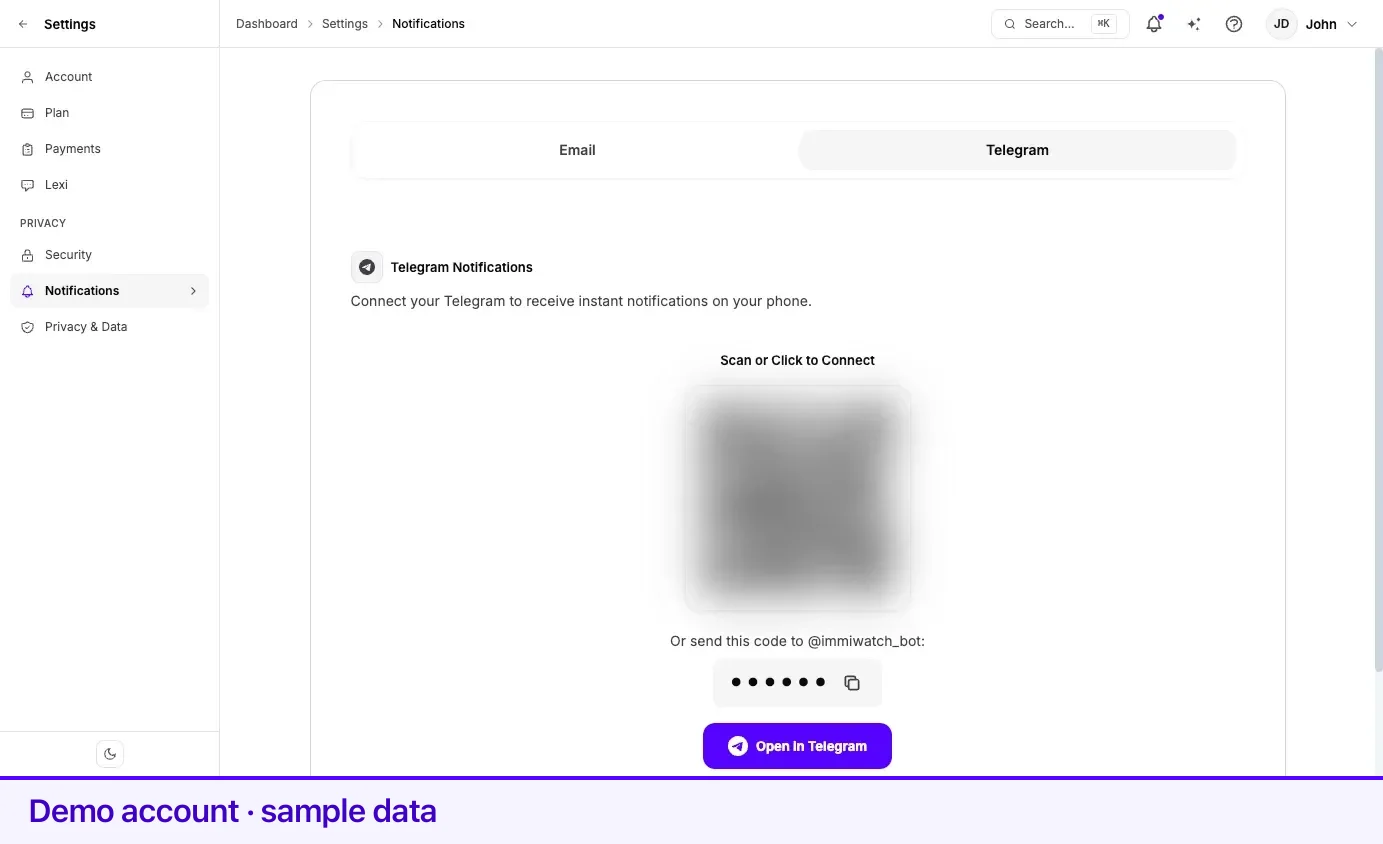
The page watches for the connection itself, so you do not need to reload. If you would rather not wait, Refresh Status checks immediately.
If you tapped Start without the code
Section titled “If you tapped Start without the code”This is the common stumble. Opening the bot and pressing Telegram’s Start button does not link
anything unless the code travelled with it. The bot answers a bare /start with Welcome. To
connect your account, go to Settings -> Notifications in the app and send the 6-digit code shown
there.
The fix is to send the code as an ordinary message in that same chat. The pending panel says the same: Send the code again if you already tapped Start without it.
If the code is refused
Section titled “If the code is refused”Sending a code that no longer matches a pending connection gets Invalid or expired code. Please get a new code from Settings -> Notifications in the app. Return to the Telegram tab, press Cancel, and start again.
What you get once connected
Section titled “What you get once connected”The connected panel states the rule: You’ll receive Telegram notifications for all enabled categories above. Your Telegram messages mirror your email preferences rather than having settings of their own — turn a category off on the Email tab and it stops arriving in both places. See notification preferences for which categories are optional and which are always on.
Replying from Telegram
Section titled “Replying from Telegram”The bot is two-way. You can answer a Lexpoint case message from your phone, and your reply lands in the case thread it belongs to.
Use Telegram’s reply function on the specific Lexpoint message. That reply is how the bot identifies which thread you mean. A message sent into the chat without one is answered with Reply directly to a Lexpoint message in this private chat so I know which case thread to post into — the bot declines to guess rather than posting your words in the wrong place.
Four limits are worth knowing before you rely on it:
| What you do | What happens |
|---|---|
| Reply to a Lexpoint message with text | Posted into the matching case thread |
| Send a message with no reply target | Rejected, with guidance to reply to a message |
| Send a photo, document, or other attachment | Rejected — Attachments are not supported here yet. Please upload documents in the app, or reply with plain text |
| Reply to a very old message | That message can no longer accept replies here. Please continue the conversation from the app |
Documents always go through the app. Telegram is for text replies and alerts, not for sending identity documents into a chat.
Disconnecting Telegram
Section titled “Disconnecting Telegram”On Integrations, press Disconnect → on the Telegram card, then Disconnect. On the Notifications tab, press Disconnect Telegram on the connected panel and confirm. The bot sends a closing message — your Telegram has been disconnected from Immigratic. You won’t receive notifications here anymore — and Telegram messages stop immediately.
Your email preferences are untouched. To reconnect later, come back to the same tab and run the connection again with a fresh code.
Suggest an integration
Section titled “Suggest an integration”Suggest → opens a short form: Integration (the provider’s name) and an optional Note. Submit logs it and reads Thanks — we logged [name]. You can send another tomorrow. You can send one suggestion a day. Until tomorrow the card shows Logged today with the name you sent.
Related
Section titled “Related”- Settings overview — where Integrations sits among the other settings
- Notification preferences — which emails Telegram mirrors, and which cannot be switched off
- Uploading documents — the Google Drive tab on a requirement
- Finalization — Your Drive on Packages
- What Lexi can do — the Drive Doc write, and that it needs Confirm
- Cases — the case threads your Telegram replies post into
Frequently asked questions
Does a Lexi Google Doc replace a file I would send to IRCC?
No. The confirmation and the chat both say the Doc is a draft, not for IRCC filing. Use it as notes. Filing still goes through your case package.
Can I import a Google Doc, Sheet, or Slide into a requirement?
Not yet. The picker accepts PDF, JPEG, PNG, DOC, and DOCX. For a native Google file, download it as PDF first, then choose that PDF.
Why was my Google account refused?
The Google account must be one you sign in to Lexpoint with, or have the same email as your Lexpoint account. Otherwise the page says "That Google account does not match the one you use to sign in."
Can Lexpoint see everything in my Drive?
No. Lexpoint asks Google only for access to the files you pick in the Drive picker and the files Lexpoint creates for you, such as a package copy or a Lexi Doc.
Which Telegram bot is the real one?
@immiwatch_bot, and only that one. Lexpoint never asks you to start a different bot, and never asks for your code anywhere except in that private chat.
Can I reply to a Lexpoint message from inside Telegram?
Yes, but you must use Telegram's reply function on the specific Lexpoint message. That is how the bot knows which case thread your words belong in. A plain message with no reply target is rejected with guidance rather than posted somewhere arbitrary.
Does connecting Telegram stop my emails?
No. Telegram is an additional channel. Email preferences are set separately on Notifications, and connecting or disconnecting Telegram does not change them.
My Telegram code expired before I sent it. Is something broken?
No. Codes are valid for ten minutes by design. Start the connection again for a fresh one.