

Messages on a case
Every screen inside a case carries the same conversation panel, so you never have to leave what you are doing to ask about it. Open it with the round button at the bottom right of a case.
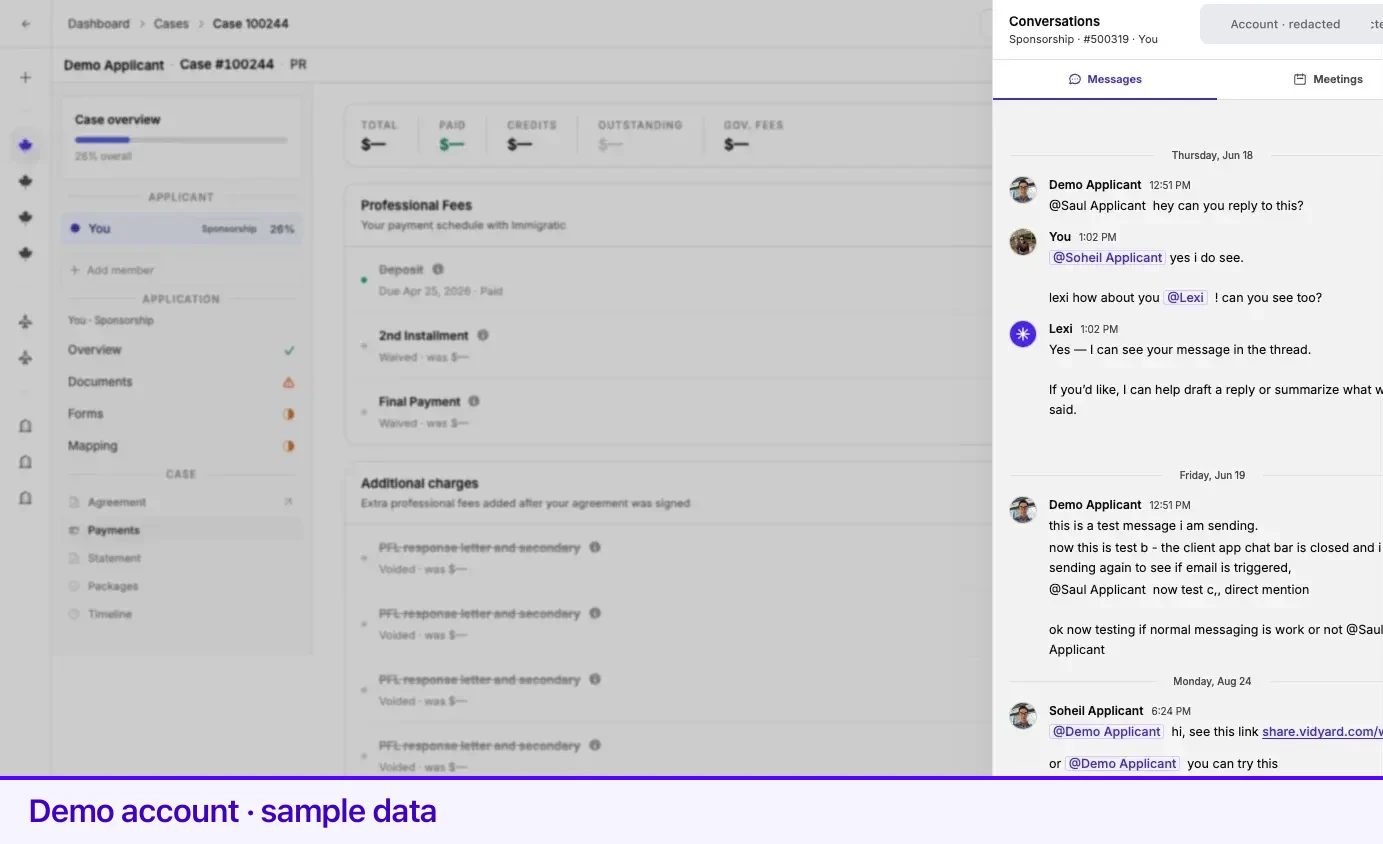
The panel is headed Conversations and has two tabs: Messages and Meetings. Under the heading it names which application you are talking about — program, application number, and the person it belongs to.
Press Escape to close it.
Messages
Section titled “Messages”The Messages tab is the thread for one application, shared between you and your representative. It is marked Staff & client so it is clear that what you write there is read by your representative.
- Type in the box at the bottom and send. Messages appear in date order with day dividers.
- Type @ to mention someone. Confirmed mentions become chips in the field — select one or press Backspace to remove it.
- While someone else is writing, the thread says … is typing….
If the case has more than one application, a selector at the top of the panel switches threads. The thread you are reading always belongs to the application named in the caption.
Comments on one file
Section titled “Comments on one file”A question about a specific document belongs on that document.
- Open the file from its requirement in the Documents tab.
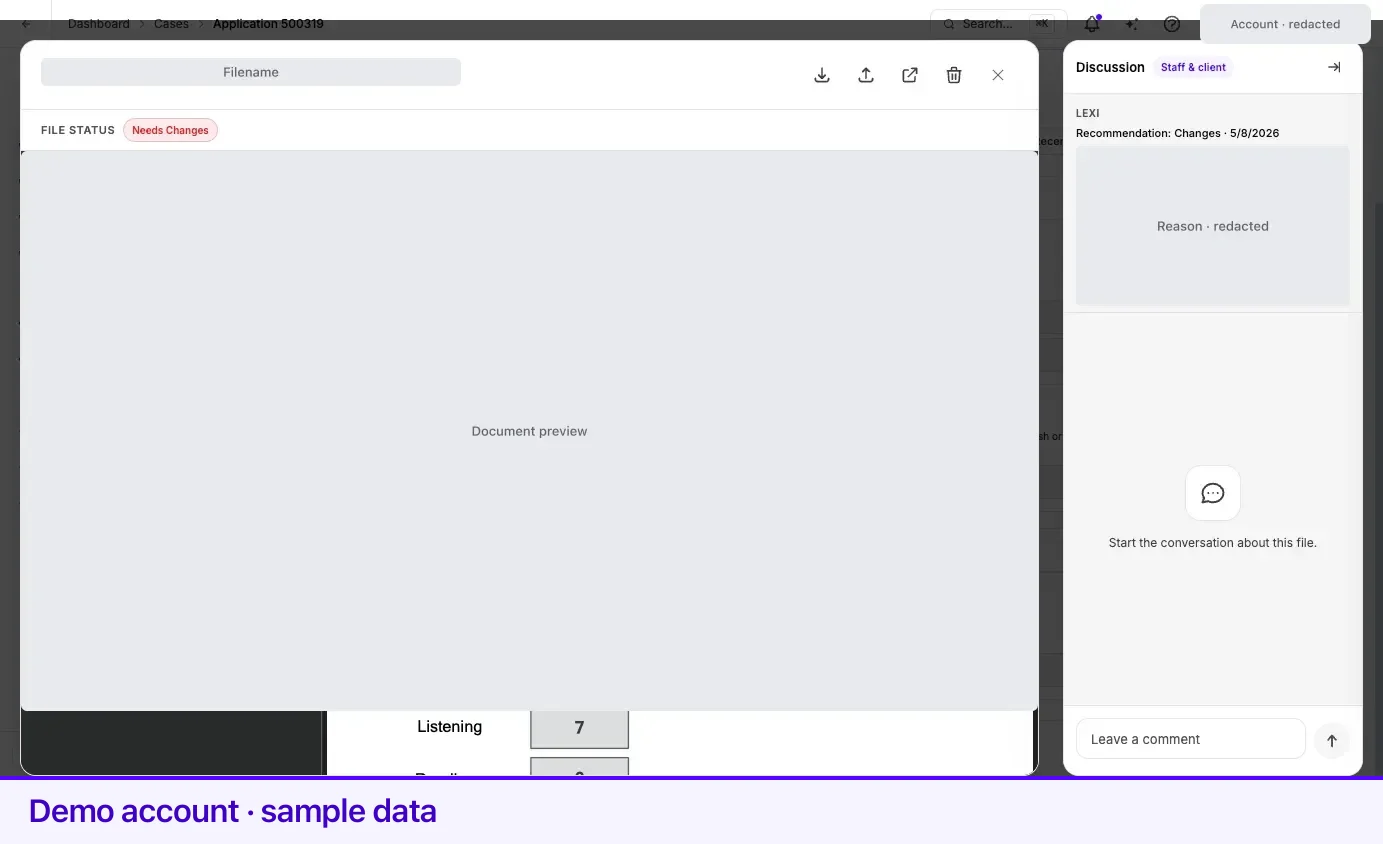
- The document viewer opens with a Discussion rail beside the preview, also marked Staff & client.
- Write in the box — its prompt is Leave a comment — and send.
Where Lexpoint’s assistant has read the file, a Lexi block sits above the thread with its headline and summary, so the conversation starts from the same reading you can see.
On a narrow screen the viewer switches between Preview and Discussion. On a wide screen the rail can be collapsed with Collapse discussion and reopened from the viewer toolbar.
Knowing when there is a reply
Section titled “Knowing when there is a reply”| Where | What it looks like |
|---|---|
| The conversation button | Carries an unread marker when there is something new in Messages. |
| A file row in the checklist | A small dot on the right of the row means unread discussion on that file. |
Case activity also reaches you by email — see Notification preferences for which categories are required and which you control.
Meetings
Section titled “Meetings”The Meetings tab lists meetings on the case: the next one coming up, a way to Book time with us, and a Past section of previous meetings. When nothing has happened yet, the past list reads None yet.
What to send where
Section titled “What to send where”| Question | Where to put it |
|---|---|
| Why was this file sent back? | The Discussion rail on that file. |
| A requirement does not apply to me | Messages, on that application. |
| I cannot upload something | Messages, on that application. |
| A slot on the package looks wrong | Messages, on that application. |
| Anything about eligibility or program rules | Messages — or book a consultation. Documentation does not answer those. |
Related
Section titled “Related”- Document review statuses — read the review note before asking why
- Uploading documents — fixing what a comment asked for
- Case Studio tour — where the panel sits in a case
- Notification preferences — how case activity reaches your inbox
Frequently asked questions
Is there one message thread for the whole case?
No. Messages are per application, so a case with two applications has two threads. When a case has more than one, a selector at the top of the panel switches between them without leaving the page.
How do I ask about one specific file?
Open the file to get the document viewer, then use the Discussion rail beside the preview. That comment stays attached to that file, which is much easier to answer than a description of it in the general thread.
How do I know there is a reply waiting?
The conversation button carries an unread marker, and a file with unread discussion shows a small dot on its row in the checklist.