

Create your account
Creating a Lexpoint account takes one screen and one email. There is no password to choose: you either continue with Google, or Lexpoint emails you a single-use link that signs you in.
Go to my.lexpoint.io/auth/register. The heading reads Create your account.
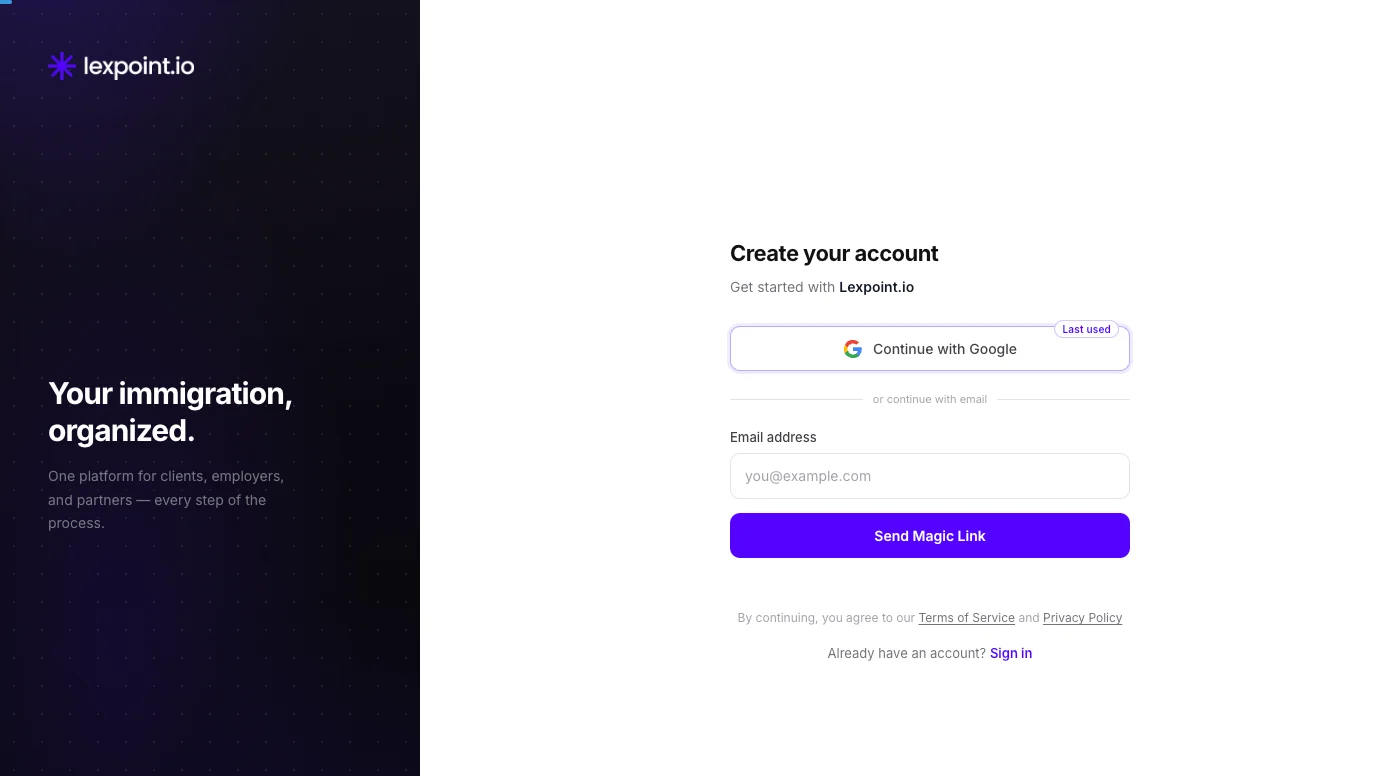
Sign up with Google
Section titled “Sign up with Google”- Select Continue with Google.
- Google opens Choose an account — to continue to Lexpoint.io. Pick the Google account you want to use, then approve the request if Google asks.
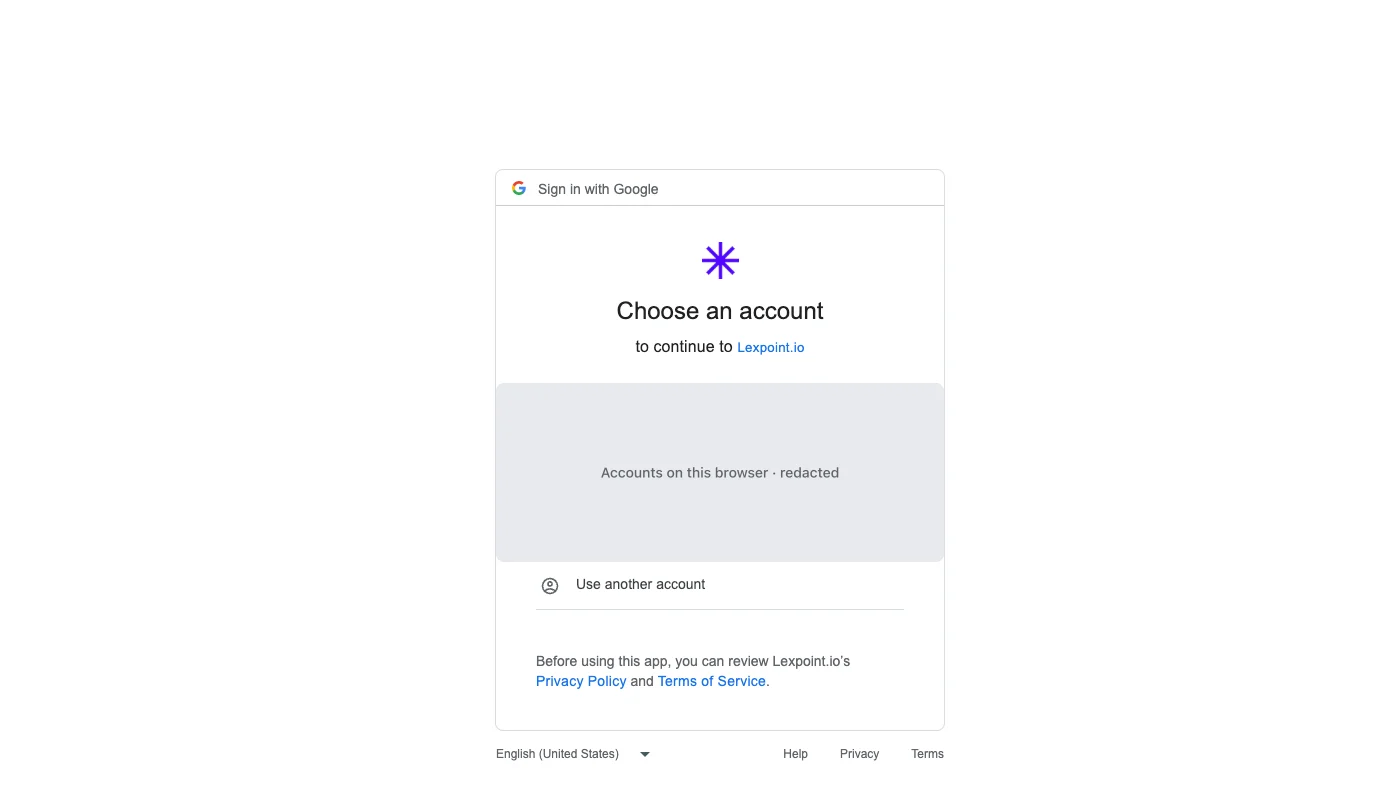
You are returned to Lexpoint signed in. Your name comes across from Google, so the name question is skipped later during onboarding.
Sign up with an emailed link
Section titled “Sign up with an emailed link”- Under or continue with email, type your address into Email address.
- Select Send Magic Link. The button reads Sending… while the request goes out.
- Lexpoint confirms Magic link sent! Check your email and click the link to continue. The message is the same whether or not the address already has an account.
- Open the email and select the link. It signs you in and returns you to Lexpoint.
The security check
Section titled “The security check”The sign-up screen runs a Cloudflare security check in the background. Most of the time you never see it. When Cloudflare wants a click, a checkbox appears under the button with the message Please tick the security check above to continue. Tick it. A send you have already started waits for the tick and then goes through, so you do not need to select Send Magic Link again. The message clears once the check passes.
If the check cannot be completed, the screen reads We could not complete the security check. If a checkbox appears, tick it, then try again.
A likely typo. If the address looks mistyped — gmai.com or gmail.con, for example —
pressing Send Magic Link holds the send and asks Did you mean …? with a corrected address.
Select the corrected address to fix it and send, or Keep as typed to send exactly what you
entered.
Because a link arrives in the same inbox every time, the email address you sign up with is the one you must keep access to. Choose a personal address you will still control in a year, not a work address you lose when you change jobs.
Which method was used last
Section titled “Which method was used last”Continue with Google or Send Magic Link can show a small Last used tag. It marks the method this browser used most recently. It is a hint, not a restriction — either method still works.
Terms, and where your data sits
Section titled “Terms, and where your data sits”Below the form: By continuing, you agree to our Terms of Service and Privacy Policy. Both open on lexpoint.io. The panel beside the form states that data is hosted in Canada.
If you arrived through a partner link
Section titled “If you arrived through a partner link”A partner’s referral link (my.lexpoint.io/r/…) opens a Partner connection dialog: You’re
signing up via the partner, with a consent statement and the checkbox I agree to connect with this
partner. If the link also names the partner (?partner= in the address), the subtitle under the
heading reads Get started with the partner’s name instead of Lexpoint.io.
Continue with Google and Send Magic Link stay disabled until you tick the box or decline. Trying anyway shows Please accept the partner consent checkbox to continue.
| Control | What it does |
|---|---|
| Done | Closes the dialog, with the checkbox as you left it. |
| No, continue without partner | Opens Skip partner connection? with Go back and Skip anyway. Skip anyway removes the partner from this sign-up. |
| Closing the dialog unticked | Collapses it into a small Partner connection card with a Review link, so you can come back to it. |
The skip confirmation states that a skipped partner may not see your status or progress in their dashboard, and that you can connect later in Settings → Associations → Partners.
If you were invited
Section titled “If you were invited”An invite link shows a banner above the form, starting Invited to join. What it names depends on the invite:
| Invite from | The banner names |
|---|---|
| An organization | The organization, and the role you are invited as |
| Your partner | The person who invited you, and your household relationship — see link with your partner |
| An employer | The employer — see Workforce |
| A client who wants a delegate | A client, and that you would act as their delegate on one case — see cases shared with you |
Not now dismisses the banner and removes the invite from this sign-up.
What happens next
Section titled “What happens next”The first sign-in sends you into onboarding at /app/onboarding (an employer invite opens its claim
page first). You cannot reach the dashboard
until onboarding is finished — that is enforced, not a suggestion, because the rest of the product
is calculated from those answers.
Related
Section titled “Related”- Onboarding, step by step — the questions that come immediately after this
- Sign in and account recovery — how to get back in on every later visit
- Two-step verification — add an authenticator app once you are inside
- Your account settings — sign-in methods, notifications, privacy
Frequently asked questions
Does Lexpoint use passwords?
No. A client account is created and accessed either with Google or with a single-use magic link sent to your email address. There is no password field on the sign-up or sign-in screen, so there is no password to forget or to steal.
What happens if I sign up with an email address that already has an account?
Nothing is duplicated. The form shows the same message for every address — "Magic link sent! Check your email and click the link to continue." — and the link signs you in to the account you already have.
Can I use the same account for Google and for email links?
Yes. Every method you have used is listed under Settings → Account, on the Sign-in tab, as a connected sign-in method.