

Case Studio tour
A case is one screen with a fixed shape: a context bar across the top, a case tree down the left, and the work in the middle. Everything on your file is reachable from the tree, and the tree does not change as you move around.
Open a case from Cases.
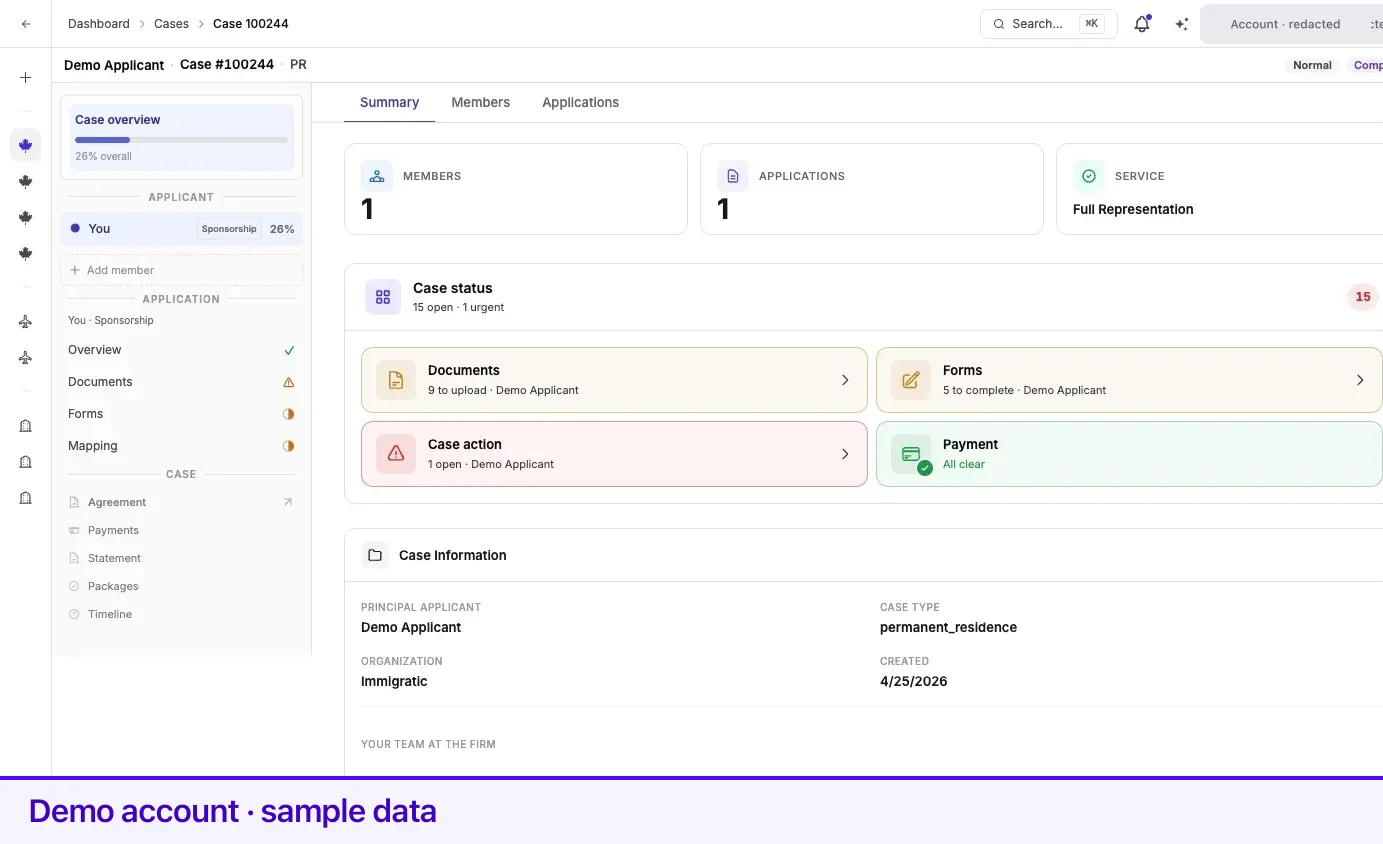
The context bar
Section titled “The context bar”The strip at the top names the case and its state. It reads, in order:
| Segment | What it is |
|---|---|
| Name | The principal applicant on the case. |
| Case # | Your case number. Quote this to your representative. |
| PR / TR / PNP / JR | The case type, abbreviated. |
| Due | The internal servicing date your representative is working to. Plain more than a week out, amber within seven days or on the day itself, red once past on an Active case. |
| Priority and status chips | On the right. Normal or Urgent, then the case status. See Case status. |
Selecting the bar returns you to the case overview from anywhere in the case.
The case tree
Section titled “The case tree”The tree has three zones.
Case overview
Section titled “Case overview”At the top, with a progress bar underneath reading X% overall — the average across every member’s applications.
Applicant
Section titled “Applicant”One row per person on the case, principal first, then spouse or common-law partner, then dependent children. Your own row is labelled You.
Each row carries the person’s program and their own progress percentage. Selecting a row switches the whole workflow below to that person’s application, keeping whichever step you were on.
A member who has no application yet cannot be selected: the row shows a hollow circle, a dash where the program would be, and 0%. Add application appears directly under it.
Add member sits under the list. On a case whose family composition is fixed by the proposal it is disabled, with the explanation: This case is limited to the family members listed on the proposal. Contact your representative if you need to change the family composition.
Application
Section titled “Application”The four steps for the selected person’s application, each with a glyph showing where it stands. See Document review statuses for what each glyph means.
| Step | What is there |
|---|---|
| Overview | Program, location, applicant, case number, and the date the application was created. |
| Documents | The upload checklist. |
| Forms | The application forms Lexpoint fills for you. |
| Mapping | Which document fills which IRCC submission slot. |
A pair of links at the bottom of each step walks you through them in order — Overview → Documents → Forms → Mapping. The forward link always reads Continue →; the back link names where it goes: ← Back to case, ← Back to overview, ← Back to documents, ← Back to forms.
Below that sit the case-wide tools.
| Tool | What it opens |
|---|---|
| Agreement | Your signed service agreement, in a new tab. |
| Payments | The payment schedule for the case. See Payments and invoices. |
| Statement | Statements and fee receipts for the case. Until your representative shares one it reads Statement not available yet, with a link to the payment schedule. |
| Packages | Case-level finalization. See Finalization. |
| Timeline | Every event on the case, in order. See Case timeline. |
Which of these appear depends on the case. A self-reported case — one where you are tracking an application rather than being represented on it — has no Payments, Statement, or Packages. Team and Audit are staff tools and never appear on your side.
The case overview
Section titled “The case overview”The case overview itself has three tabs: Summary, Members, and Applications.
Summary opens with three cards: Members and Applications, each a count that opens its tab, and Service, the service on the case.
Under them, the Case status panel has four tiles covering Documents, Forms, Case action, and Payment. Each is green when clear and amber or red when something is open, and each tile links to the place the work is. When nothing is outstanding the panel reads You’re all caught up. Where a case has more than one person with open work, chips above the tiles let you filter to one of them.
Next, a Case Information card lists Principal Applicant, Case Type, Organization, and Created. In the same card, Your team at the firm names your Case manager and Lead counsel, or reads Unassigned where the firm has not named one yet. Those assignments belong to the firm — hovering a row says Only your representative firm can update assignments.
Three buttons close the tab:
| Button | What it does |
|---|---|
| Add Applicant | Opens Members. |
| Start Application | Opens Applications. Disabled with All applicants already have an application when every member has one. |
| Packages | Opens case-level finalization. |
A self-reported case shows Tracking model, Applications, and Created cards instead, with no status panel and no buttons.
Members and Applications list the people and applications on the case. See Family members on one case.
Finding something quickly
Section titled “Finding something quickly”| You want | Go to |
|---|---|
| What is outstanding right now | Case overview → Summary → the status tiles |
| A specific document | Pick the person in the tree → Documents |
| An IRCC form | Pick the person in the tree → Forms |
| What happened and when | Timeline |
| The final submission package | Packages |
| The fee schedule | Payments |
| Your signed agreement | Agreement |
| To ask a question | The conversation panel, available on every screen in a case |
Related
Section titled “Related”- Case status — what the status and priority chips on the context bar mean
- The Cases list — the screen you opened the case from
- Requirements and checklists — the work that lives inside an application
- Case timeline — what has happened on the case
- Family members on one case — how multiple people share one case
- Messages on a case — talking to your representative in context
Frequently asked questions
Why does the left tree say "You" instead of my name?
On your own case the principal applicant is labelled "You". Other members are shown by name.
What is the percentage next to each person?
Progress across that person's applications, averaged over their documents, forms, and package mapping. It is a completeness measure, not a prediction about the outcome.
I cannot find Timeline or Packages on my phone.
On narrow screens the case tree collapses. Use the menu button at the top left of the case to open Case navigation.